Expense & Reimbursement (Page)


Overview
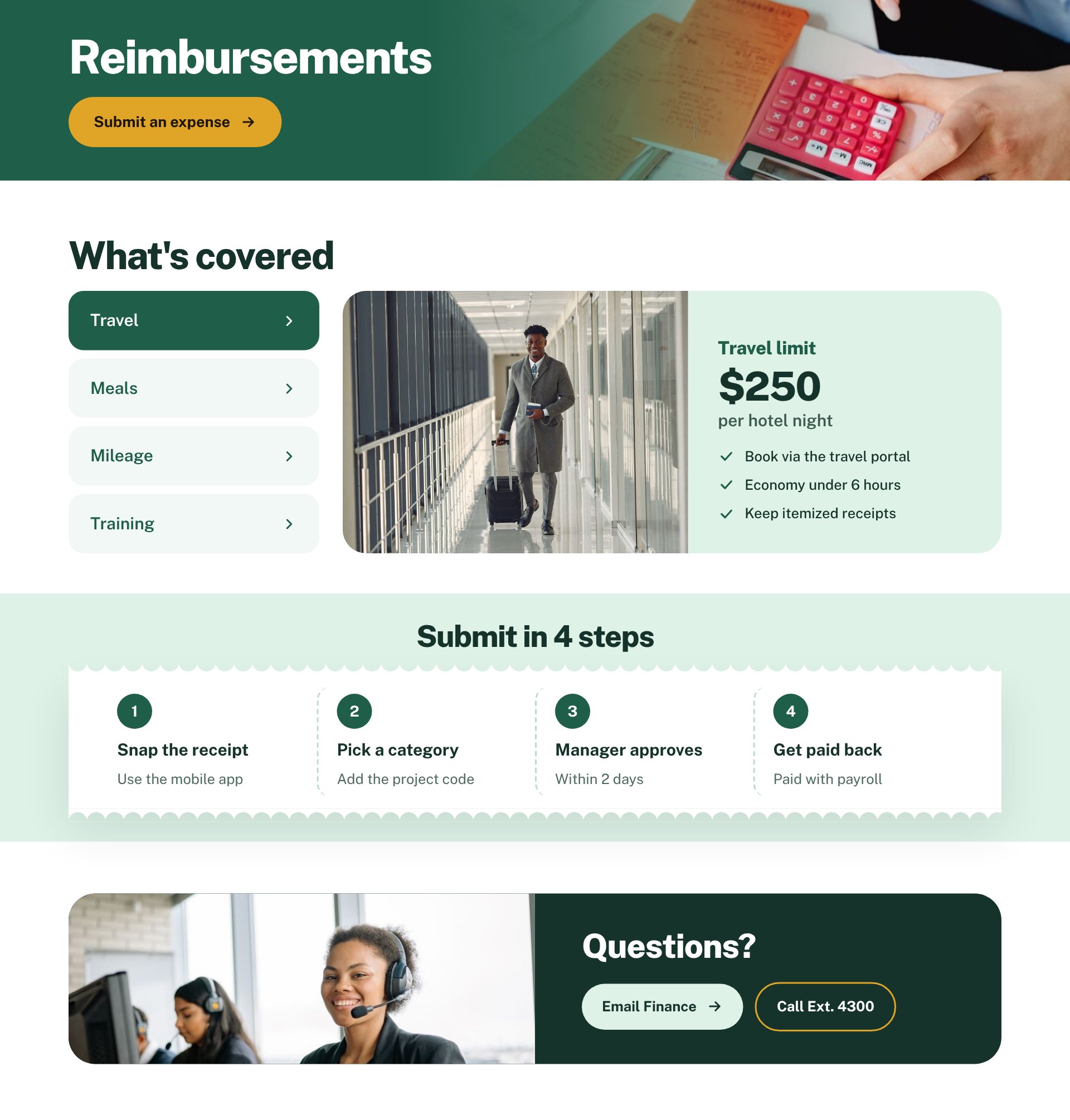
- A green header with a photo that fades in from the right and a Submit an expense button
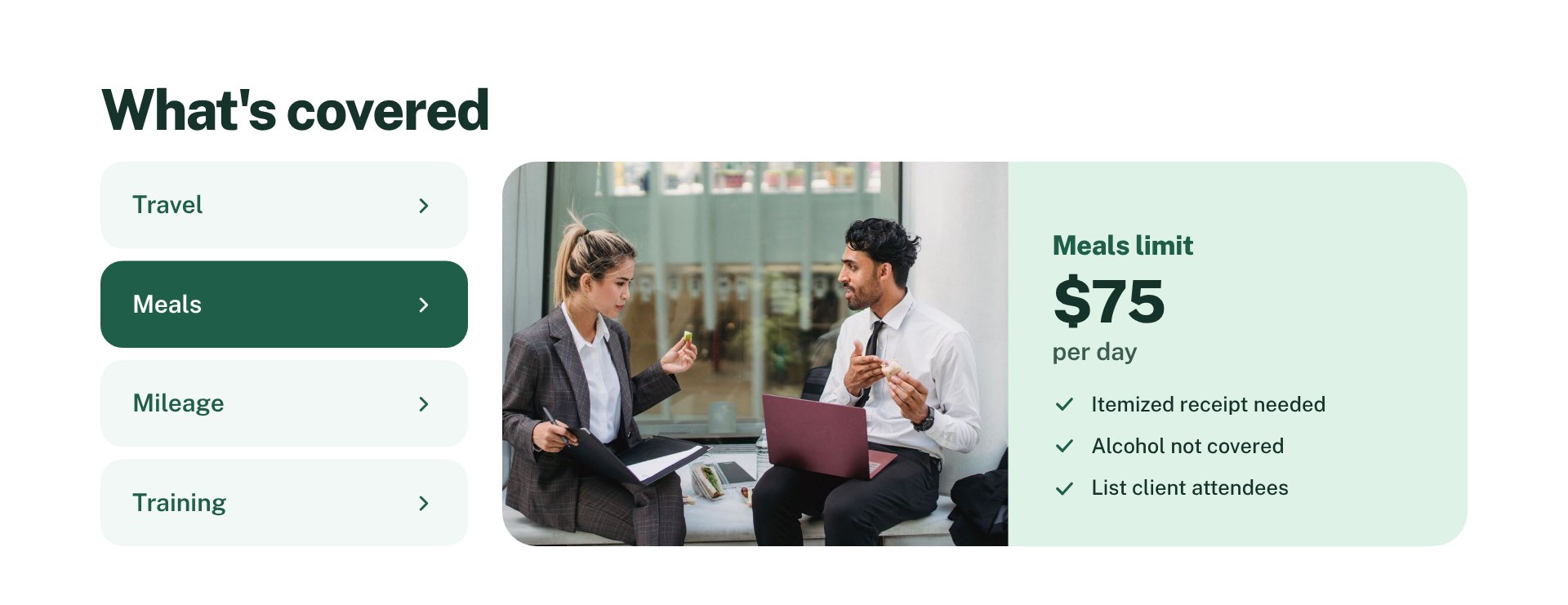
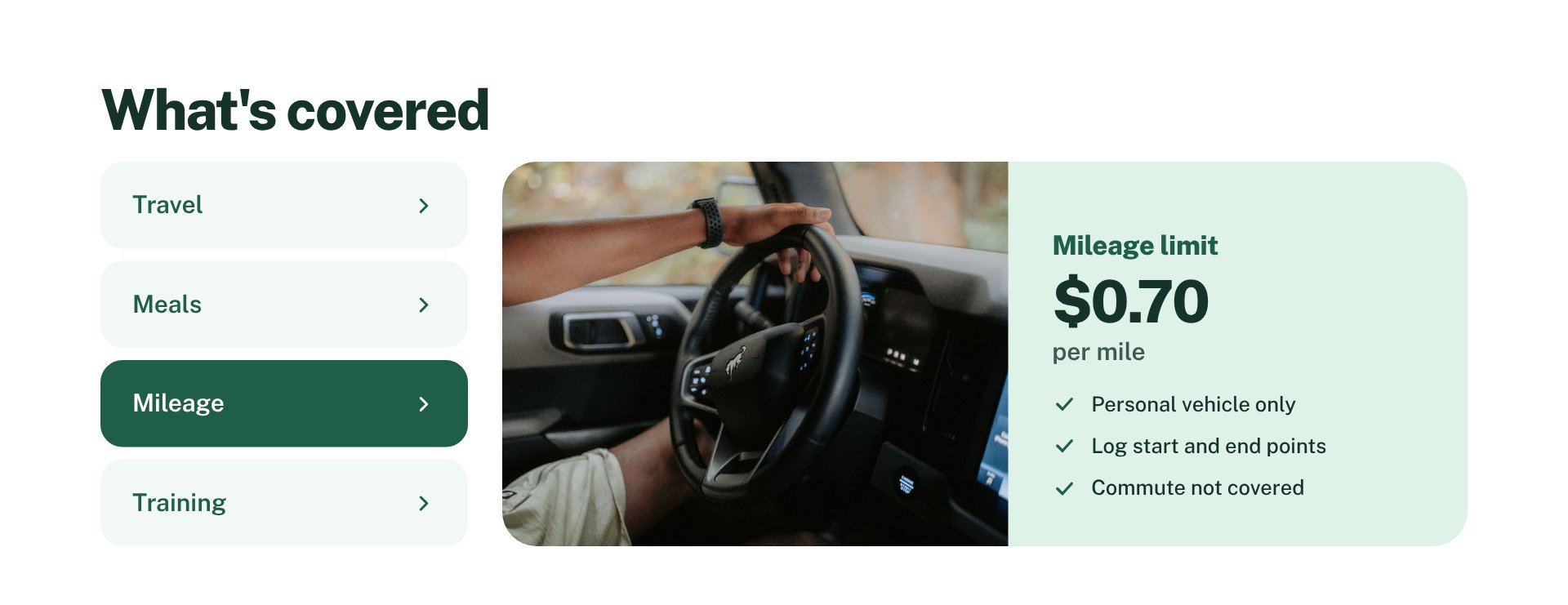
- A dynamic What’s covered section switches between Travel, Meals, Mileage and Training, each with its own photo, spending limit and three short rules
- A Submit in 4 steps strip, styled like a receipt, walks employees from snapping the receipt to getting paid back, with a hover effect on each step
- A Questions card pairs a Finance team photo with Email Finance and Call buttons
- Built as a single SharePoint HTML page and available as a downloadable file that can be uploaded and edited
Benefits
- Employees see spending limits before they spend, which means fewer rejected claims
- Dynamic categories keep the page short while still covering every common expense type
- Four clear steps take the guesswork out of submitting an expense
- A one-click email and phone contact gets questions answered fast
- Real photos and a clean green and gold look give Finance a polished page that works on phones and desktops
- One self-contained file is easy to copy to other sites and update when limits change
- Complements the main Finance department site, which keeps news, reports and documents in standard web parts
Common Questions About This Expense and Reimbursement Page
What is this Expense and Reimbursement Page built with?
It is a SharePoint HTML page – a single file stored in the Site Pages library of a department site. The layout, photos, font and interactive categories all live inside that one file, so there are no web parts, no SPFx solutions, and no third-party tools. It is the kind of clean, maintainable secondary page Greg Zelfond builds to sit alongside a standard SharePoint Finance site.
What’s included on the Expense and Reimbursement Page?
A header with a Submit an expense button, a dynamic What’s covered section with four expense categories and their limits and rules, a 4-step submit guide styled like a receipt, and a Questions card with a Finance team photo plus Email Finance and Call buttons.
Does this design use any custom code or third-party tools?
No third-party tools, add-ins, or custom development. The page uses SharePoint’s built-in HTML page capability, which runs the file inside SharePoint’s own secure sandbox. A few lines of script inside the same file switch between the expense categories, so nothing reaches outside data or affects other parts of the site.
Can this design be customized for our organization?
Absolutely. The categories, limits, rules, steps, photos, colors and contact details can all be changed in the file, and you can add or remove categories. Links to other SharePoint sites in your tenant work right away; links to outside websites, such as an expense app, need their domain added under Site Settings, HTML Field Security. You can download the HTML file here or have Greg tailor it to your expense policy.
Why use an HTML page here instead of a regular SharePoint page with web parts?
The main Finance page relies on web parts for news, reports and documents that change often. Expense limits and steps change rarely, so an HTML page can give them a richer, more interactive layout, with category switching and a receipt-style steps strip that web parts cannot produce. The tradeoff is that edits are made in the file rather than in the page editor.
Can Greg build this Expense and Reimbursement Page for our organization?
Yes – this is exactly the kind of work Greg Zelfond does. As an independent SharePoint consultant and Microsoft MVP, he designs and builds out-of-the-box department sites and secondary pages like this one, matched to your branding and your actual expense policy. Reach out through the contact page to talk about your Finance site.