Agent Link Web Part

Benefits
- Puts answers where people work: an HR agent on the HR site, an IT agent on the helpdesk page, each exactly where its knowledge applies.
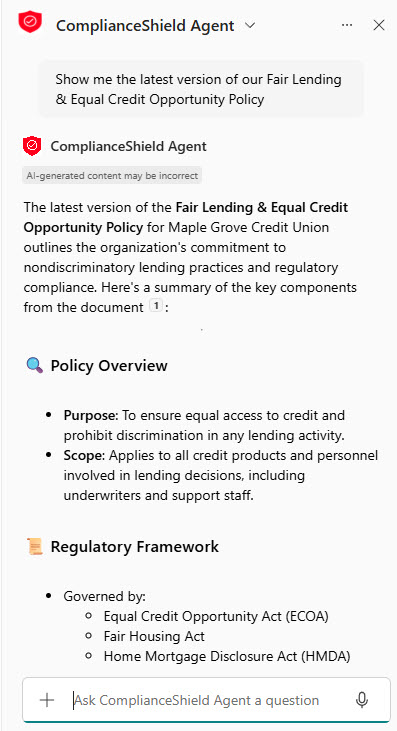
- Keeps people in context: the agent opens in a pane beside the page, so the content stays visible during the conversation.
- Takes seconds to configure: pick the agent, choose a size, decide whether the title shows, and publish.
- Encourages self-service: employees get natural-language answers about the very policies and processes the page describes.
- Supports Copilot adoption: surfacing agents on familiar intranet pages makes them discoverable without extra training.
Settings
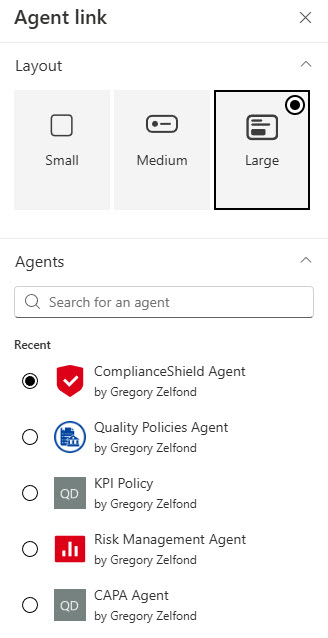
- Agent: search for and select the agent the link opens.
- Size: Small, Medium, or Large.
- Title: choose whether the agent’s title displays on the button.
- Small: a compact link that tucks into a narrow column or a busy sidebar.
- Medium: a balanced call-to-action for standard column widths.
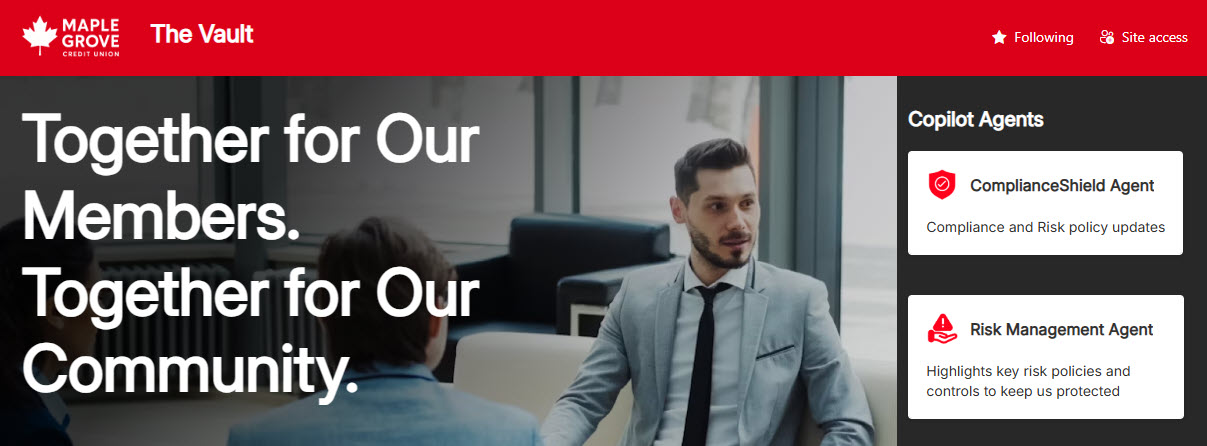
- Large: a prominent block that makes the agent a headline feature of the page.
Limits and Nuances
- A Copilot license is required to chat: the link only works for users with a Microsoft 365 Copilot license, or in organizations that have set up the Microsoft 365 pay-as-you-go meter. Everyone else sees a no-access message when the pane opens.
- Not supported in mobile or email scenarios: plan for desktop and browser use.
- Agent sharing must be open: share the agent with everyone who has access to the page, or visitors will be able to see the link but not use the agent.
- The agent opens in a side pane: the chat happens next to the page content, not in a new tab, so people keep their context.
- It is a link, not an embedded chat window: the web part shows a call-to-action button; the conversation starts only after the click.
- Agents available in SharePoint are configurable here too: the web part is not limited to agents built elsewhere.
- It is one of the newest web parts: rolled out in 2025, so expect the settings and behavior to keep evolving.
Agent Link vs. the Alternatives
- Agent Link vs. Quick Links: Quick Links can point to an agent’s URL, but it navigates away; Agent Link opens the agent in a pane beside the content, keeping people on the page.
- Agent Link vs. embedding a chat window: agents can be embedded as a full, always-open chat using embed code; Agent Link is the no-code, out-of-the-box route that takes seconds to configure.
- Agent Link vs. the Microsoft 365 Copilot app: the Copilot app is the general front door for everything; Agent Link brings one targeted agent (HR, IT, Compliance) to the exact page where its knowledge applies.
Common Questions About the Agent Link Web Part
What is the Agent Link web part in SharePoint?
It is a web part that places a clickable link to a Copilot agent on a modern SharePoint page. When a visitor clicks it, the agent opens in a pane beside the page, ready to answer questions – so an HR site can surface an HR agent, an IT site an IT helpdesk agent, and so on. It is a lightweight way to make agents discoverable exactly where people already work.
Do users need a license to use the Agent Link web part?
Adding the web part to a page does not require anything special, but using the agent does: links to agents only work for users with a Microsoft 365 Copilot license, or in organizations that have set up the Microsoft 365 pay-as-you-go meter. Users without access can still click the link, but a message appears in the side pane telling them they do not have access.
Where do I find the Agent Link web part when editing a page?
It sits in the web part toolbox under a newer category called AI rather than in the alphabetical list page authors usually scan, which is why many people miss it; searching for ‘Agent link’ by name finds it immediately. Once added, the configuration is short – pick the agent the link opens, choose Small, Medium, or Large, and decide whether the agent’s title displays on the button.
What happens when someone clicks the agent link?
The agent opens in a pane alongside the main page rather than in a new tab or window. The visitor can ask natural-language questions and get answers while the page content stays visible next to the conversation – useful when the agent is answering questions about the very policies or processes the page describes. Closing the pane returns them to exactly where they were.
Does the Agent Link web part work on mobile?
No – Microsoft notes that the web part is currently not supported in mobile or email scenarios. Plan for it as a desktop and browser experience: the link renders and works on standard SharePoint pages viewed in a browser, but you should not rely on it in the SharePoint mobile experience or in news posts that get distributed by email. Pair it with other support channels for mobile-first audiences.
What kinds of agents can I link on a page?
Any agent the page audience has access to – organization-specific agents for HR, IT, Compliance, or Operations, as well as agents available in SharePoint itself. The key is matching the agent to the page: an onboarding agent on the new-hire site, a benefits agent on the HR portal. The LookBook 365 designs by Greg Zelfond use this exact web part, configured entirely out-of-the-box. Agent Link Web Part embedded on a SharePoint Page Agent Link Web Part Copilot Chat Agent Link Web Part Settings