IT Troubleshooting Checklist

Overview
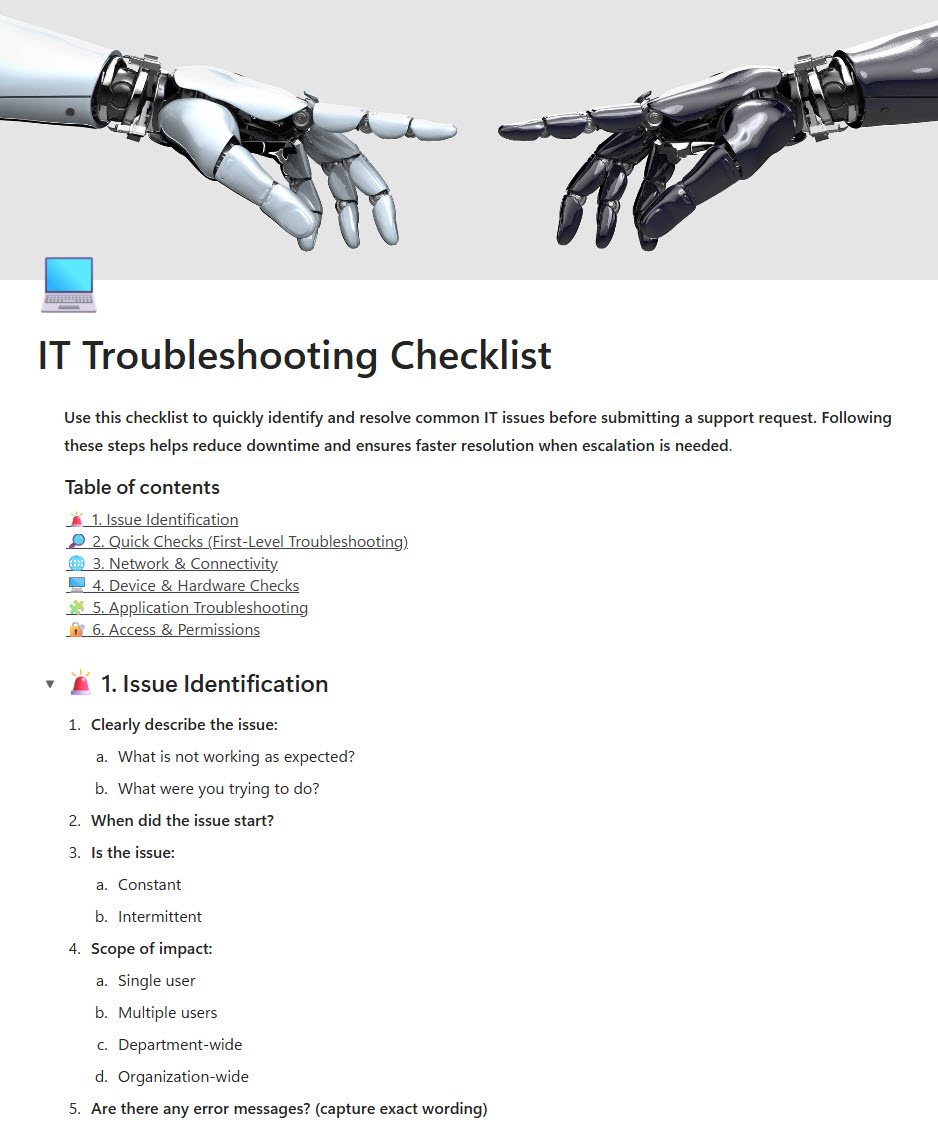
- Built using Microsoft Loop for real-time collaboration and dynamic content updates
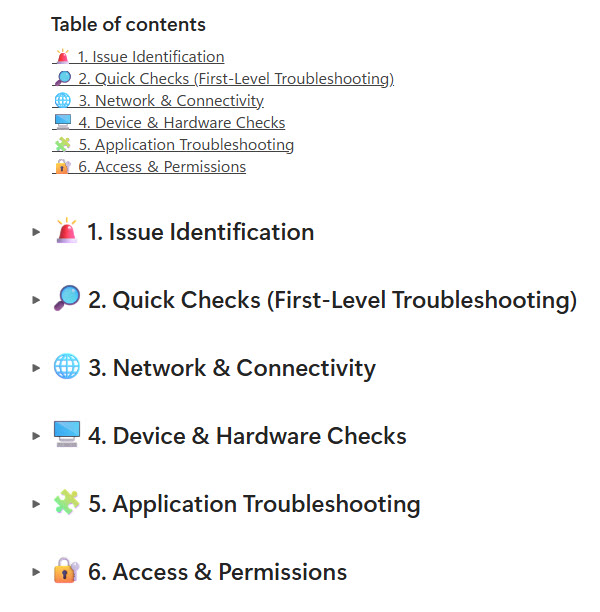
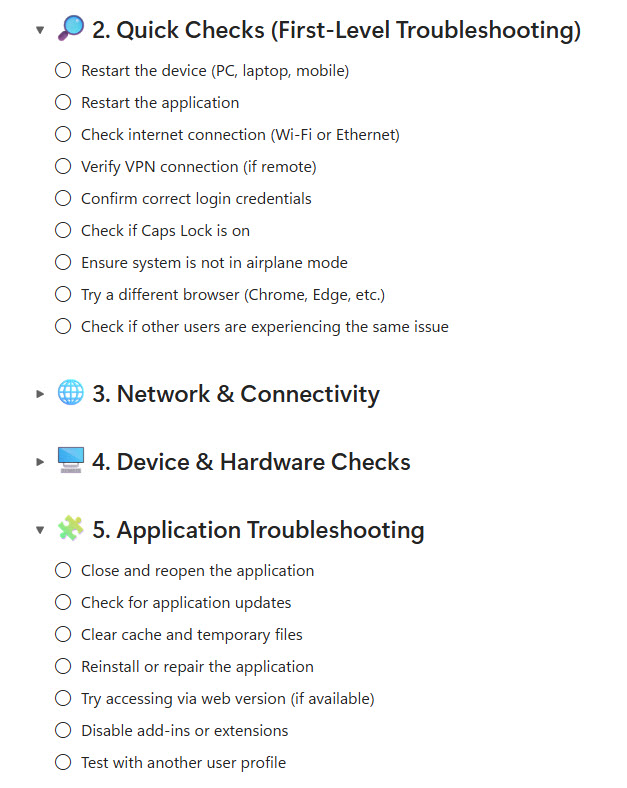
- Organized with collapsible headers to segment troubleshooting categories clearly
- Includes a table of contents (TOC) for quick navigation between checklist sections
- Designed to support IT teams in diagnosing and resolving common technical issues
- Clean, modular layout improves readability and reduces time to resolution
- Easily customizable to fit internal processes, systems, and support workflows
Benefits
- Speeds up troubleshooting with quick access to categorized issue areas
- Reduces errors by standardizing troubleshooting steps and procedures
- Improves onboarding for new IT staff with clear, guided workflows
- Scales easily as new troubleshooting categories and solutions are added
- Streamlines documentation and keeps knowledge centralized and up-to-date
Common Questions About This IT Troubleshooting Checklist
What is this IT Troubleshooting Checklist built with?
The checklist is built entirely in Microsoft Loop, the co-creation app included with Microsoft 365 – structured with collapsible headers that segment troubleshooting categories, checklist tasks, and a table of contents for quick navigation. There is no custom code and there are no third-party tools. It is the kind of clean, collaborative checklist Greg Zelfond builds for IT and help desk teams.
What’s included in the IT Troubleshooting Checklist?
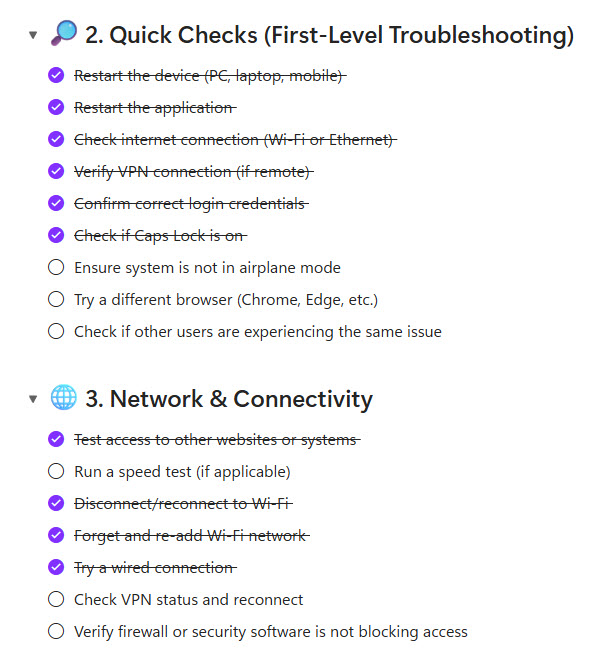
The checklist organizes troubleshooting work into collapsible sections, each covering a category of common technical issues, with a table of contents at the top for jumping straight to the right section. Within each section, checklist tasks walk technicians through standardized diagnostic and resolution steps, and completed tasks are checked off as the issue is worked – keeping every troubleshooting procedure documented in one place.
Does this design use any custom code or third-party tools?
No. The checklist is built entirely with Microsoft Loop, which is included with most Microsoft 365 business and enterprise plans – no custom code, no third-party add-ons, and nothing extra to buy. That keeps it stable, secure, and easy to maintain, with everything stored safely inside your Microsoft 365 environment. Out-of-the-box is the only way Greg builds.
Can this checklist be customized for our IT team?
Absolutely. The troubleshooting categories, sections, and step-by-step procedures can all be tailored to your internal processes, systems, and support workflows – whether that means hardware, network, account access, or application-specific issues. Greg adapts the structure to the way your help desk actually works, and the checklist scales easily as new categories and solutions are added.
Can multiple IT team members work in the checklist at the same time?
Yes. Microsoft Loop is built for real-time collaboration, so several technicians can view and update the checklist simultaneously with dynamic content updates appearing as they happen. That also makes the checklist a strong onboarding tool – new IT staff follow the same clear, guided workflows as experienced team members, which standardizes procedures and reduces errors across the team.
Can Greg build this checklist for our organization?
Yes – this is exactly the kind of work Greg Zelfond does. As an independent SharePoint and Microsoft 365 consultant and Microsoft MVP, he designs and builds checklists and trackers like this one in Microsoft Loop, SharePoint, and Lists, tailored to the way your IT team supports its users. Reach out through the contact page to get started.