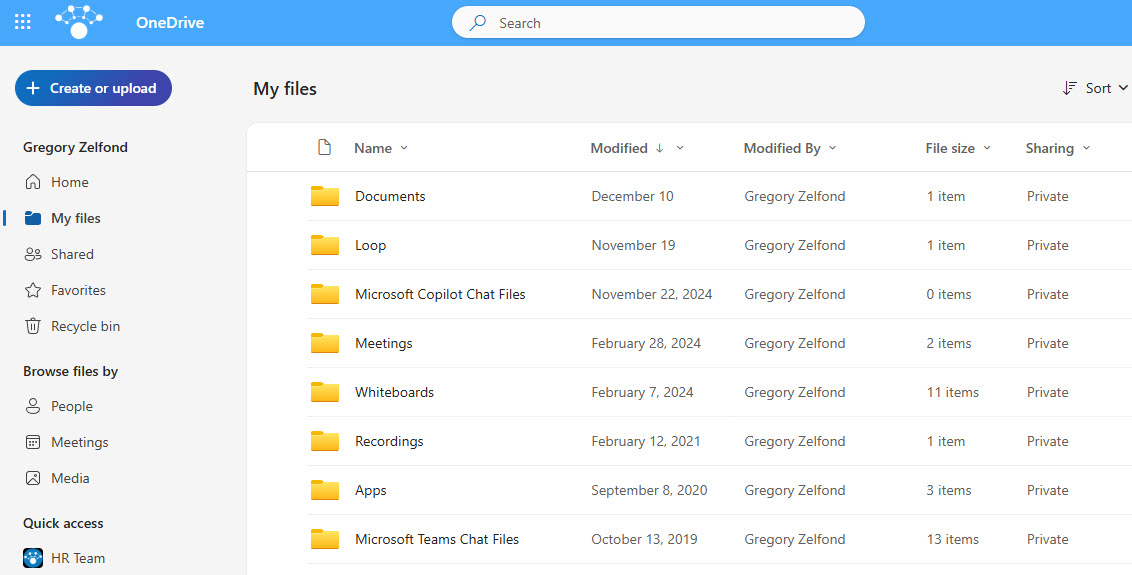
OneDrive
OneDrive is the personal cloud storage application in Microsoft 365. Every employee gets their own secure space – 1 TB on most business and enterprise plans – for drafts, working files, and anything not yet ready to share. Files sync between the cloud and your devices, so the same documents are available in the browser, in File Explorer, and on your phone. It is built on the same technology as SharePoint, which is why moving files between the two is seamless.
Key Features
- Cloud File Storage: Save and access files in the cloud
- Sync Across Devices: Automatically sync files between desktop and cloud
- Secure Sharing: Share files and folders with customizable permissions
- Version History: Restore previous versions of documents easily
- Integration with Office: Open and edit files directly from Word, Excel, etc.
- Personal Vault: Store sensitive files with additional security
- Files On-Demand: see everything in File Explorer while files download only when opened, saving disk space
- Folder Backup: Desktop, Documents, and Pictures folders can be protected in OneDrive automatically
Common Use Cases
- Personal file storage for employees
- Sharing large files securely with external clients
- Accessing files on the go from mobile devices
- Collaborating on Office documents in real time
How OneDrive Fits Into Microsoft 365
- SharePoint: the same technology underneath; OneDrive is your personal space, SharePoint is the shared space where team and company files live
- Teams: files shared in private chats are stored in the sender’s OneDrive, while channel files live in SharePoint
- Office apps: Word, Excel, and PowerPoint save to OneDrive with AutoSave, version history, and real-time co-authoring
- Copilot: files stored in OneDrive are part of the content Microsoft 365 Copilot draws on for answers
- Windows and mobile: OneDrive appears right inside File Explorer and Finder, and the mobile app adds document scanning on the go
Limits and Nuances
- Storage: 1 TB per user on most Microsoft 365 business and enterprise plans
- Room to grow: admins can raise the quota to 5 TB on qualifying plans, and up to 25 TB per user is available through Microsoft support for organizations with five or more eligible licenses
- File size: individual files can be up to 250 GB
- Recycle bin: deleted files stay recoverable for a total of 93 days across the two recycle bin stages
- Files Restore: an entire OneDrive can be rolled back to any point within the last 30 days after an accident or ransomware event
- Departing employees: when an account is deleted, the OneDrive is retained for 30 days by default, and admins can extend that and transfer files to a new owner
- Sync at scale: Microsoft recommends keeping synced files below 300,000 for best performance
- Work vs personal: OneDrive for work or school and the consumer OneDrive are separate services with separate storage and sign-ins
Common Questions About OneDrive
What is OneDrive used for?
OneDrive is each person’s private file space in Microsoft 365. It is the natural home for drafts, working files, and personal work documents – available from any browser, synced to File Explorer, and accessible on mobile. Because everything is in the cloud, files survive lost laptops and hardware swaps, and sharing a file is as simple as sending a link instead of an attachment.
What is the difference between OneDrive and SharePoint?
OneDrive is your personal space – files only you can see until you share them. SharePoint is the team’s space – files that belong to a department, project, or the whole organization. The technology underneath is the same, which makes moving files between the two seamless. The rule of thumb: drafts and personal work in OneDrive, shared working documents in SharePoint.
How much storage do you get with OneDrive?
Most Microsoft 365 business and enterprise plans include 1 TB of OneDrive storage per user. On qualifying plans, administrators can raise that to 5 TB, and organizations with five or more eligible licenses can request up to 25 TB per user through Microsoft support. For most people, 1 TB is far more space than they will ever fill.
Can you recover deleted files in OneDrive?
Yes, generously. Deleted files stay in the recycle bin for a total of 93 days across its two stages, and every document keeps version history, so older copies can be restored at any time. On top of that, Files Restore can roll an entire OneDrive back to any point in the last 30 days – a lifesaver after mass deletions or a ransomware event.
What happens to OneDrive files when an employee leaves?
When an account is deleted, the person’s OneDrive is kept for 30 days by default, and administrators can extend that retention period considerably. During that window, access is typically granted to the person’s manager so important files can be moved to SharePoint or another owner. This is exactly why shared working documents belong in SharePoint to begin with – team content should never depend on one person’s account.
Should teams store shared files in OneDrive?
No – shared files belong in SharePoint, where ownership stays with the team rather than one person’s account. OneDrive shines for drafts and personal work; once a document matters to a project or department, it should live in a SharePoint document library with proper permissions and structure. The document management examples on LookBook 365 show what that looks like when done well, entirely out-of-the-box.