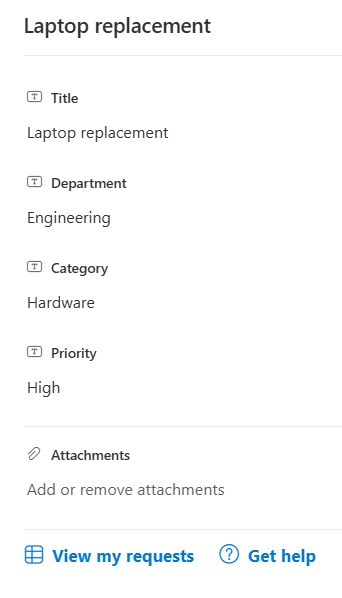
Footer Action Links


Overview
- Adds quick action links or buttons to the bottom of the form
- Lets people jump to related pages, lists, or help from the form
- Each link can point anywhere, including a page or a flow
- Sits beneath the fields, above the Save and Cancel buttons
- Applied as form-configuration JSON in the footer, so it changes nothing about the data
- Works on any list form, and the links are easy to edit
Common Use Cases
- Link to a list of my requests
- Open a help or FAQ page
- Jump to a related site
- Launch a related form or flow
- Contact the team
- Any form needing related actions
Details
- Design Pattern: Form Design
- Format Scope: Form
How to Apply JSON code
- Open the list, then open any item to show its form.
- At the top of the form, expand the Edit form (pencil) icon and choose Configure layout.
- In the Apply formatting to dropdown, choose Footer.
- Paste the JSON below into the box, preview, and click Save.
JSON Code
{
  "elmType": "div",
  "style": {
    "display": "flex",
    "align-items": "center",
    "width": "100%",
    "border-top": "1px solid #edebe9",
    "padding-top": "12px",
    "margin-top": "8px"
  },
  "children": [
    {
      "elmType": "a",
      "attributes": {
        "href": "/sites/hub/SitePages/my-requests.aspx",
        "target": "_blank"
      },
      "style": {
        "display": "flex",
        "align-items": "center",
        "text-decoration": "none",
        "margin-right": "22px",
        "color": "#0078d4",
        "font-size": "15px",
        "font-weight": "700"
      },
      "children": [
        {
          "elmType": "span",
          "attributes": {
            "iconName": "ViewList"
          },
          "style": {
            "display": "flex",
            "align-items": "center",
            "font-size": "18px",
            "margin-right": "7px"
          }
        },
        {
          "elmType": "span",
          "txtContent": "View my requests"
        }
      ]
    },
    {
      "elmType": "a",
      "attributes": {
        "href": "/sites/hub/SitePages/help.aspx",
        "target": "_blank"
      },
      "style": {
        "display": "flex",
        "align-items": "center",
        "text-decoration": "none",
        "color": "#0078d4",
        "font-size": "15px",
        "font-weight": "700"
      },
      "children": [
        {
          "elmType": "span",
          "attributes": {
            "iconName": "Unknown"
          },
          "style": {
            "display": "flex",
            "align-items": "center",
            "font-size": "18px",
            "margin-right": "7px"
          }
        },
        {
          "elmType": "span",
          "txtContent": "Get help"
        }
      ]
    }
  ]
}
Common Questions About the Footer Action Links
What is the Footer Action Links built with?
It is built with a standard Microsoft List (SharePoint list) and form-configuration JSON applied to the form footer. There is no custom development, no SPFx solution, and no third-party tools. It is the kind of clean, maintainable formatting Greg Zelfond builds for teams that want more useful forms without ongoing development overhead.
What can the links point to?
Each link can point to any address – a SharePoint page, another list, a help article, or a form. You can also wire a link to a Power Automate flow that runs from a URL, so the footer can start an action.
Does this design use any custom development or third-party tools?
No. It uses only out-of-the-box SharePoint form configuration, which Microsoft supports natively. That keeps it stable and easy to maintain, and nothing breaks when SharePoint is updated. Out-of-the-box is the only way Greg builds, so you can own and extend the design yourself for years.
If LookBook 365 is code-free and out-of-the-box, why does this example include JSON?
Because SharePoint formatting JSON is not custom code – it is a native configuration feature built into lists and libraries. It is declarative: it only describes how an existing form looks, and cannot run scripts, reach external services, or change your data. Nothing is deployed and nothing breaks when Microsoft updates SharePoint, and you can edit or remove it anytime. That is why LookBook 365 treats it as out-of-the-box and low risk.
Do the links open in the form or a new tab?
That is up to you. Each link can be set to open in the same window or a new tab, which you control in the JSON. Opening related pages in a new tab keeps the form open while people look something up.
Can Greg build form formatting like this for our team?
Yes – this is exactly the kind of work Greg Zelfond does. As an independent SharePoint consultant and Microsoft MVP, he designs out-of-the-box list and library form formatting like this so your team can read and maintain it without a developer. Reach out through the contact page to talk about your forms.