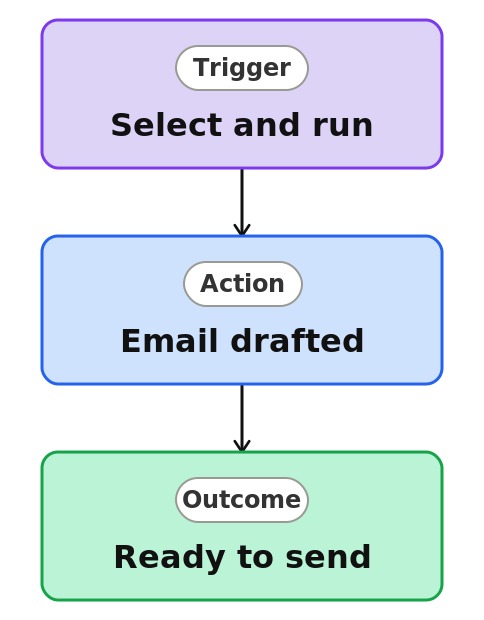
One-Click Email With Doc Link


Overview
- Opens a pre-filled email about a selected item in one click
- Includes a link to the item automatically, no copying needed
- Configured once from the Automate menu, then reused by the team
- Speeds up sharing files or items over email
- Works on a single item or file
- A native SharePoint feature, with no code and no Power Automate
Common Use Cases
- Sharing a document with a colleague without copying the link
- Sending a quick heads-up about a specific file
- Forwarding a request to someone with its details attached
- Routing an item to a reviewer by email
- Kicking off a conversation about a file
- Saving the repetitive copy-paste of a file link
Common Questions About One-Click Email With Doc Link
If LookBook 365 is code-free and out-of-the-box, why does it include this workflow example?
A Quick Step is a native SharePoint action you set up once from the Automate menu, then run in a single click – no code and nothing to build. It performs the action for you inside your Microsoft 365 tenant, turning a few repetitive clicks into one.
Does it send the email automatically?
No. It opens a drafted email with the link so you can add a note and send it yourself – you stay in control of the message.
Where is it set up?
From the list or library under the three dots, then Automate, then Quick steps, then Create a quick step, and choose Draft an email.
Who can use it?
Anyone with access to the list or library. Even read-only visitors can use Quick Steps that their permissions allow, such as drafting an email.
Can I use it on a folder or several files?
Yes, you can select multiple items. It works on files and list items.
Can you set this up and train my team?
Absolutely. I design the list or library, set up the automation, and show your team how to manage it. When your process grows beyond this, I can extend it into a full Power Automate flow that fits how you actually work.