Document Library
Common Use Cases
- Team document repository: a central location for departments and project teams to store, organize, and collaborate on shared files
- Microsoft Teams file storage: each standard Teams channel uses a SharePoint document library to store and manage its files inside channel folders
- Project and client workspaces: managing project documents, deliverables, contracts, and client files with version history and co-authoring
- Policy and knowledge libraries: hosting company policies, procedures, templates, and knowledge base documents in a structured, searchable way
- Process-driven libraries: supporting document review, approval, and records management using metadata, views, and Power Automate workflows
Benefits
- Centralized and secure storage: keep all team and organizational files in one controlled location with built-in permissions and sharing
- Real-time collaboration: co-author documents simultaneously, add comments, and track changes without emailing files back and forth
- Version history and recovery: automatically track versions, restore previous files, and protect content from accidental overwrites or deletions
- Powerful organization and findability: use folders, metadata, views, filters, and search to quickly locate the right content
- Seamless Microsoft 365 integration: works natively with Teams, OneDrive, Office apps, Copilot, and Power Automate to support modern workflows
Details
- Feature Category: Sites & Navigation
How It Works
- Built-in and expandable: every site comes with a library named Documents, and you can add as many more as the site needs, each with its own columns, views, versioning, and permissions
- Automatic version history: SharePoint keeps prior versions of every file so you can compare changes or restore an earlier copy
- Real-time co-authoring: multiple people edit the same Office document at the same time, with no emailing attachments back and forth
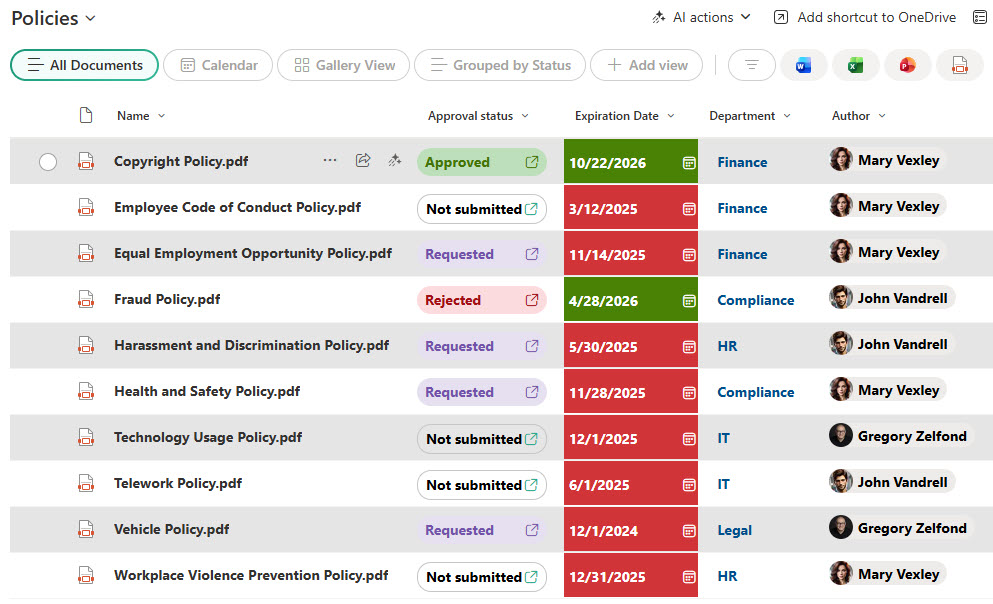
- Columns and views: metadata columns tag every file (department, status, document type), and views filter, sort, and group on those columns
- Teams integration: each standard Microsoft Teams channel stores its files in a folder inside the connected site’s Documents library
- Sync and automation: libraries connect to OneDrive sync for File Explorer access and to Power Automate for approvals and notifications
Limits and Nuances
- Default Documents library: every site ships with one (it is the library Teams uses); create additional libraries per topic instead of cramming everything into one
- Capacity and view threshold: a library can technically hold up to 30 million items but plan for well under 100,000, and views still hit the 5,000-item threshold, so index filter columns before the library grows large
- File size and path limits: 250 GB maximum per file, and the full folder path plus file name cannot exceed 400 characters
- Sync constraints: keep synced content under 300,000 files per device, and note that require check out, required columns, and draft item security all make synced files read-only
- Metadata over deep folders: folders work, but metadata scales, stays searchable, and avoids the 400-character path trap
- Content types: a library can host content types such as document sets and custom document templates once content type management is enabled for it
- Break permission inheritance sparingly: at the library level if you must, at the item level rarely; unique permissions multiply governance complexity fast
- Govern versioning and lifecycle: version history is on automatically at 500 major versions (tune it deliberately), and plan retention, ownership, and lifecycle early so libraries do not become digital landfills
Common Questions About Document Libraries
What is a document library in SharePoint?
A document library is a container on a SharePoint site for storing, organizing, and managing files and folders – think of it as an electronic filing cabinet. Unlike a network drive, it adds version history, real-time co-authoring, metadata columns, custom views, and security trimming, and it powers the Files tab in every Microsoft Teams channel.
How many files can a SharePoint document library hold?
Technically, up to 30 million files and folders. Practically, plan for far less – performance, views, search, and OneDrive sync all degrade in oversized libraries. Views still hit the 5,000 item list view threshold, and Microsoft recommends keeping synced content under 300,000 files. A good rule: more smaller libraries organized by topic beats one giant library.
Should I use folders or metadata in a document library?
Both have a place. Folders feel familiar and work well for simple structures and OneDrive sync. Metadata columns scale better: one flat library tagged with department, document type, and status can be sliced into many views, filtered instantly, and searched precisely. Long term, metadata avoids deep folder paths that hit the 400-character limit and bury content.
How is a document library different from OneDrive?
OneDrive is personal storage tied to one user; a document library belongs to a site and the team that owns it. Library content survives employee turnover, carries shared metadata and views, and is governed by site permissions. The rule of thumb: drafts and personal working files in OneDrive, anything the team needs in a SharePoint document library.
Does version history use up extra storage?
Yes – each version of a file counts toward the site’s storage quota, and libraries keep 500 major versions by default. For most teams that is fine, since versions are the safety net against overwrites and accidental deletions. For very large files or high-churn libraries, lower the version limit in the library’s Versioning settings.
Why are files read-only when I sync a library to my computer?
Three library settings cause this: Require check out, required metadata columns, and draft item security that restricts editing. When any of them is on, OneDrive syncs the files as read-only. If a team relies on working from File Explorer, keep those settings off in active working libraries and enforce control with versioning and permissions instead.