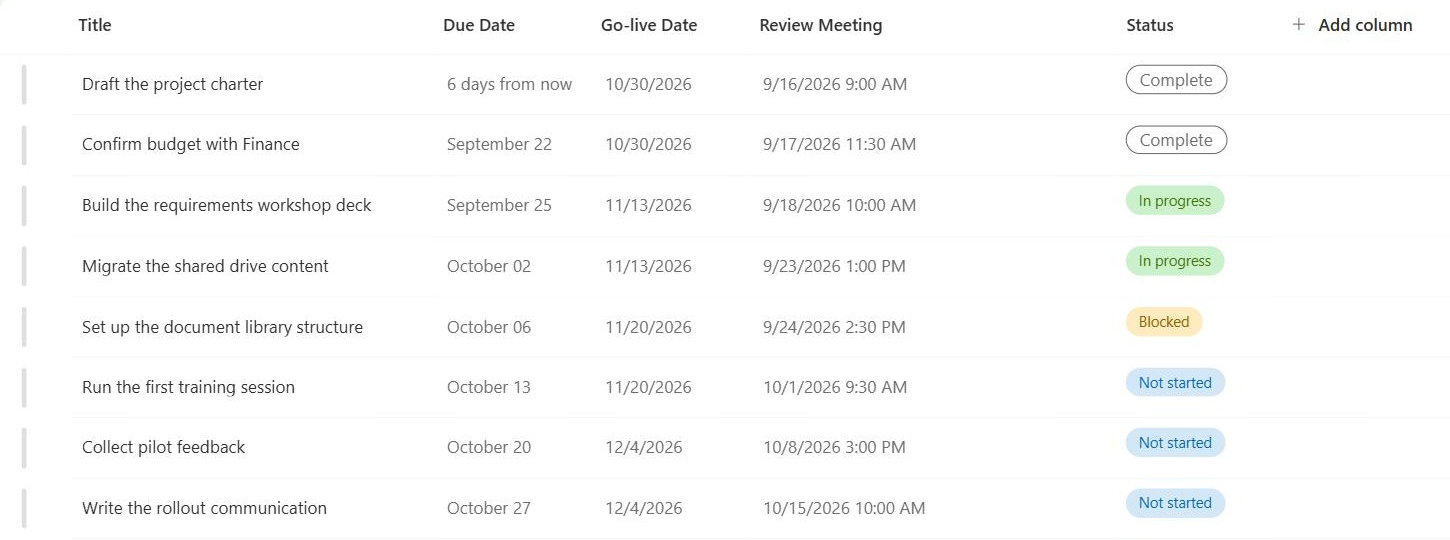
List View
Common Use Cases
- Department slices: filter one shared task list into a separate view per team so each department sees only its own work
- Open items dashboards: show only items where the status is not complete, sorted by due date, for daily standups and reviews
- Document libraries by client: group a contracts library by client or project so files stay findable without folders
- Executive rollups: build a grouped, totaled view that counts items and sums budget columns for leadership reviews
- My items views: use the [Me] filter so every person automatically sees only the items assigned to them
- Switching layouts: present the same data as a list, a gallery of cards, a calendar, or a board depending on the audience
Benefits
- One source of truth: the same list serves multiple teams because each view filters and sorts without touching the data
- Faster pages: a well filtered view loads quicker than scrolling through an unfiltered list of thousands of items
- Personal flexibility: users can create personal views for themselves without affecting what everyone else sees
- Consistent experiences: public views give every visitor the same curated columns, order, and grouping
- Built in math: totals settings can count, sum, or average columns directly in the view, with no Excel export needed
- Threshold protection: indexed columns and filtered views keep queries under the 5,000 item List View Threshold
Details
- Feature Category: Columns & Views
How It Works
- Saved query, not a copy: a view stores column choices, filters, sorts, grouping, and styling as a definition applied when the page loads
- Public and personal views: public views appear for everyone with access to the list, while personal views are visible only to their creator
- Default view: one view is marked as the default and is what users see when they first open the list or library
- Layout options: modern lists can present a view as a standard list, a compact list, a gallery, a board, or a calendar
- Format is fixed: once a view is created, its base format cannot be switched, so a new format means creating a new view
Limits and Nuances
- 5,000 item List View Threshold: SharePoint Online blocks view queries that exceed 5,000 items, and this limit cannot be raised in the service
- Storage is not the issue: a list can hold up to 30 million items; the threshold applies to what a single view query touches
- Indexes are the fix: up to 20 indexed columns can be added per list, and filtering on indexed columns keeps large lists usable
- Filters evaluate first: the threshold counts items the query must scan, so an unindexed filter on a huge list can fail even when few results would return
- JSON formatting: view level formatting can color rows and restyle layouts, and the formatting is stored as part of the view
- Views are per list: a view belongs to its list or library, so the same design must be recreated on other lists that need it
Common Questions About the List View
How many items can a SharePoint list view display?
A single view query can return up to 5,000 items because of the List View Threshold in SharePoint Online, and that limit cannot be raised in the service. The list itself can store up to 30 million items. The practical approach is to filter views on indexed columns and set item limits so no single query exceeds the threshold.
What is the difference between a public view and a personal view?
A public view is available to everyone who can access the list, which makes it the right choice for shared dashboards and default experiences. A personal view is visible only to the person who created it, so individual users can arrange columns and filters their own way without affecting anyone else. Creating public views requires permission to manage lists.
Can I change a view’s format after I create it?
No. Once a view is created, its base format is fixed, so a list style view cannot later become a calendar or a board. The good news is that views are cheap to create: build a separate view for each format you need, point them all at the same data, and switch between them as needed.
Do views duplicate the data in my list?
No. A view is only a saved definition of columns, filters, sorts, and grouping that is applied when the page loads. The items themselves live once in the list. That is exactly why views are so powerful: ten different teams can each get a tailored slice of the same list without anyone maintaining ten copies of the data.
How do I avoid the List View Threshold error on a large list?
Index the columns you filter on, since SharePoint allows up to 20 indexed columns per list, and make sure every view on the large list filters against an indexed column. Keep item limits reasonable and avoid views that sort or group on unindexed columns. With sensible indexing and filtering, lists with hundreds of thousands of items remain fast and usable.
Who can set up effective list views for my organization?
Anyone with list management permissions can create public views, but designing a coherent set of views takes planning around audiences, metadata, and scale. Greg Zelfond, the SharePoint consultant behind LookBook 365, builds lists, views, and complete intranets using only out of the box SharePoint capabilities, so everything stays supportable and easy for your team to maintain.