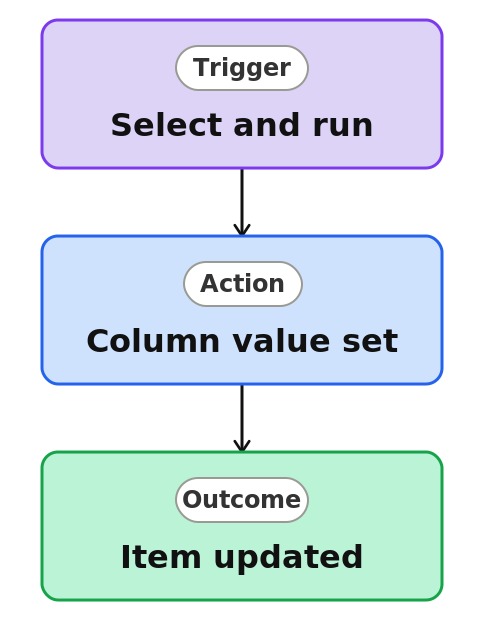
One-Click Status Update


Overview
- Sets a column value on a selected item in a single click
- Configured once from the Automate menu, then reused by the team
- Turns a multi-click edit into one action
- Works on a single item or on several selected at once
- Available on both lists and libraries
- A native SharePoint feature, with no code and no Power Automate
Common Use Cases
- Marking a policy or document as Active or Approved
- Flipping a task to Done without opening it
- Setting a request’s Status in one click
- Tagging items with a fixed category value
- Advancing an item to the next stage quickly
- Standardizing a status update everyone applies the same way
Common Questions About One-Click Status Update
If LookBook 365 is code-free and out-of-the-box, why does it include this workflow example?
A Quick Step is a native SharePoint action you set up once from the Automate menu, then run in a single click – no code and nothing to build. It performs the action for you inside your Microsoft 365 tenant, turning a few repetitive clicks into one.
Where do I set this up?
From the list or library, choose the three dots, then Automate, then Quick steps, then Create a quick step, and pick Set a value.
Can I run it on several items at once?
Yes. Select multiple items or files and run the Quick Step to apply the value to all of them.
Who can run it?
Anyone with edit rights on the list or library. Quick Steps created by one person are available to the whole team.
How many Quick Steps can a list have?
Up to 15 per list or library, so it is worth keeping the menu tidy with only the ones you use.
Can you set this up and train my team?
Absolutely. I design the list or library, set up the automation, and show your team how to manage it. When your process grows beyond this, I can extend it into a full Power Automate flow that fits how you actually work.