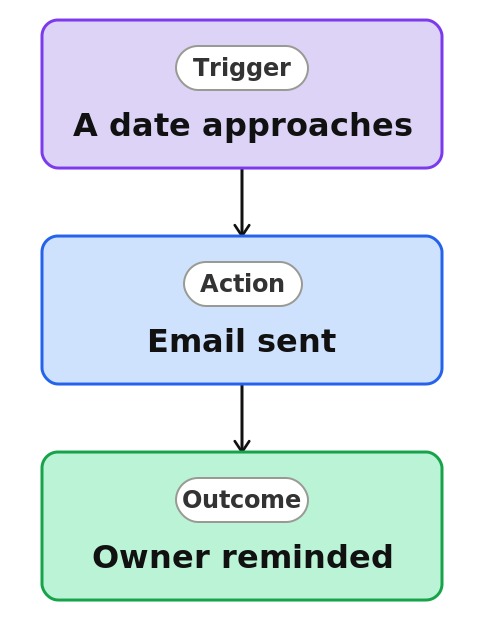
Task Deadline Reminder


Overview
- Emails the right people as a date on a list item approaches
- Built as a Rule, a no-code automation created right on the list
- Watches a date column, such as Due Date or Renewal Date
- Notifies a named person or whoever is in a column on the item
- Delivers list-item reminders natively, with no Power Automate flow
- Lives with the list, with nothing separate to maintain
Common Use Cases
- Reminding an owner before a task’s due date
- Warning ahead of a subscription or membership renewal tracked in a list
- Nudging before a record’s review or audit date
- Flagging an issue as its target resolution date nears
- Keeping a responsible person ahead of a request’s deadline
- Prompting action before a project milestone in a tracker
Common Questions About Task Deadline Reminder
If LookBook 365 is code-free and out-of-the-box, why does it include this workflow example?
A Rule is a native SharePoint automation you build by completing a plain-language sentence right on the list or library – no code and no Power Automate. It watches the date you specify and sends the email itself, inside your Microsoft 365 tenant, with nothing to develop or maintain.
What date does it watch?
Any date column on the list item, such as Due Date, Renewal Date, or Review Date. The item just needs that column filled in.
How far in advance does it notify?
You choose the timing when you build the rule, so the reminder arrives the right number of days before the date.
How is this different from Set a reminder?
Set a reminder creates a Power Automate flow behind the scenes, while this is a native Rule – no flow at all. The Rule is the simplest, fully no-code option for list items.
Who gets the reminder?
A person you name, or the person in a column on the item, such as Assigned To. Recipients are inside your organization.
Can you set this up and train my team?
Absolutely. I design the list or library, set up the automation, and show your team how to manage it. When your process grows beyond this, I can extend it into a full Power Automate flow that fits how you actually work.