Date and Time Column
Common Use Cases
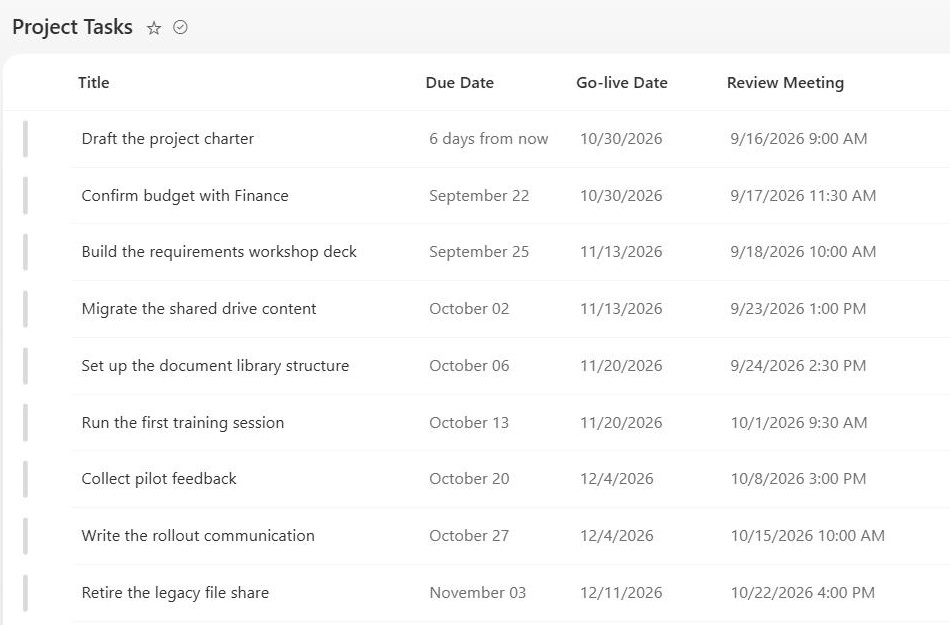
- Due dates: deadlines on tasks, requests, and deliverables that power overdue views and reminders
- Event scheduling: start and end dates that drive calendar views for team events and bookings
- Review cycles: policy review dates, contract renewals, and certification expirations tracked in one list
- Effective dates: the day a policy, price, or document version takes effect
- Milestones: project phase dates that feed timeline reporting and status views
- Operational logs: received, approved, and shipped dates in request and order trackers
Benefits
- True chronological order: dates sort as dates, never the alphabetical chaos of text columns
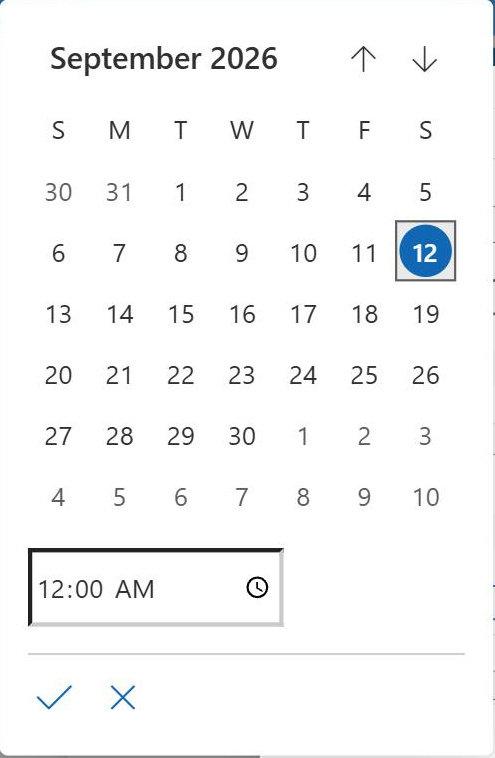
- Date picker entry: users select from a calendar control, eliminating format guessing
- Calendar views: any list with a date column can display its items on a calendar layout
- Friendly readability: relative wording like Yesterday makes activity lists scannable
- Smart defaults: new items can pre-fill with today’s date or a calculated date
- Filter power: view filters compare against [Today] for rolling overdue and upcoming views
Details
- Feature Category: Columns & Views
How It Works
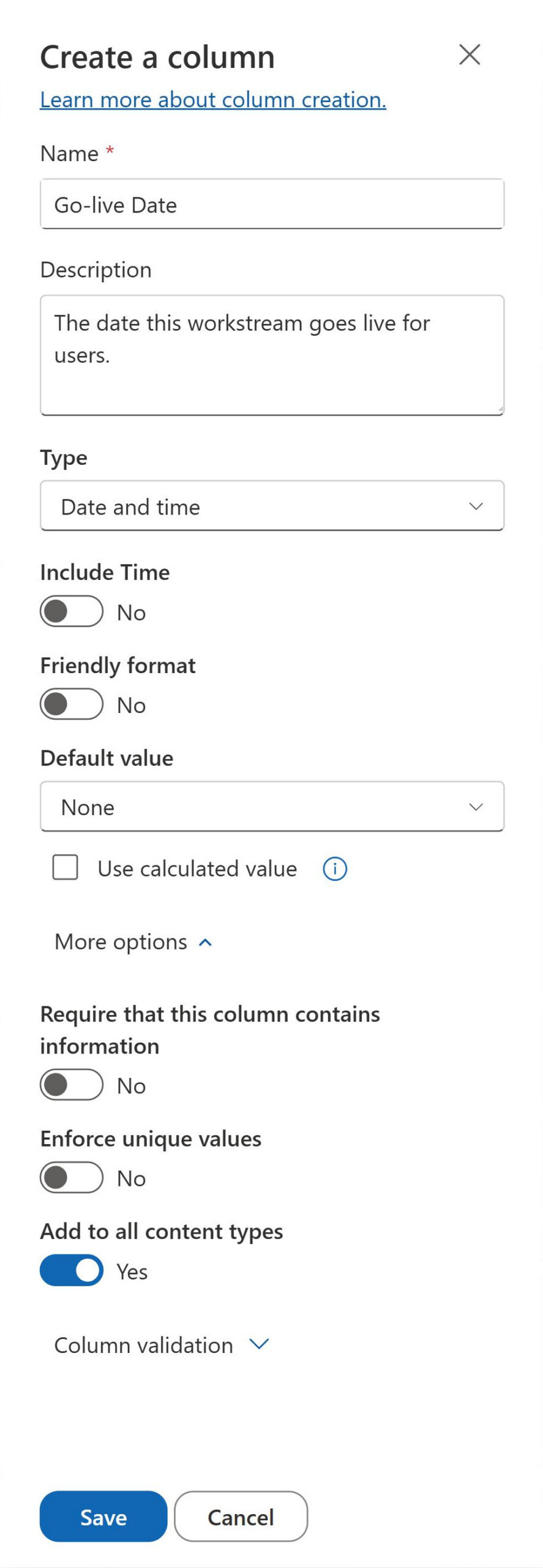
- Date only or date and time: a format choice controls whether the column captures just the day or the clock time too
- Friendly or standard display: friendly shows relative wording like Yesterday and July 3; standard shows the exact date and time
- Regional settings drive format: date order, separators, and the 12 or 24 hour clock follow the site regional settings
- Stored once, displayed locally: values are stored in UTC and rendered in the time zone set for the site
- Supported range: SharePoint accepts dates from January 1, 1900 through December 31, 8900
Limits and Nuances
- Date range boundaries: dates before 1900 or after 8900 are rejected, which mainly affects historical archives and placeholder dates
- Site time zone display: everyone sees timestamps in the site time zone, so distributed teams should set it deliberately
- Friendly format tradeoff: relative wording reads well but hides the exact timestamp; switch to standard when precision matters
- [Today] placement: [Today] works in view filters and column default values, not in calculated column formulas
- Single value only: one column stores one date, so events with a start and an end need two columns
- Validation pairing: column validation formulas can require dates in the future or within a window, a common companion to date columns
Common Questions About the Date and Time Column
What is a Date and Time column in SharePoint?
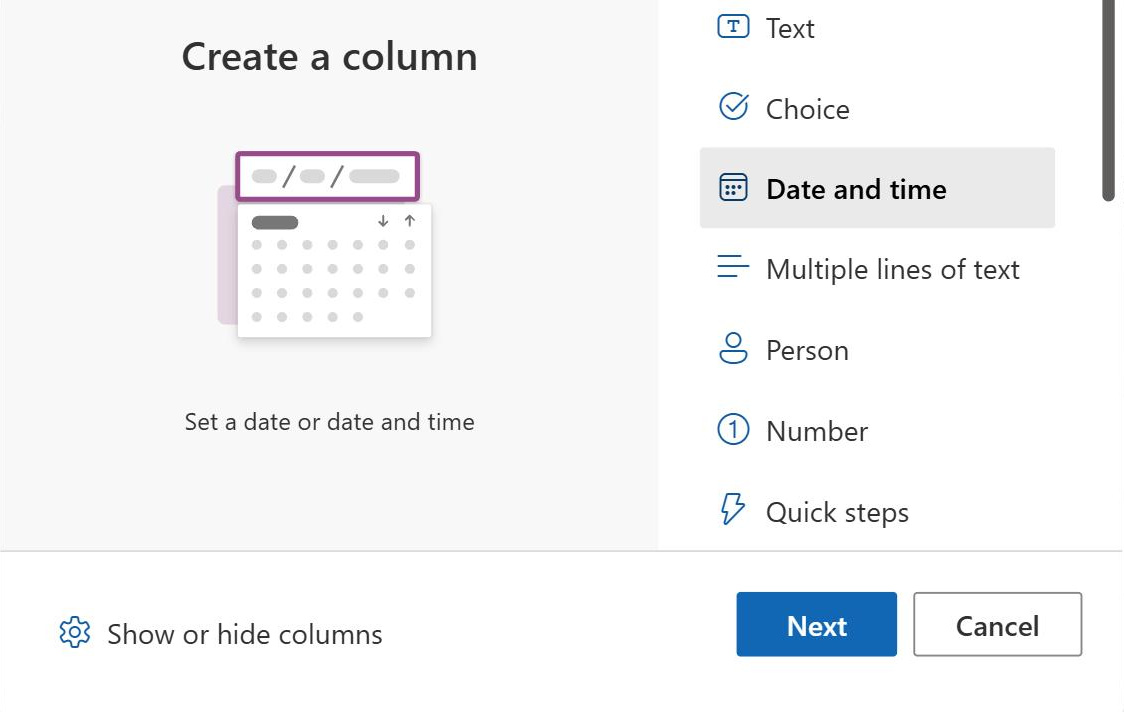
It is the column type for storing calendar dates, optionally with a time of day, in lists and libraries. Entries are true date values, so they sort chronologically, filter precisely, and support date math in calculated columns. You configure whether the column captures date only or date and time, how it displays, and what default value new items receive.
What is the difference between friendly and standard format?
Friendly format displays dates relative to today, showing wording like Yesterday or July 3 and rounding to what a person would naturally say. Standard format shows the exact date, and the time when enabled, following the site regional settings. Friendly reads better on collaborative lists; standard is the safer choice when audits, deadlines, or exports demand the precise timestamp.
Can a Date and Time column default to today’s date?
Yes. The default value setting offers today’s date, a specific date you enter, or a calculated value built from a formula. Calculated defaults are handy for patterns like a review date thirty days out, since functions such as [Today] are supported in default values even though they are not allowed in calculated column formulas.
What date range does SharePoint support?
SharePoint accepts dates between January 1, 1900 and December 31, 8900. Dates outside that window are rejected, which mainly matters for historical archives and for migrations where placeholder dates fall before 1900. Within the range, the column handles past and future dates equally well, including far-future dates sometimes used for contract and retention tracking.
Why does the time look wrong for some users?
Date and Time values render in the time zone set in the site regional settings, so a site configured for Eastern Time shows Eastern timestamps to every visitor by default. The underlying value is stored once and converted for display, so nothing is lost. Distributed teams should set the site time zone deliberately and keep it consistent across related sites.
How do date columns improve SharePoint trackers?
Dates are the backbone of nearly every useful view: overdue filters built on [Today], calendar layouts, month groupings, and conditional formatting that highlights items as deadlines approach. Greg Zelfond builds LookBook 365 trackers around Date and Time columns precisely because everything they enable, from calendar views to date filters to friendly displays, comes out of the box with zero custom development.