Modified Column
Common Use Cases
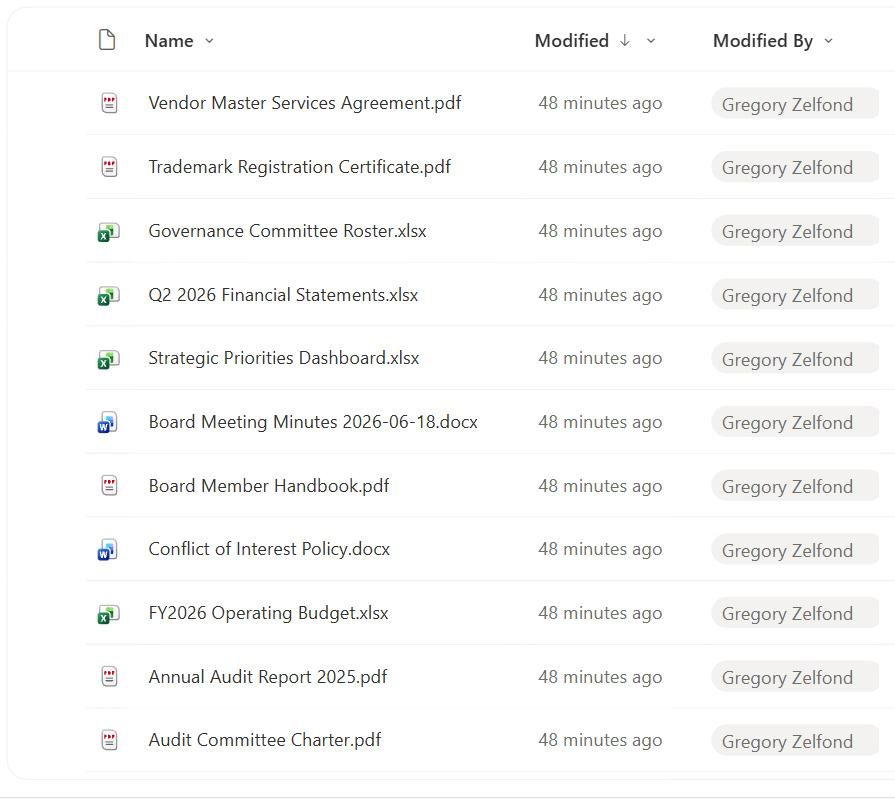
- Recently changed views: sort a library so the freshest edits appear first
- Stale content audits: find files not modified in the last 12 or 24 months
- Review reminders: trigger a flow when a policy has not been updated in a year
- Change monitoring: spot which records moved since a colleague last looked
- Sync and reporting: drive incremental exports based on what changed
- Knowledge freshness: show a ‘last updated’ date on intranet articles
How It Works
- Updates on change: SharePoint restamps the value whenever the item is edited
- Content or metadata: editing the file body or a column both count as a change
- Stored in UTC: the underlying value is coordinated universal time
- Displayed by locale: each user sees it in their own time zone and format
- Internal name Modified: referenced as Modified in views, JSON, and Power Automate
- System actions can bump it: moves and some background operations also update it
Benefits
- Freshness at a glance: instantly see how current a document is
- No setup required: present and working on every list and library
- Automation trigger: a dependable signal for review and notification flows
- Tamper-resistant: read-only in the browser, so it cannot be faked
- Time-zone aware: correct local timestamps for distributed teams
- Reporting ready: clean data for grouping by last-changed period
Details
- Feature Category: Columns & Views
Limits and Nuances
- Not editable in the UI: there is no control to set a custom last-changed date
- Bumps you may not expect: moving or bulk operations can update it without a real content edit
- Metadata counts as a change: editing a single column moves the timestamp
- Not a content-diff: it tells you when, not what changed – use version history for that
- UTC vs display: near-midnight values can appear on different days per time zone
- Migration distortion: a migration can restamp everything to the migration date
Common Questions About the Modified Column
What is the Modified column in SharePoint?
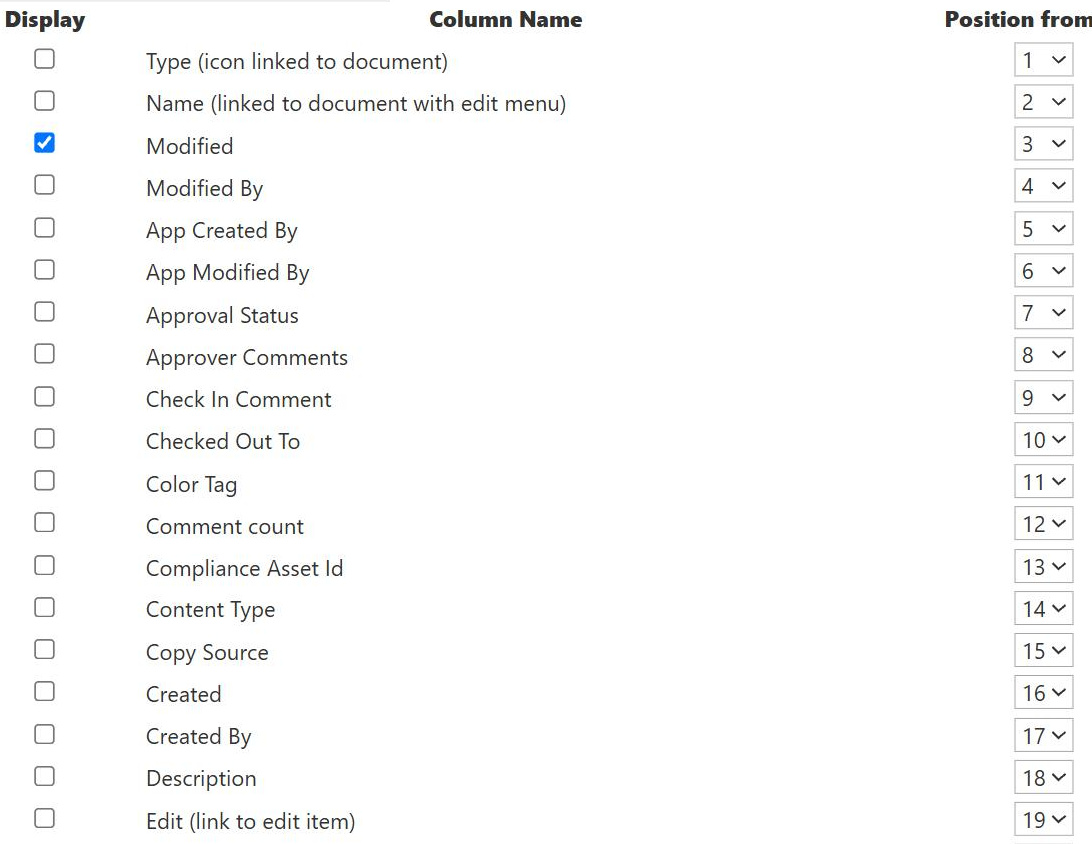
Modified is a built-in, read-only date and time field that SharePoint updates automatically every time an item or file changes. It records the most recent edit, so it answers ‘when was this last touched?’. It exists out-of-the-box on every list and library, its internal name is Modified, and you can add it to any view to sort, filter, or group by how recently content changed.
What actually triggers the Modified date to update?
Any change that SharePoint records as an edit will bump it, including changing the file contents, editing a metadata column, renaming the item, or restoring a version. Some background and bulk operations, such as moving items, can also update it even without a true content edit. Because of this, Modified is best read as ‘last activity’ rather than strictly ‘last content change’.
What is the difference between Modified and Created?
Created is set once when the item first appears and never changes. Modified moves forward with every edit and reflects the latest activity. Use Created to know how old something is and Modified to know how fresh it is. Paired with Created By and Modified By, they form a simple four-column audit trail with no add-ons required.
Can I edit the Modified date manually?
No, it is read-only in the browser by design, which keeps it trustworthy for freshness checks and review automation. The value can be changed with PowerShell or the object model, but that is normally reserved for migrations that need to preserve original last-modified dates from a source system. For everyday governance, treat Modified as a reliable, tamper-resistant fact.
Why did Modified change when no one edited the document?
Certain system and bulk actions update the timestamp even without a content edit, such as moving files between folders or libraries, bulk metadata updates, or some sync operations. A metadata-only change, like updating one column, also counts. If you need to know exactly what changed rather than just when, open the item’s version history, which lists each version and who made it.
How should I use Modified to keep a site healthy?
Use it to surface freshness and hunt down stale content, for example a view of policies not modified in over a year, or a flow that pings owners for review. Greg Zelfond, the consultant behind LookBook 365, builds these last-updated views and review reminders into sites so aging content is obvious and gets refreshed, turning an out-of-the-box timestamp into an ongoing governance signal.