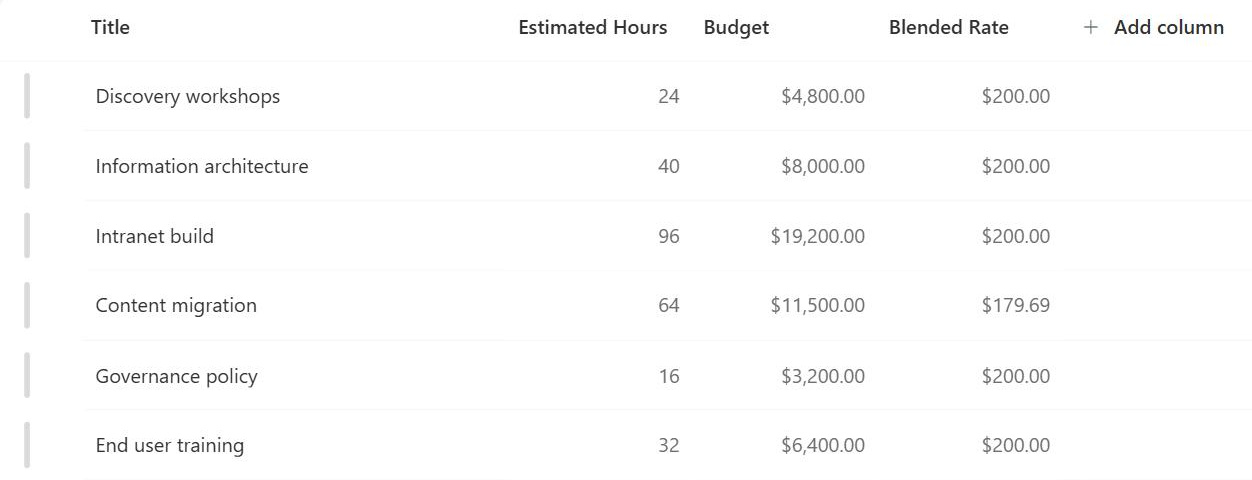
Calculated Column
Common Use Cases
- Deadline math: add days to a start or effective date to produce an expiry, renewal or review date.
- Status flags: turn a due date, a score or a percentage complete into Overdue, Pass, or At Risk.
- Text assembly: join a first and last name, build a standard email address, or stamp a reference code.
- Fiscal periods: derive a fiscal year, calendar quarter, week number or month name from any date.
- Money math: multiply quantity by unit price, add a tax rate, or express a margin as a percentage.
- Better views: group, sort and filter on a value that nobody ever had to type into the list.
Benefits
- Zero manual entry: the value recalculates on every save, so it cannot drift out of step with the data.
- Familiar syntax: anyone who can write an Excel formula can write a calculated column.
- No code and no licensing: no Power Automate runs, no premium connectors, no scripts to maintain.
- Consistent across the list: the same formula applies to every item, including ones created by sync or import.
- Cleaner forms: the column is hidden from the new and edit forms, so users cannot overwrite the result.
- Report-ready output: derived values can be grouped, totalled and pulled straight into Power BI.
How It Works
- Column references: other fields are referenced in square brackets, for example [Due Date] or [Unit Price].
- Same-row scope: the formula can only see the item it sits in – never another row, list or site.
- Return type: you choose what the formula returns: text, number, currency, date and time, or yes/no.
- Recalculation trigger: the value is written when the item is created or edited, not on a timer.
- Function library: a broad subset of Excel covering logic, text, dates and numbers.
- Read-only result: the value shows in views and display forms but can never be typed over by a user.
Settings
- Where it lives: List settings, then Create column, then Calculated (calculation based on other columns).
- Formula box: the formula field, with the list of columns available to reference shown beside it.
- Data type returned: the setting that decides formatting, sorting and how views treat the column.
- Number of decimal places: appears once the return type is number or currency.
- Add to default view: the checkbox that drops the new column straight into the current view.
- Site column option: build it once under Site columns and reuse the same formula across lists on the site.
Limits and Nuances
- No live [Today] or [Me]: the placeholders are blocked, and a formula that captures the current date only refreshes when the item is edited – never overnight.
- No cross-item lookups: the formula cannot read another row, another list, another library or another site.
- Unsupported column types: Person or Group, Hyperlink, Managed Metadata and multi-value columns cannot be referenced.
- Eight-level nesting cap: deeply nested IF statements stop working once you pass eight levels.
- Cannot be indexed: a calculated column cannot carry the first filter in a view past the 5,000-item threshold.
- Formula changes are expensive: editing the formula recalculates every item in the list, which takes time on a large one.
Calculated Column Formula Examples: Dates and Deadlines
• Add Days to a Date: =[Start Date]+90
• Days Until Due: =[Due Date]-TODAY()
• Age in Years: =DATEDIF([Birthdate],TODAY(),"y")
• Days Between Two Dates: =DATEDIF([Start],[End],"d")
• Fiscal Year: =IF(MONTH([Date])>=10,YEAR([Date])+1,YEAR([Date]))
• Calendar Quarter From a Date: ="Q"&ROUNDUP(MONTH([Date])/3,0)
• Get the Month, Weekday or Year From a Date: =TEXT([Date],"mmmm")
• End of Month: =DATE(YEAR([Date]),MONTH([Date])+1,1)-1
• Start of the Week: =[Date]-WEEKDAY([Date])+1
• Week Number: =ROUNDDOWN(([Date]-DATE(YEAR([Date]),1,1)+WEEKDAY(DATE(YEAR([Date]),1,1)))/7,0)+1
Calculated Column Formula Examples: Text
• Combine First and Last Name: =[First Name]&" "&[Last Name]
• Initials: =LEFT([First Name],1)&LEFT([Last Name],1)
• Build an Email Address: =LOWER([First Name]&"."&[Last Name]&"@company.com")
• Change Text Case: Upper, Lower or Proper: =PROPER([Full Name])
• Reference Code: ="PRJ-"&YEAR([Created])&"-"&[Title]
• Split an Email Address Into Username and Domain: =RIGHT([Email],LEN([Email])-FIND("@",[Email]))
• Shorten Long Text: =IF(LEN([Notes])>50,LEFT([Notes],50)&"...",[Notes])
• Trim Extra Spaces: =TRIM([Text])
Calculated Column Formula Examples: Numbers and Money
• Line Total: =[Quantity]*[Unit Price]
• Total With Tax: =[Amount]+([Amount]*[Tax Rate])
• Gross Margin Percentage: =([Price]-[Cost])/[Price]
• Markup Percentage: =([Price]-[Cost])/[Cost]
• Discount Amount: =[Price]*[Discount %]
• Budget Variance: =[Actual]-[Budget]
• Budget Variance Percentage: =IF([Budget]=0,0,([Actual]-[Budget])/[Budget])
• Round to Cents: =ROUND([Amount],2)
Calculated Column Formula Examples: Status and Flags
• Traffic-Light Status: =IF([Due Date]<TODAY(),"Red",IF([Due Date]<TODAY()+7,"Amber","Green"))
• Pass or Fail: =IF([Score]>=70,"Pass","Fail")
• Priority by Days Left: =IF([Days Left]<3,"High",IF([Days Left]<7,"Medium","Low"))
• On Track or At Risk: =IF([% Complete]>=1,"Done",IF([% Complete]>=0.5,"On Track","At Risk"))
• Overdue Flag: =IF([Due Date]<TODAY(),"OVERDUE","")
• High-Value Flag: =IF([Amount]>10000,"Review","")
Common Questions About Calculated Columns
What is a calculated column in SharePoint?
A calculated column is an out-of-the-box column type that works out its own value from other columns in the same item, using Excel-style formula syntax. SharePoint writes the result every time the item is created or edited, so nobody types it and nobody can overwrite it. Typical results are a due date, a status label, a joined name or a line total, and they sort, group and filter in views like any other column.
Can a calculated column use the current date or the current user?
Not reliably. The Today and Me placeholders are blocked in calculated columns, and this is the single most common source of frustration with the feature. A formula that captures the current date only re-evaluates when the item itself is edited, never overnight, so a countdown or an age quietly goes stale. Where the value has to be current on screen, use a view filter, column formatting or a scheduled flow instead.
Which Excel functions work in a calculated column?
A broad subset is available: logic such as IF, AND and OR; text such as CONCATENATE, LEFT, RIGHT, MID, LEN, FIND, TRIM, UPPER, LOWER and PROPER; dates such as DATE, YEAR, MONTH, DAY, WEEKDAY, DATEDIF and TEXT; and numbers such as ROUND, ROUNDUP, ROUNDDOWN and ABS. Lookup functions, array functions and anything that reaches outside the current item are not supported.
Why can a large list not filter on a calculated column?
Filtering and sorting a large list depends on indexed columns, and a calculated column cannot be indexed. Once a list passes the 5,000-item list view threshold, the first filter in a view has to land on an indexed column, so a calculated status or fiscal year cannot carry the view on its own. The usual fix is to write the value into a real column with a flow and index that column instead.
Can a calculated column reference another list?
No. A calculated column can only see the columns in the item it sits in. It cannot read another row in the same list, another list, another library or another site. For cross-list results, a Lookup column brings a related value into the item, or Power Automate writes the value into a normal column that then behaves like any other field for filtering and reporting.
When should I use a calculated column instead of Power Automate?
Use a calculated column when the answer already sits in the same item and has to be right on every save – a total, a fiscal year, a status label. Use Power Automate when the logic crosses lists, calls another service, or has to run on a schedule rather than on a save. Greg Zelfond, the consultant behind LookBook 365, treats that boundary as a design decision made before the first column is built, because retrofitting it later usually means rebuilding the list.