Metadata
Common Use Cases
- Flat document libraries: tag contracts by Client, Status, and Expiration so one library replaces a folder tree and serves many audiences through views
- Project and task trackers: Status, Priority, and Owner columns drive grouped views, filters, and progress dashboards
- Policy and procedure libraries: tag by Department and Review Date, then build views that surface exactly what is due for review
- Records and compliance: retention labels and policies can be applied based on column values rather than file location
- Process automation: Power Automate flows and list rules trigger the moment a Status or Approval column changes
- Cross-library consistency: site columns and content types define a tag once and reuse it across every library on the site
Benefits
- Many views from one library: the same documents grouped by client today and by document type tomorrow, just by switching views
- Findability without file paths: users filter straight to what they need instead of memorizing where files live
- No deep folder trees: flat libraries with columns scale better and avoid the one-home-per-file problem folders create
- Consistency across sites: centralized site columns and content types enforce the same tagging everywhere
- Governance-ready: retention, sensitivity, and lifecycle policies all key off metadata values
- Automation fuel: column values are first-class inputs for views, rules, flows, and reports
Details
- Feature Category: Metadata & Taxonomy
How It Works
- Column types: Single line of text, Choice, Number, Currency, Date and time, Person, Yes/No, Hyperlink, Location, Image, Lookup, and Managed Metadata are all available out of the box
- Views do the heavy lifting: any column can sort, group, or filter the library, and one library can hold many saved views
- Site columns: define a column once at the site level so multiple lists and libraries reuse the exact same definition
- Content types: bundle columns plus templates and policies so different kinds of documents carry different metadata in the same library
- Metadata feeds automation: list rules, Power Automate triggers, retention labels, and search refiners all key off column values
- Default values: pre-fill a column so items get tagged even when users skip the form; folders can carry their own defaults so files inherit tags on upload
- Edit in grid view: bulk-tag many items at once, spreadsheet style
Limits and Nuances
- 5,000-item List View Threshold: views that touch more than 5,000 items fail unless filtered first by an indexed column, and the limit cannot be raised in SharePoint Online
- 20 indexes per list: you can index up to 20 columns per list or library, so add indexes before the list grows large
- Design before rollout: sorting, grouping, and filtering all depend on column design, and retrofitting metadata onto thousands of untagged files is painful
- Adoption is the real constraint: metadata only works if people fill it in, so rely on required fields, defaults, and automation rather than hope
- Choice vs. Managed Metadata: Choice columns suit short, single-site value lists, while Managed Metadata adds tenant-wide consistency but needs governance and an owner
- 12-column lookup limit: views combining more than 12 lookup-type columns (Lookup, Person, Managed Metadata) are blocked by the List View Lookup Threshold
- Internal names are permanent: a column’s internal name is fixed at creation even if you rename its display name later, so name columns correctly the first time to keep formulas and flows clean
- Folders fight metadata: deep folder trees defeat metadata views, so keep libraries flat where you can and let columns do the organizing
Common Questions About Metadata
What is metadata in SharePoint?
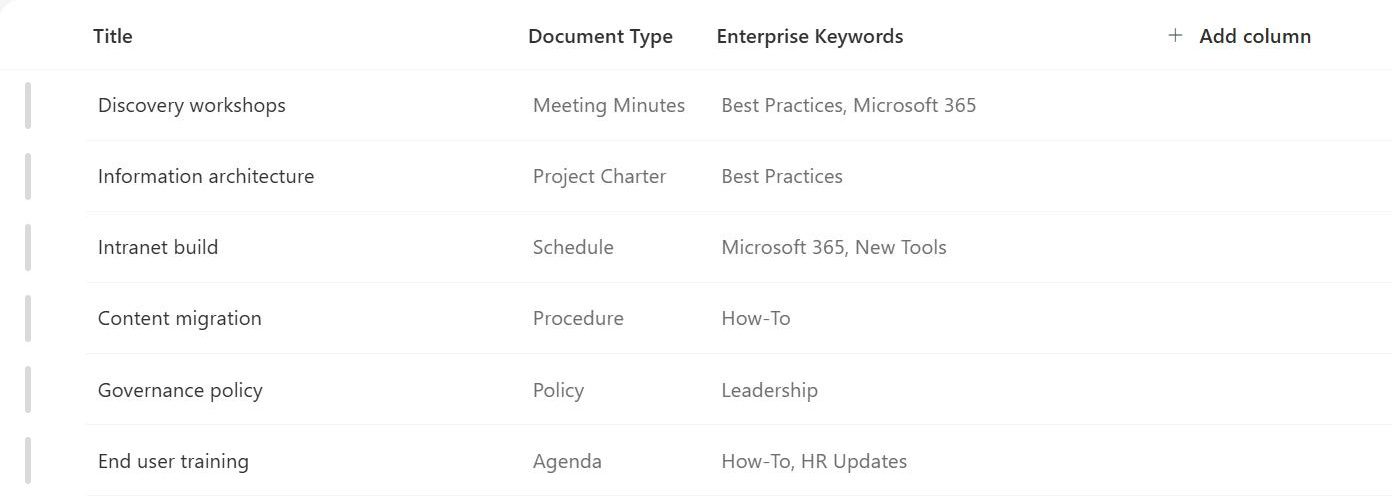
Metadata is information about your content – tags like Department, Client, Project, Status, or Document Type, stored as columns on lists and libraries. Every document or item carries those values alongside the file itself. SharePoint then uses the metadata to sort, group, and filter content, build custom views, refine search results, apply retention policies, and trigger automation, all without depending on which folder a file sits in.
Is metadata better than folders in SharePoint?
For most document libraries, yes. A folder gives each file exactly one home; metadata lets the same flat library be grouped by client today and by document type tomorrow, just by switching views. Metadata also feeds search, retention, and automation in ways folder paths cannot. Folders still have a place – mainly for permission boundaries and simple drag-and-drop habits – but deep folder trees are usually a sign metadata is missing.
What is the 5,000 item limit in SharePoint?
SharePoint Online blocks view operations that touch more than 5,000 items at once – the List View Threshold. Lists and libraries can store millions of items, but views, filters, and sorts must be narrowed by an indexed column before they cross that line. The threshold cannot be raised in SharePoint Online, so the answer is design: index the columns you filter by, up to 20 per list, before the list grows large.
What is the difference between a site column and a list column?
A list column exists only on the list or library where you created it. A site column is defined once at the site level and can be added to many lists and libraries, so they all share the same definition – same name, same choices, same settings. When the same tag like Department is needed in several places, a site column keeps it consistent and saves you maintaining duplicates.
How do you get users to actually fill in metadata?
Reduce the asking. Keep required columns to the few that drive views and compliance, give every column a sensible default, and set folder-level default values so files inherit tags on upload. Edit in grid view makes bulk tagging painless, and Power Automate can stamp values automatically. A library that demands eight manual fields per upload will be ignored; one that needs a single pick will be used.
Where should you start when planning SharePoint metadata?
Start with the views, not the columns. Decide how people need to find and slice the content – by client, by status, by document type – and work backward to the smallest set of columns that delivers those views. Greg Zelfond, the SharePoint consultant behind LookBook 365, designs metadata this way on every project: a handful of well-chosen columns beats a long form nobody completes.