Location Column
Common Use Cases
- Office and facility directories: every location entry carries a validated address and structured attributes
- Event management: venue addresses captured consistently for conferences, training, and meetings
- Site visit trackers: field teams log visits against real, filterable locations
- Asset registers: record where equipment physically lives, down to the address
- Property and real estate lists: structured address data for portfolios and leases
- Customer and vendor records: consistent address capture without free-text drift
Benefits
- Validated entries: locations resolve against Bing Maps, so addresses arrive complete and correctly spelled
- Structured attributes: street, city, state, postal code, country or region, and coordinates are captured in one pick
- Filterable views: secondary columns let users sort, filter, and group by city, state, or country
- Faster data entry: type-ahead suggestions beat typing full addresses by hand
- Coordinates included: latitude and longitude come along free, ready for mapping tools
- Directory aware: suggestions can also come from locations in the organization directory
Details
- Feature Category: Columns & Views
How It Works
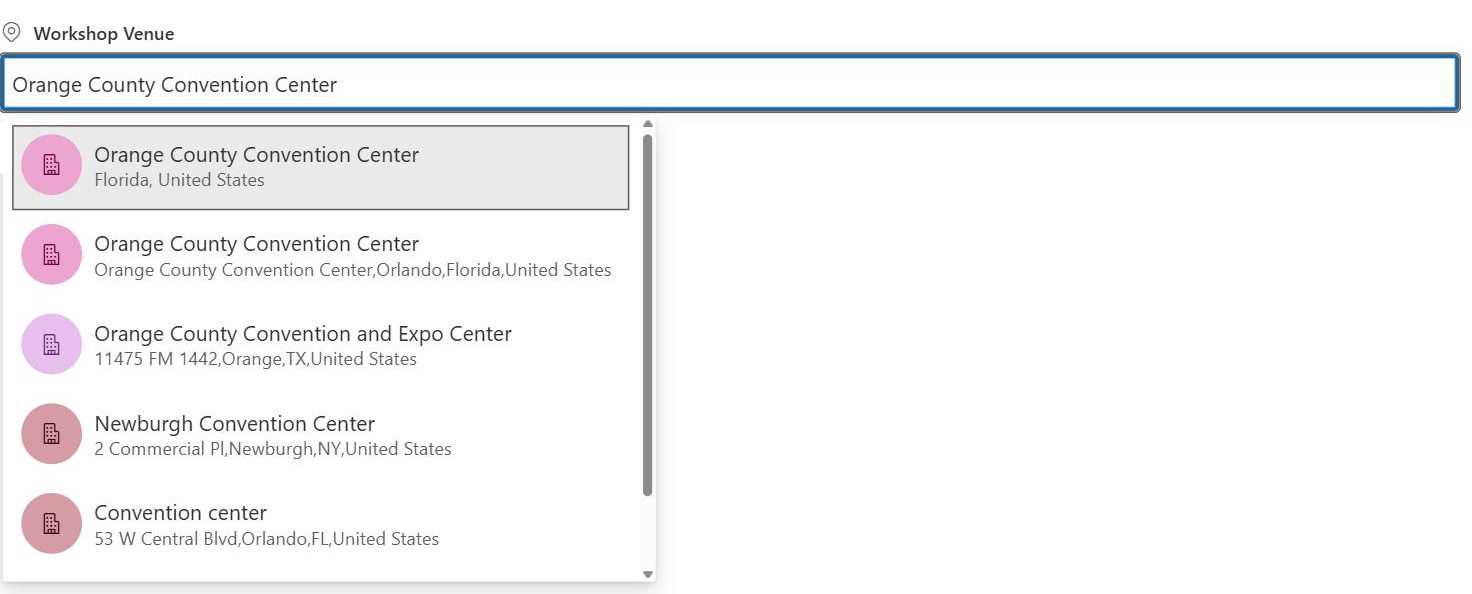
- Type-ahead suggestions: as users type, SharePoint proposes matching places from Bing Maps and the organization directory
- One selection, many fields: picking a suggestion stores the full location record, including address parts and coordinates
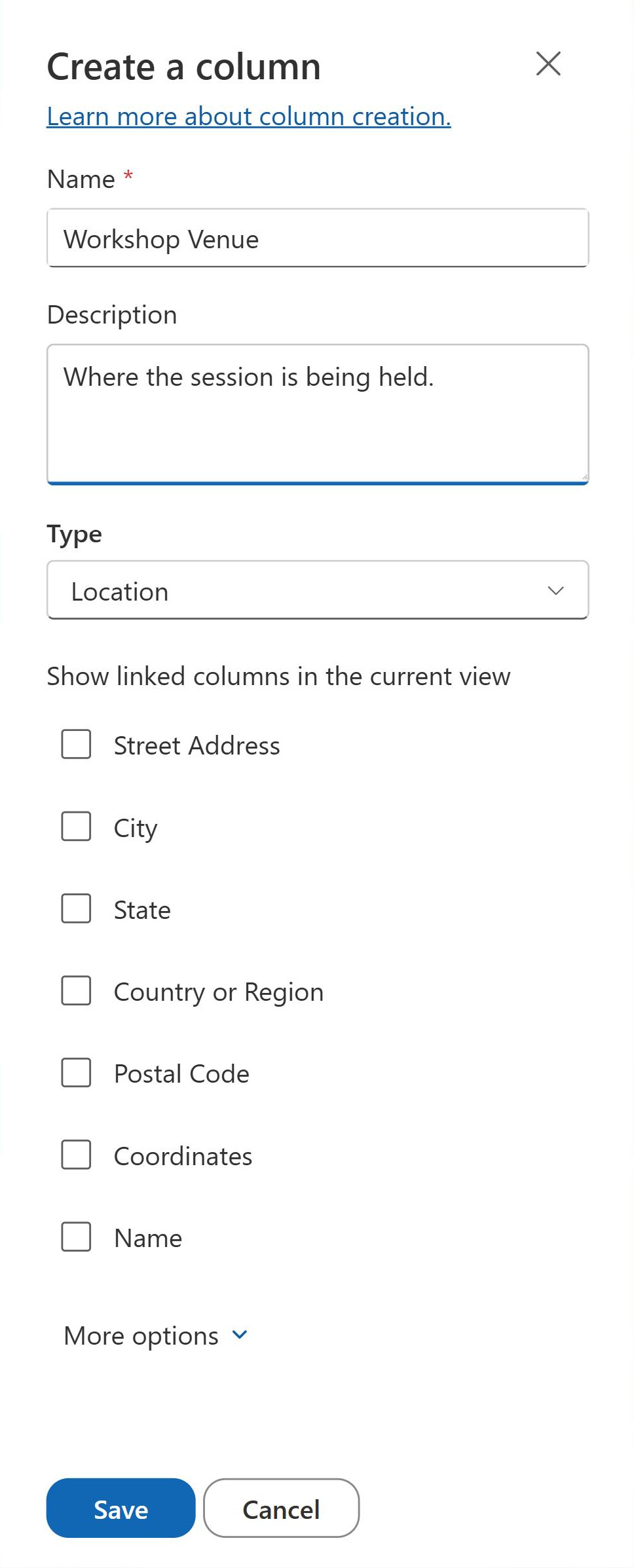
- Secondary columns: column configuration chooses which attributes display as their own sortable, filterable columns in views
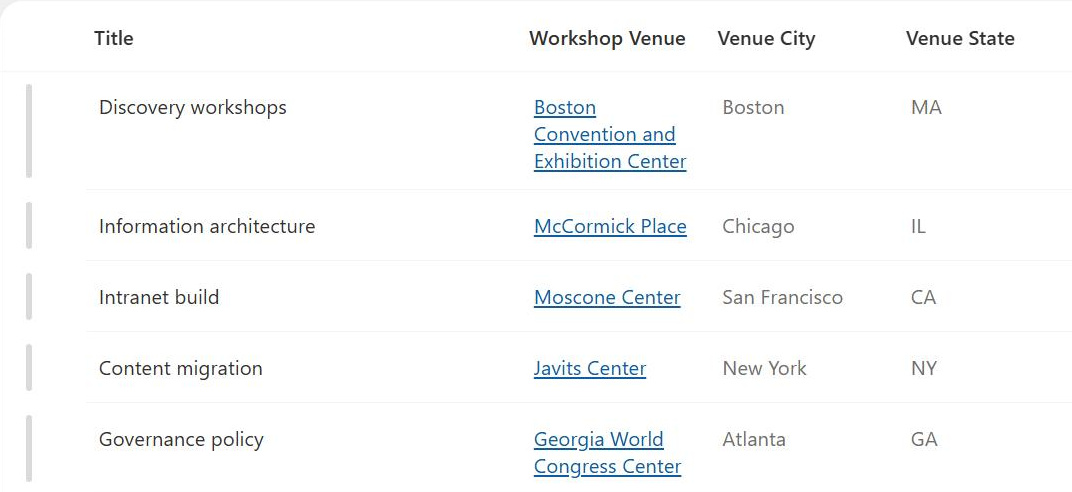
- Display in views: the column shows the resolved place name and address for each item
- Lists and libraries alike: the column works in SharePoint lists, document libraries, and Microsoft Lists
Limits and Nuances
- US Government clouds: Microsoft documents that the Location column is not available for Microsoft 365 US Government plans
- Bing Maps coverage: suggestions depend on Bing Maps data, so very new or obscure addresses may not resolve
- No automatic conversion: existing text address columns do not transform into Location data; entries are selected going forward
- Pick from suggestions: the column is designed around selecting resolved places rather than typing arbitrary unvalidated addresses
- Different from Geolocation: SharePoint also has a developer-oriented Geolocation field added through code; the Location column is the no-code option
- Filtering via secondary columns: sorting and filtering work through the attribute columns you expose, so enable the ones views will need
Common Questions About the Location Column
What is the Location column in SharePoint?
The Location column stores rich, structured location data in lists and libraries. As users type, SharePoint suggests real places from Bing Maps and the organization directory; selecting one captures the full record, including address parts and coordinates, in a single action. The individual attributes can then be displayed as their own columns for sorting, filtering, and grouping.
What data does the Location column capture?
A selected location carries the place name plus structured attributes: street address, city, state, country or region, postal code, and coordinates. When configuring the column you choose which of those appear as additional columns in the list, so a facilities list can expose City and State for filtering while keeping the full record behind each entry.
How is it different from typing an address into a text column?
A text column accepts anything, so addresses arrive misspelled, partially complete, and formatted six different ways. The Location column validates entries against real places at the moment of entry and splits them into consistent structured fields. That structure is what makes reliable filtering by city, grouping by state, and coordinate-based scenarios possible without any data cleanup.
Is the Location column available everywhere?
It is available across SharePoint lists and document libraries in Microsoft 365, including Microsoft Lists. Microsoft documents one notable exception: the column is not available for Microsoft 365 US Government plans. Organizations on government clouds typically model locations with text and choice columns instead, trading validation for availability until the column reaches their environment.
Can I use Location data with maps and reporting tools?
Yes. The column displays the resolved place name and address in views, and because it also stores coordinates, the data plugs cleanly into map experiences built with tools that read list data, such as Power Apps and Power BI. There is no geocoding step to perform, since Bing Maps already resolved each entry the moment it was selected.
Where does the Location column work best?
Office and facility directories, event venue lists, site visit trackers, and asset registers all benefit from validated, filterable location data. Greg Zelfond, who builds every LookBook 365 example with out of the box features only, reaches for the Location column whenever a tracker needs a real address, because it delivers structured, consistent data without a single line of code.