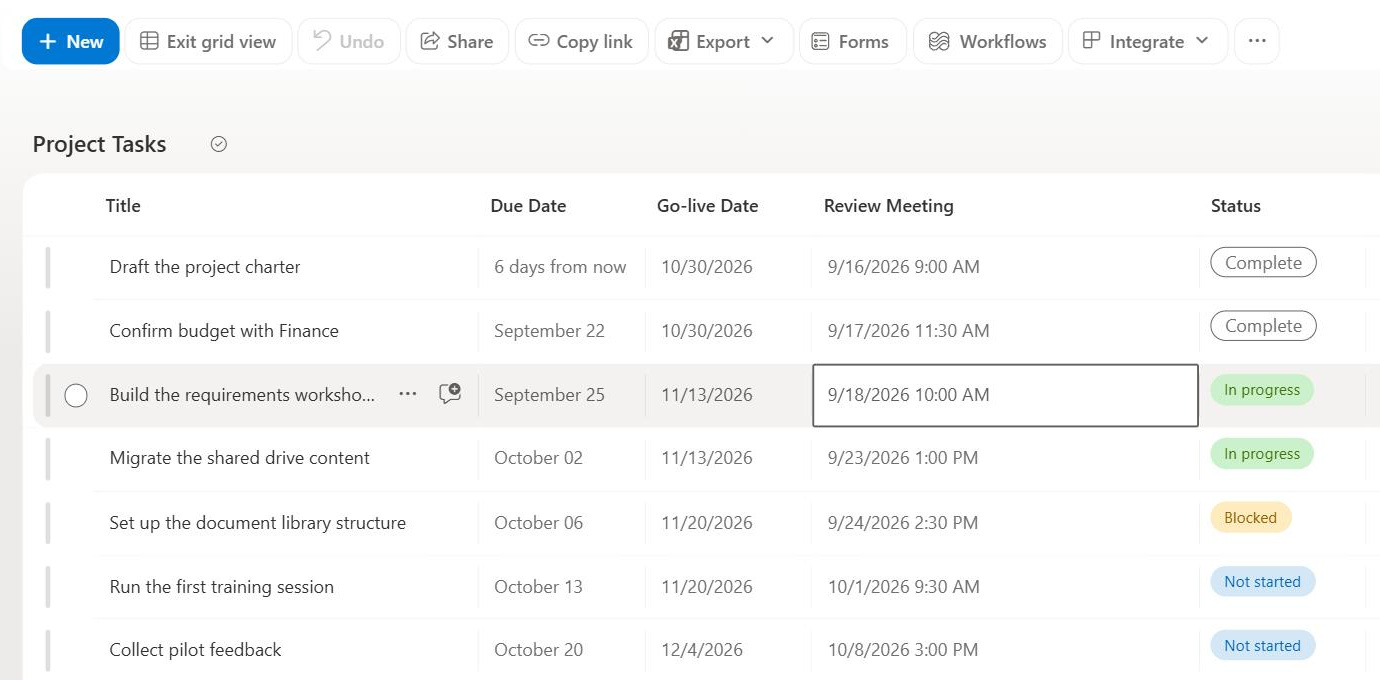
Edit in Grid View
Common Use Cases
- Metadata cleanup after migration: tag hundreds of migrated documents with the right values in minutes instead of opening each file’s properties
- Importing from Excel: paste ranges of rows copied from a spreadsheet straight into a list
- Bulk status updates: update the status, owner, or due date for a whole batch of tasks in one pass
- Repeating values: drag the corner of a cell to fill the same value down adjoining rows
- Rapid data entry: key in many new items quickly without opening a form for each one
- Quick corrections: fix typos and inconsistent values across items while seeing the whole column at once
Benefits
- Spreadsheet speed: editing in a grid is dramatically faster than opening item forms one by one
- Excel interoperability: copy and paste works between Excel ranges and the grid
- Forgiving editing: undo and redo are available, so a bad paste or fill can be reversed immediately
- No special tools: the capability is built into every modern list and library, with nothing to install
- Keyboard friendly: standard shortcuts like Ctrl+C, Ctrl+V, Ctrl+Z, and Ctrl+Y behave the way spreadsheet users expect
- Validation still applies: required columns and column types are enforced as you edit, keeping data quality intact
Details
- Feature Category: Columns & Views
How It Works
- A mode, not a separate page: the command toggles the current view into an editable grid and back again when you exit
- Cell level editing: each cell becomes directly editable according to its column type, with pickers for choices, dates, and people
- Copy, paste, and fill: rows can be copied and pasted, including from Excel, and a cell value can be dragged down to fill a range
- Saves as you go: changes commit automatically as you move through the grid, with undo and redo available
- Add rows inline: new blank rows can be added at the bottom of the grid for fast batch entry
Limits and Nuances
- Some columns stay read only: calculated columns cannot be edited in the grid because their values come from formulas
- Rich text caveat: multiple lines of text columns set to enhanced rich text are not editable in the grid, while the plain text variety is
- No attachments: files cannot be attached to list items while in grid view; attachments are managed from the item form instead
- List setting controls availability: a list level advanced setting determines whether items can be edited in the grid, so the command can be turned off where bulk edits are risky
- Permissions still rule: users can only edit what their permissions allow; the grid does not bypass item level security
- Versioning applies: every change writes a version like any other edit, so version history can grow quickly during large bulk updates
Common Questions About Edit in Grid View
What is Edit in grid view in SharePoint?
Edit in grid view is a bulk editing mode for lists and libraries that turns the view into an editable grid, similar to a spreadsheet. You can change many items at once, paste rows copied from Excel, drag a value down a column to fill it, and undo mistakes. It replaced the older Quick Edit and datasheet experiences.
Can I paste data from Excel into a SharePoint list?
Yes. Copy a range of cells in Excel, then paste it into the grid and SharePoint creates or updates rows accordingly. The column order and data types need to line up with the grid for values to land correctly, and column validation still applies. This is one of the fastest out-of-the-box ways to move spreadsheet data into a list.
Why are some columns read only in grid view?
A few column types cannot be edited in the grid. Calculated columns are read only because their values come from formulas. Multiple lines of text columns set to enhanced rich text are also not editable in the grid, although the plain text variety works fine. For those values, edit the item through its form instead.
Does Edit in grid view save my changes automatically?
Yes, changes commit as you work through the grid rather than waiting for a single save action, and undo and redo are available while you remain in the mode, including the familiar Ctrl+Z and Ctrl+Y shortcuts. Because edits save as you go, versioning records each change, which is worth remembering when bulk updating thousands of items in a versioned list.
Can I add attachments while in grid view?
No, attaching files to list items is not supported inside the grid. Add or manage attachments from the item form in the standard view, then return to the grid for the rest of your bulk edits. Everything else about the item, including its other column values, remains fully editable in the grid while attachments wait for the form.
What is the fastest way to clean up metadata across a library?
Edit in grid view is usually the answer: surface the metadata columns in a view, switch to the grid, and use paste and drag to fill to tag large batches of documents quickly. Greg Zelfond, the SharePoint consultant behind LookBook 365, uses exactly this out-of-the-box approach when building and migrating document libraries for clients.