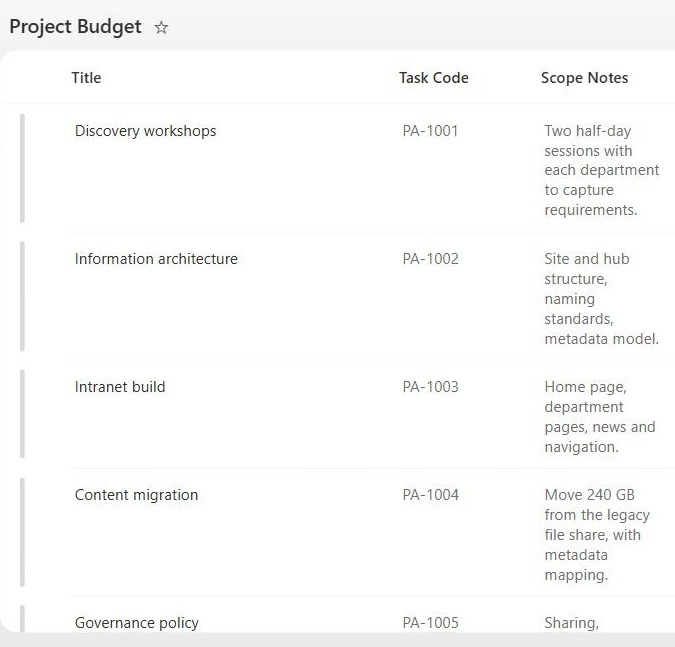
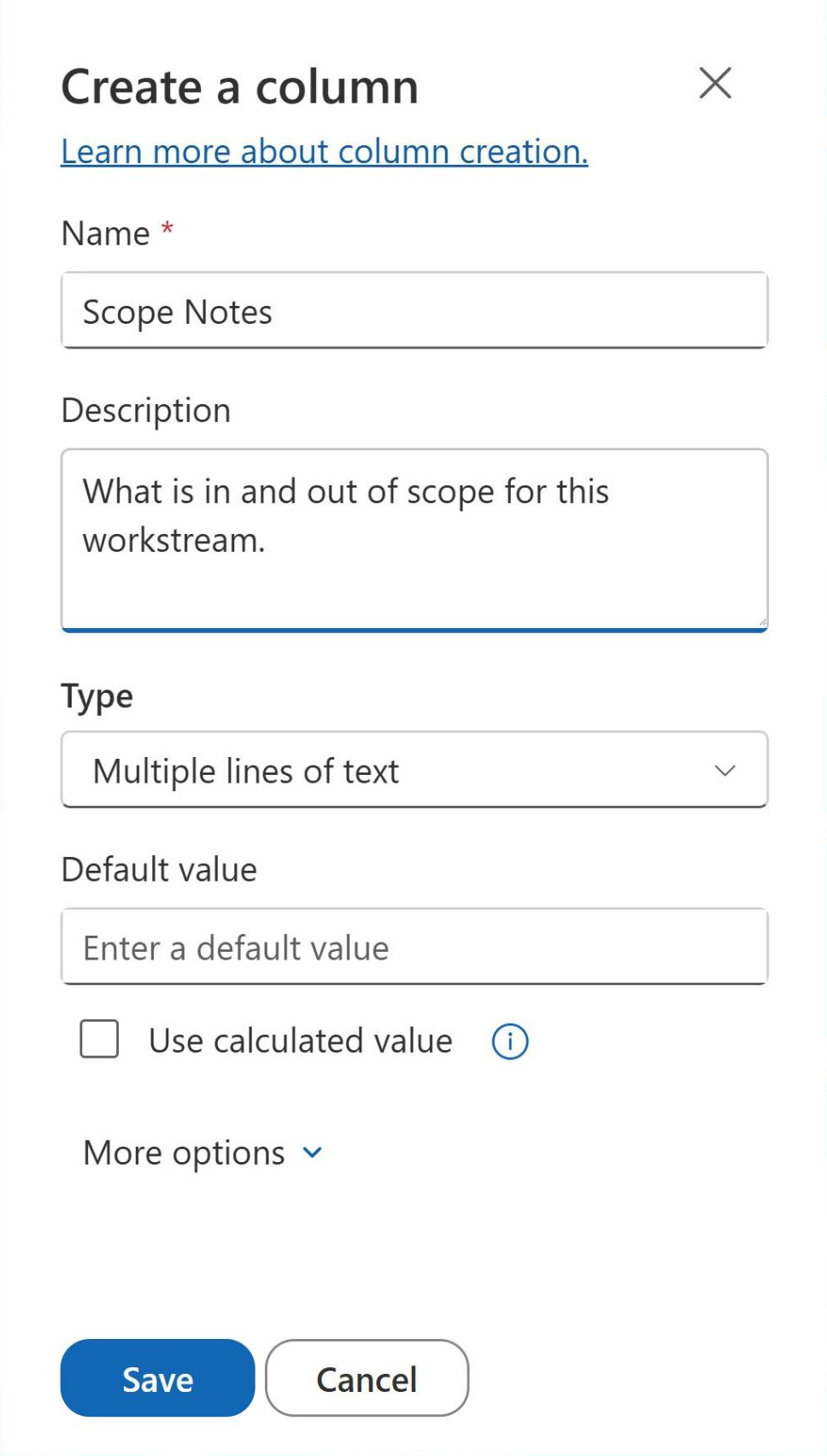
Multiple Lines of Text Column
Common Use Cases
- Descriptions and notes: long-form detail that will not fit on a single line
- Comments and updates: status notes added over the life of a record
- Meeting and call logs: running records captured in one field
- Instructions: step-by-step guidance stored alongside an item
- Rich content: formatted text with links, images, and tables in enhanced rich text
- Activity history: timestamped entries via Append Changes to Existing Text
Benefits
- Generous capacity: up to 63,999 characters, far beyond the 255-character single-line limit
- Two formats: plain text for clean data, enhanced rich text for formatting
- Append history: an optional change log that stamps each entry with author and time
- Rich formatting: bold, color, links, images, and tables when enhanced rich text is on
- Adjustable height: control how many lines the edit box shows on the form
- Familiar editing: a standard text box every user already knows
Details
- Feature Category: Columns & Views
How It Works
- Two text modes: choose plain text or enhanced rich text when you create the column
- Plain text: characters only, no formatting, the cleanest option for data you may export
- Enhanced rich text: a full editor with formatting, hyperlinks, images, and tables
- Append changes: with versioning on, new text stacks below prior entries instead of replacing them
- Lines for editing: set how tall the input box appears, without limiting how much text it holds
- Display in views: long values are truncated in a column view and open fully on the item
Limits and Nuances
- No sorting or filtering: views cannot sort, filter, or group by a multi-line column
- Not indexable: the column cannot be indexed, so it cannot help with large-list thresholds
- No unique values: the enforce-unique setting and most validation rules are unavailable
- Off-limits to calculated columns: formulas cannot reference a Multiple Lines of Text column
- No default value: unlike single-line text, you cannot set a default
- Rich text is heavier: enhanced rich text stores HTML, which complicates exports and migrations
- Append needs versioning: without list versioning, Append Changes has nothing to stack onto
- Unlimited length option: in document libraries, an Allow unlimited length setting lifts the 63,999-character limit for library columns
Common Questions About the Multiple Lines of Text Column
What is a Multiple Lines of Text column?
It is a SharePoint column built for long, free-form text that exceeds the 255-character limit of a Single Line of Text column. It comes in two formats, plain text and enhanced rich text, and a single field can hold up to 63,999 characters. It is the right type for descriptions, comments, notes, and logs, where the content needs room to breathe rather than fitting on one line.
How many characters can it hold?
A Multiple Lines of Text column holds up to 63,999 characters, whether you choose plain text or enhanced rich text. That is roughly 250 times the capacity of a Single Line of Text column, which tops out at 255. In document libraries, an Allow unlimited length option can lift that ceiling further for scenarios that need it. For most descriptions, notes, and logs, 63,999 characters is far more than enough.
What is the difference between plain text and enhanced rich text?
Plain text stores characters only, with no formatting, which keeps the data clean and easy to export, search, and migrate. Enhanced rich text adds a full editor, so users can apply bold and color, insert hyperlinks and images, and even build tables. Rich text is friendlier for human-readable notes, while plain text is safer when the content feeds reports, flows, or other systems. You pick one when you create the column, and switching later can affect how existing content displays.
How does Append Changes to Existing Text work?
Append Changes to Existing Text turns the column into a running log. When list versioning is enabled, each new entry is added beneath the previous ones and stamped with the author and timestamp, instead of overwriting what was there. It is ideal for status updates, case notes, and approval trails where the full history matters. The catch is that it depends on versioning – without it, the option has nothing to build on.
Why can I not sort, filter, or use it in a calculated column?
All three limits come from the same root: the column can hold far more text than SharePoint can index efficiently. Because it is not indexed, views cannot sort, filter, or group by it, and the enforce-unique setting is unavailable. Calculated columns are blocked for the same reason – their formulas can only reference lighter, indexable column types. When you need any of those behaviors, store the key value in a Single Line of Text or Choice column and keep the long text separate.
When should I use Single Line of Text instead?
Use Single Line of Text whenever the value is short, unique, and something you will sort, filter, or report on, such as names, codes, and reference numbers. Reserve Multiple Lines of Text for genuinely long content like descriptions, notes, and logs. Greg Zelfond, the consultant behind LookBook 365, treats this boundary as a design decision rather than an afterthought: the right column type keeps a list fast and filterable, while the wrong one quietly breaks views and reporting down the line.