System Columns
Common Use Cases
- What’s new views: sort by Modified so the freshest items surface first
- Accountability at a glance: Modified By and Created By show ownership without extra data entry
- My items views: filter Created By against [Me] for a personal view that works for everyone
- Content cleanup: find stale documents by filtering on old Modified dates
- Approval dashboards: group or filter by Approval Status when content approval is enabled
- Stable references: the ID column gives flows and integrations a permanent handle on each item
Benefits
- Zero data entry: SharePoint populates every value automatically and accurately
- Trustworthy trail: users cannot casually edit them, so the who-and-when record holds up
- Present everywhere: every list and library has them from the moment it is created
- Full view support: they sort, filter, and group like any other column
- Automation ready: flows and search read system columns just like custom ones
- Free functionality: audit-style insight with no configuration and no extra licensing
Details
- Feature Category: Columns & Views
Key System Columns
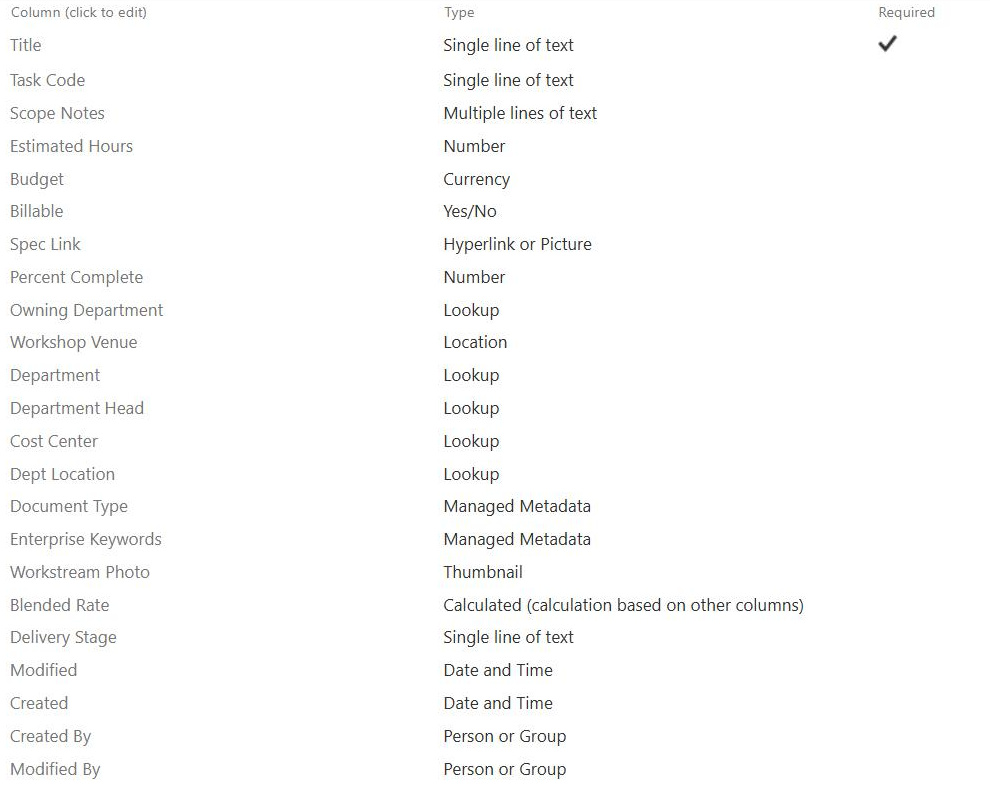
- Created and Modified: date and time stamps written when the item is added and on every subsequent edit
- Created By and Modified By: person columns, internally named Author and Editor, recording who acted
- ID: a sequential integer unique within the list and never reused after deletion
- Name and Title: Name holds the file name in libraries, while Title is the editable text column on lists
- Version: the current version number, meaningful when versioning is enabled
- Approval Status, File Size, and Checked Out To: operational columns tied to content approval, storage, and check out
Limits and Nuances
- Read-only by design: values cannot be edited through forms, which is precisely what makes them reliable
- Migration is the exception: migration tools and APIs can preserve original Created and Modified values when moving content
- Modified means any change: a metadata tweak or automated process updates Modified, so the latest content change may live in Version History instead
- Hidden until added: many system columns stay out of default views until deliberately included
- IDs are list-scoped: the ID is unique within one list only and should not be treated as a global identifier
- Service accounts appear: automated processes can show up as Modified By, which surprises teams the first time
Common Questions About System Columns
What are system columns in SharePoint?
System columns are the columns SharePoint creates and maintains automatically on every list and library: Created and Modified timestamps, Created By and Modified By identities, ID, Version, file Name and File Size in libraries, and feature-driven fields like Approval Status and Checked Out To. They populate without any user input, providing a built-in record of who did what and when.
Can I edit Created, Modified, or Created By?
Not through normal editing; SharePoint maintains these values itself, which is exactly what makes them trustworthy. The notable exception is migration: migration tools and APIs can preserve original timestamps and authors when content moves from file shares or older sites, so a properly executed migration keeps the historical values rather than stamping everything with the migration date.
Why did Modified change when nobody edited the document?
Modified updates on any change to the item, including metadata edits, an approval action, or an automated process touching the file. That is why Modified By sometimes shows a service account or a person who only changed a property. When you need to know exactly what changed and when, Version History shows each version with its author and timestamp.
What is the ID column and when is it useful?
ID is a sequential integer SharePoint assigns to every item in a list, starting at one and never reused after deletions, so it stays unique within that list for the life of the item. That stability makes it a reliable reference for ticket numbers, Power Automate flows, and integrations that need to find the exact same item again later.
Can system columns be used in views and filters?
Yes, and they should be. Any view can display, sort, group, and filter on system columns: sort by Modified for a what’s new view, filter Created By on [Me] for a my items view, group by Approval Status for a publishing dashboard. Many system columns are simply hidden until added to a view, so the data is already there waiting.
Which system columns are worth surfacing in a tracker?
Modified and Modified By earn a place in almost every list, answering the constant question of what changed and who touched it. Document libraries also benefit from Version and Checked Out To. Greg Zelfond surfaces these columns deliberately across LookBook 365 designs because they deliver instant accountability with zero configuration, the cheapest win in all of SharePoint.