Approvals
Common Use Cases
- Policy publication: HR routes updated policies through approval before employees can rely on them
- Contract sign-off: legal reviews agreements in a library where every new version requires approval
- Marketing assets: brand owners approve creative files before they reach the shared asset library
- Request lists: list items such as purchase or travel requests move through Approve or Reject decisions
- Controlled documents: regulated industries keep an auditable approval trail on quality and compliance documents
- Knowledge base articles: subject matter experts approve articles before they appear to all readers
Benefits
- Accountability: every item records who approved or rejected it, with optional comments explaining the decision
- Teams integration: approvers act on requests from the Approvals app in Microsoft Teams without visiting the site
- No custom development: both capabilities are configured with settings and toggles rather than code
- Draft protection: with content approval, pending items can stay hidden from general readers until approved
- Status visibility: an approval status column shows where every item stands at a glance
- Versioning synergy: combined with major and minor versions, only approved major versions are published to readers
Details
- Feature Category: Sharing & Permissions
How It Works
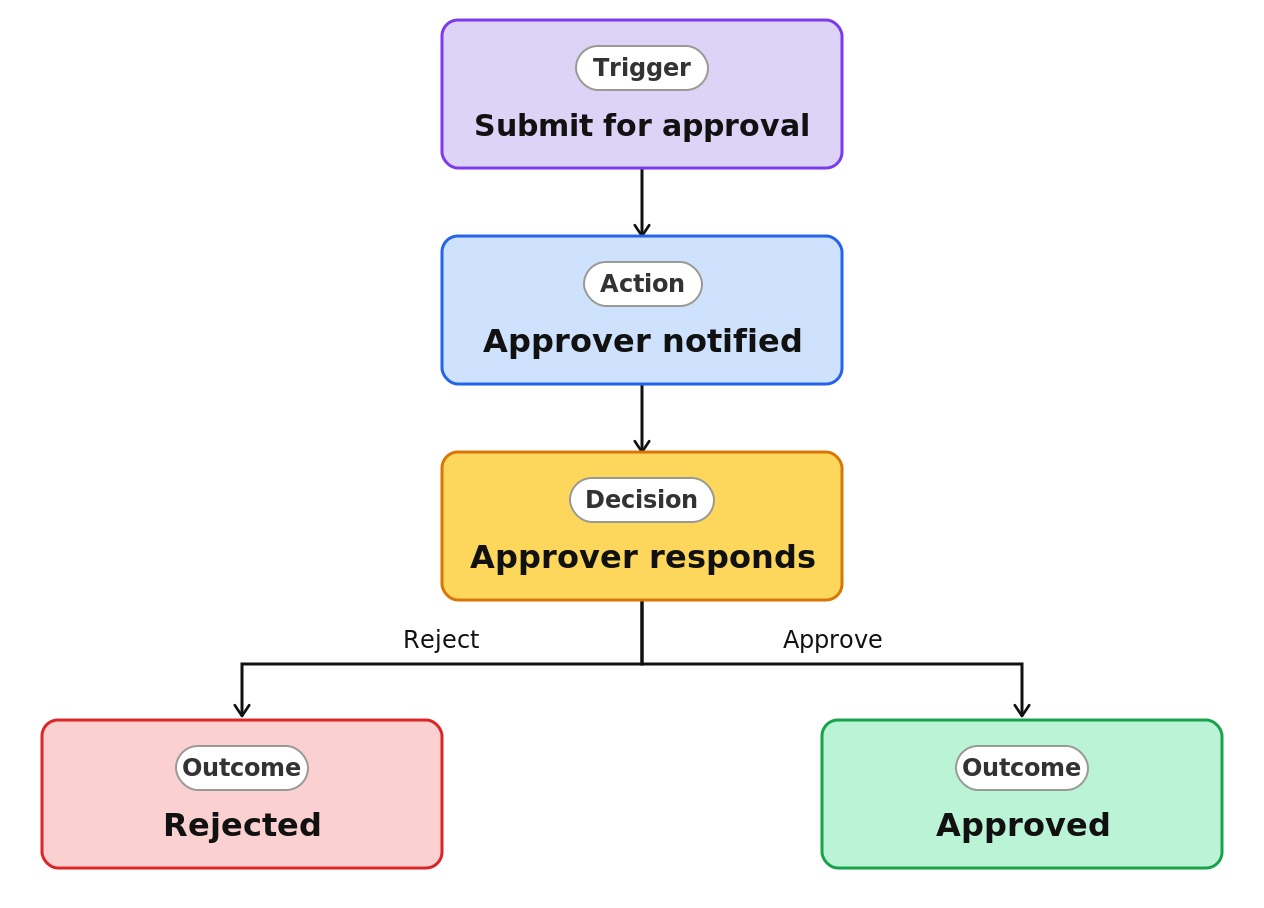
- Modern approvals: once enabled per list or library (an on/off toggle), items can be submitted for approval, and an Approval status column tracks Requested, Approved, and Rejected
- Approver experience: requests appear in the Approvals app in Microsoft Teams and in notification emails, and approvers approve or reject with optional comments
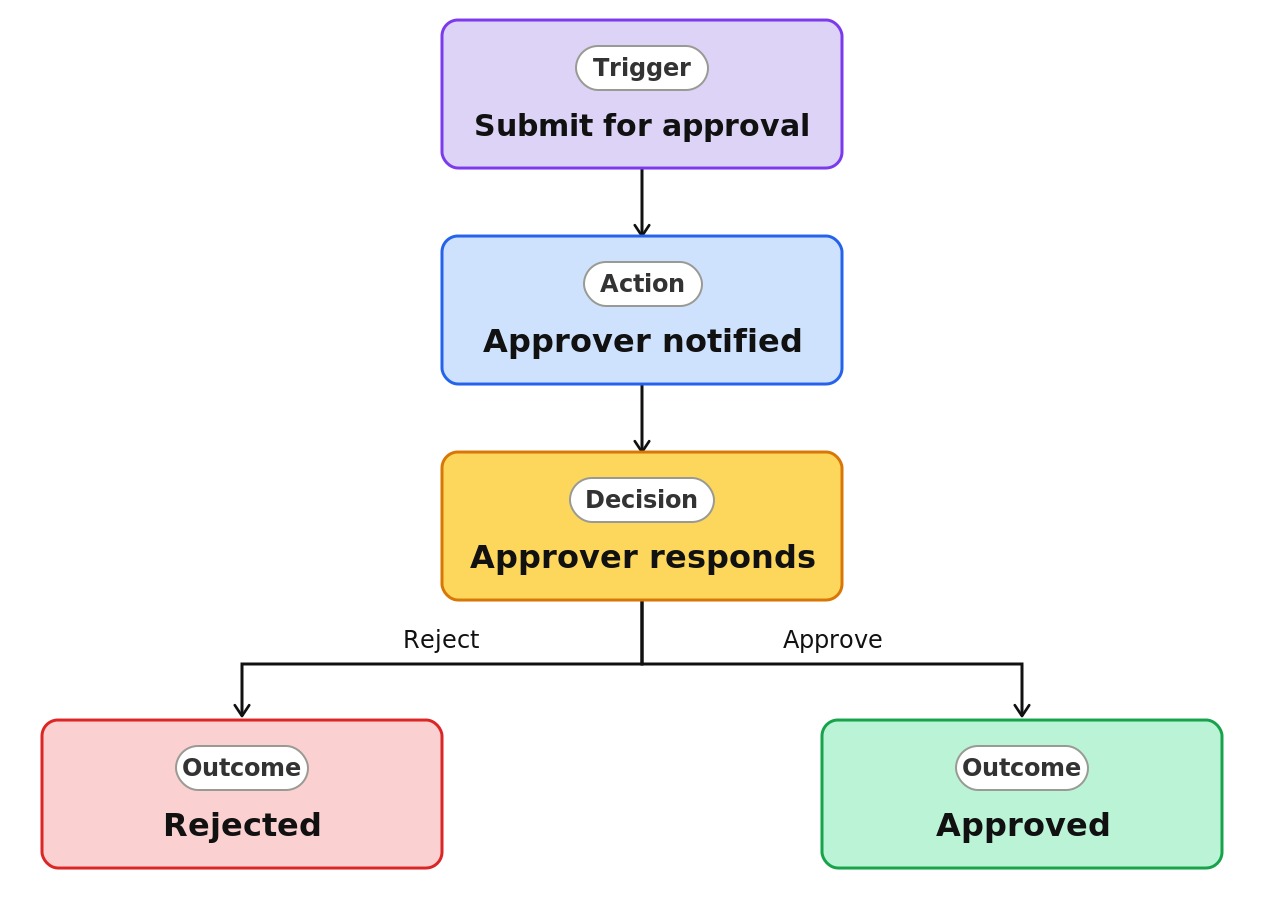
- Content approval: the list or library marks submissions Pending, and designated approvers set each item to Approved or Rejected
- Draft visibility: content approval controls who can see not-yet-approved items, only the author and approvers or broader audiences, via draft item security
- Power Automate extension: custom approval flows can implement multi-stage or conditional routing beyond the built-in behavior
Limits and Nuances
- Two different systems: modern Approvals and content approval are separate capabilities with separate status values
- Submission driven: modern approval requests are created when an item is submitted, and the submitter selects the approvers
- Rejected is not deleted: rejected items remain in place with a Rejected status so they can be revised and resubmitted
- Pages are separate: publishing approval for site pages and news is its own capability built on Power Automate
- Hidden drafts surprise people: with restricted draft security, users may not see items colleagues mention until approval happens
- Edits reset status: changing an approved item under content approval returns it to Pending until re-approved
Common Questions About Approvals
What is the difference between modern Approvals and content approval?
Modern Approvals is the newer capability that adds an approval flow to lists and document libraries and surfaces requests in the Microsoft Teams Approvals app, tracking Requested, Approved, and Rejected statuses. Content approval is the long-standing setting that holds every submission in Pending status until a designated approver acts. They are separate systems, and each one fits different scenarios.
Do approvers need Microsoft Teams to approve documents?
Approval requests from the modern integration appear in the Approvals app in Microsoft Teams, which gives approvers a single queue across lists and libraries, and approvers are also notified by email. Content approval works entirely within SharePoint, where approvers change an item’s status directly, so teams that do not live in Microsoft Teams still have a complete approval path.
What happens when an item is rejected?
The item stays in the list or library with a Rejected status; nothing is deleted. The author can revise the content and submit it for approval again. Under content approval, rejected items remain visible to their author and to approvers, and depending on draft security settings they stay hidden from general readers until a later version is approved.
Can I see approval status in views and columns?
Yes. Both capabilities expose status as a column that can be added to views, filtered, and grouped. Modern Approvals shows Requested, Approved, and Rejected, while content approval uses statuses such as Pending, Approved, Rejected, and Draft. Teams commonly build a pending-items view as the approver queue and an approved-only view for general readers.
Does approval work together with version history?
Yes, and the combination is powerful with content approval. With major and minor versioning enabled, minor versions remain drafts while approved major versions become the published copies that readers see. Version history records the full trail of submissions, approvals, and rejections, which provides the auditable record that policy libraries and controlled documents typically require.
Who can help us set up approval workflows in SharePoint?
Greg Zelfond, the SharePoint consultant behind LookBook 365, configures approvals as part of document management and intranet engagements, choosing between modern Approvals, content approval, and versioning based on how formal the sign-off needs to be. Because LookBook 365 designs rely on out-of-the-box capabilities, the approval processes he builds work without any custom development.