Yes/No Column
Common Use Cases
- Task completion flags: add an Is Complete checkbox to a task list so users can check off items without changing a Status choice column, driving view filters for open vs. completed tasks
- Approval decision recording: capture a simple Approved yes/no decision in a list item alongside comments and approver fields for straightforward approval tracking
- Active/inactive record management: use an Is Active column to flag records as current or archived, then filter the default view to show only active records
Benefits
- Simplest boolean data type: a checkbox is the most intuitive UI for binary flags, understood instantly with no training required
- Editable in Grid View: Yes/No columns render as checkboxes in Edit in Grid View, making bulk toggling of many items fast and efficient
- View filtering on boolean values: filtering a view to show only items where the checkbox is checked (Is Equal To: Yes) is one of the most common and useful view filter patterns
- Calculated column support: Yes/No column values can be used in Calculated Column IF formulas as TRUE/FALSE conditions for conditional text or numeric output
Details
- Feature Category: Columns & Views
How It Works
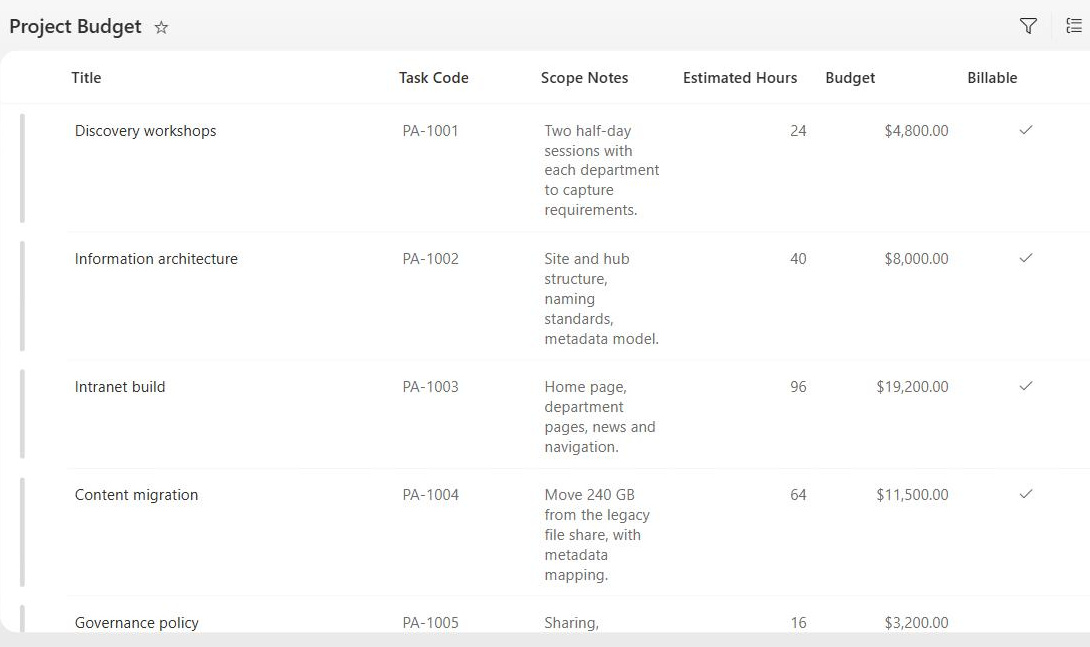
- A checkbox, not text: users tick or untick; views display Yes or No, and Edit in grid view allows fast bulk toggling
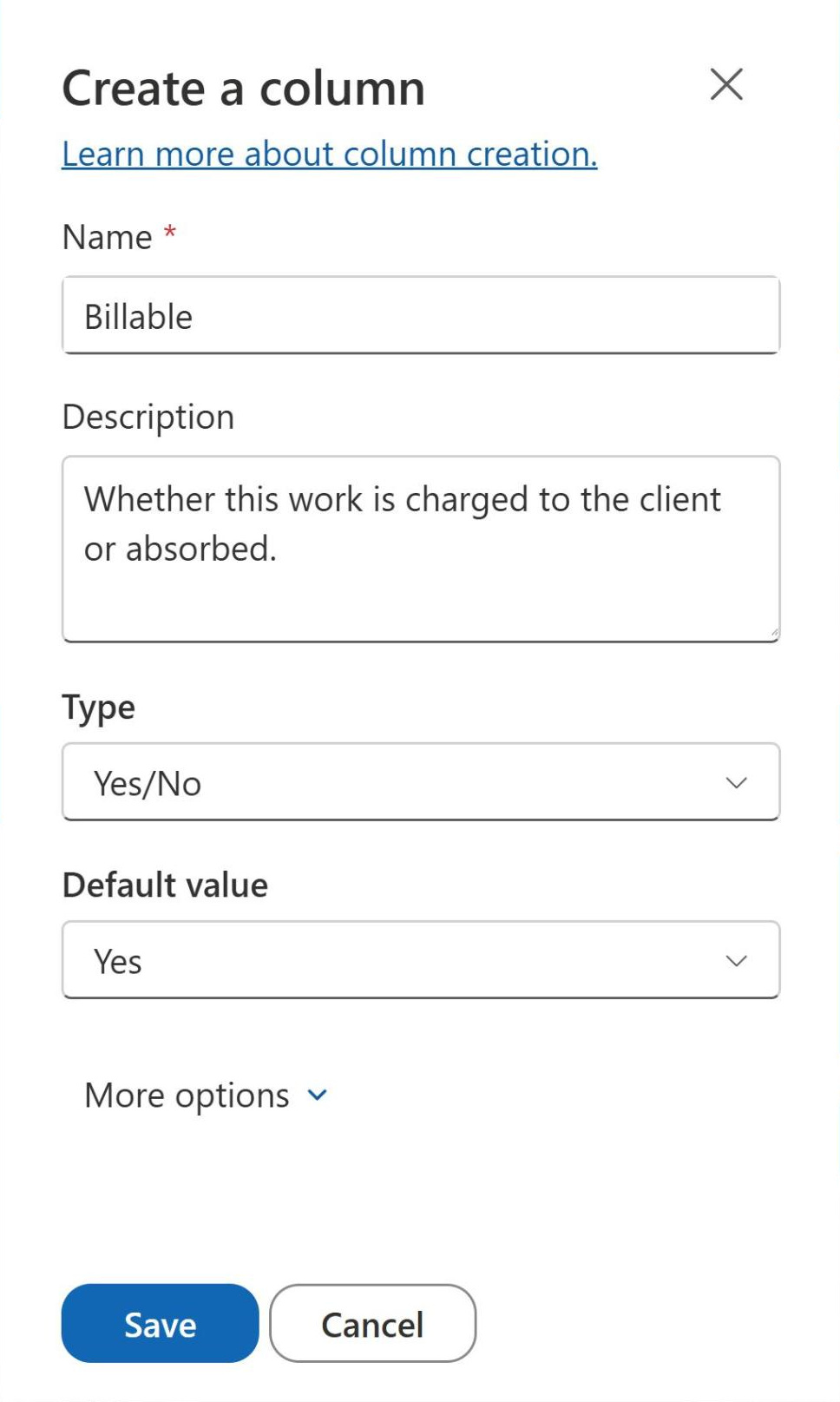
- Configurable default: every new item starts as Yes or No based on the column setting, applied the moment the item is created
- Works in formulas: calculated columns read it as TRUE or FALSE, so an IF([Approved], …) condition works directly
- Filters, groups, and sorts: views can filter on equals Yes, group by the checkbox, and sort checked items together
- Formatting-friendly: column formatting can render it as a checkmark, a colored pill, or a toggle without custom code
Limits and Nuances
- Only two states: if your process needs Pending, Approved, Rejected, or any third option, use a Choice column instead
- No blank state in the UI: every item is always Yes or No from the moment it is created; there is no not-set or N/A
- The default is a governance decision: defaulting to Yes opts every new item in; for consent-style flags, No is usually the safer default
- Power Automate filters use 1 and 0: in a Get items filter query, write ColumnName eq 1 for Yes, not true or false
- No required setting: the column always has a value, so SharePoint does not offer the require-information option for it
- Type conversion is not supported: you cannot switch a Choice column to Yes/No in place; create the new column and migrate the values
Common Questions About the Yes/No Column
What is a Yes/No column in SharePoint?
It is SharePoint’s boolean column type: a checkbox on each list or library item that stores Yes or No. Teams use it for simple flags – approved, active, complete, opted in – because a checkbox is instantly understood and quick to update, especially in grid view. The checklist and tracker examples across LookBook 365 use Yes/No columns to drive their filtered views in exactly this way.
Can a Yes/No column be blank?
Not through the user interface – every item carries Yes or No from the moment it is created, based on the column’s default value. There is no not-set, N/A, or blank state. If your scenario genuinely needs a third state, such as Unknown or Pending, a Choice column with three options is the right tool rather than a checkbox.
How do I filter a view by a Yes/No column?
Add a view filter where the column is equal to Yes (or No) – showing only items where the checkbox is ticked is one of the most useful patterns in SharePoint, powering open-versus-completed task views and active-records lists. You can also group a view by the column to split checked and unchecked items into two clear sections on the page.
How does a Yes/No column work in Power Automate?
It maps to a boolean, with one quirk worth knowing: in a Get items filter query, the OData syntax expects numbers, so write ColumnName eq 1 for Yes and ColumnName eq 0 for No – true and false often fail there. Inside conditions and expressions after the items are retrieved, the value behaves as a normal true or false.
Can I use a Yes/No column in calculated column formulas?
Yes – calculated columns read it as TRUE or FALSE, so a formula like IF([Approved], ‘Released’, ‘Draft’) works directly without comparing against text. That makes Yes/No columns handy building blocks for derived status text, simple scoring, and conditional values that combine several flags from the same item into one readable result.
When should I use a Choice column instead of Yes/No?
Whenever there is – or might soon be – a third option. Yes/No is binary by design: Pending, Approved, Rejected needs a Choice column, and so does any flag where N/A is a legitimate answer. A good rule from the lists Greg Zelfond builds: start simple flags as Yes/No, and switch to a Choice column the moment the business asks for a third state.