Number Column
Common Use Cases
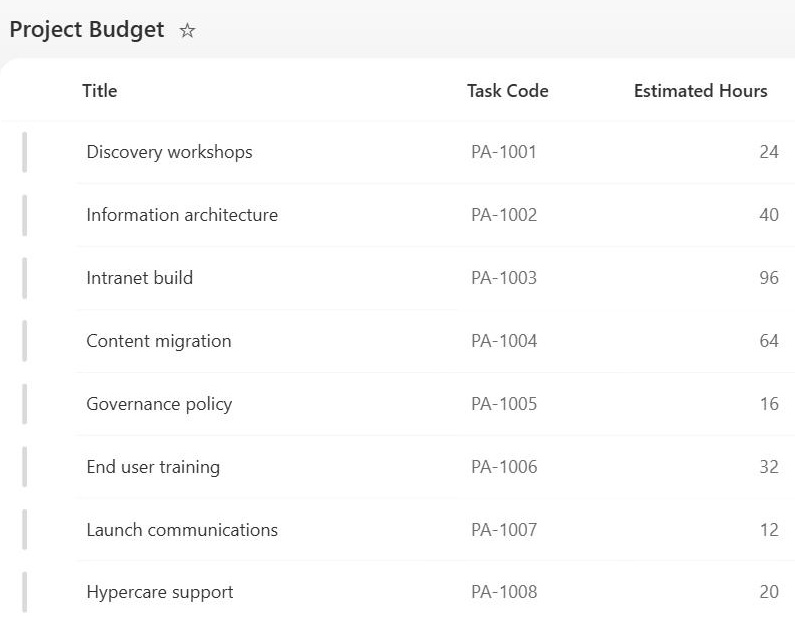
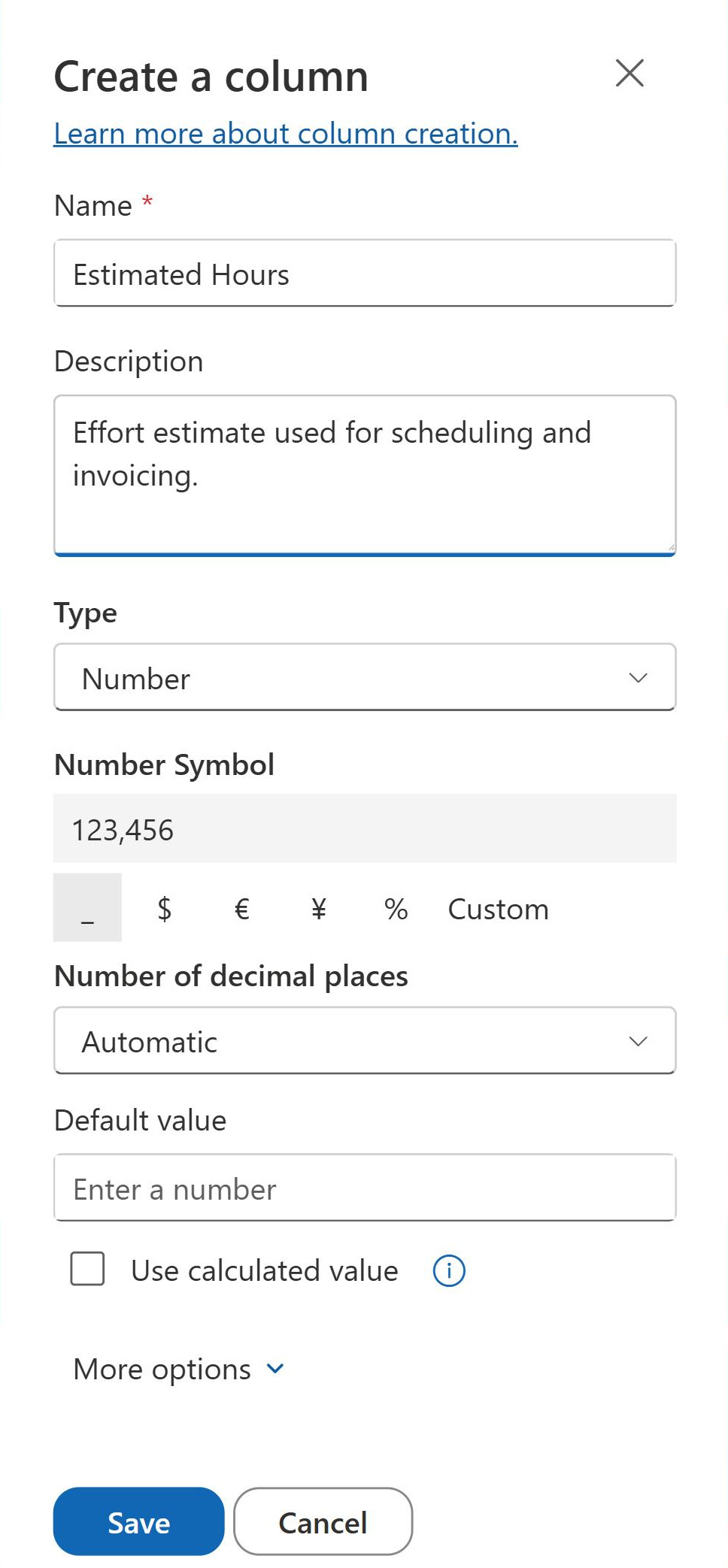
- Task effort estimation: capture estimated hours or story points in a project task list for capacity planning and burn-down tracking
- KPI and metric tracking: store monthly or quarterly performance metrics like revenue, call volume, or defect count for sorting and Power BI reporting
- Inventory quantity management: track stock levels, reorder quantities, and units on hand with minimum validation to flag when quantities go below threshold
- Risk score assignment: assign numeric risk scores to risk register items for sorting by severity and driving calculated risk category columns
- Rating and survey results: store Likert scale ratings of 1 to 5 or 1 to 10 for aggregation, averaging, and trending in reports
Benefits
- True numeric sorting: Number columns sort numerically, not alphabetically
- Decimal precision control: configure 0, 1, 2, or more decimal places depending on whether the column stores whole units, percentages, or precise measurements
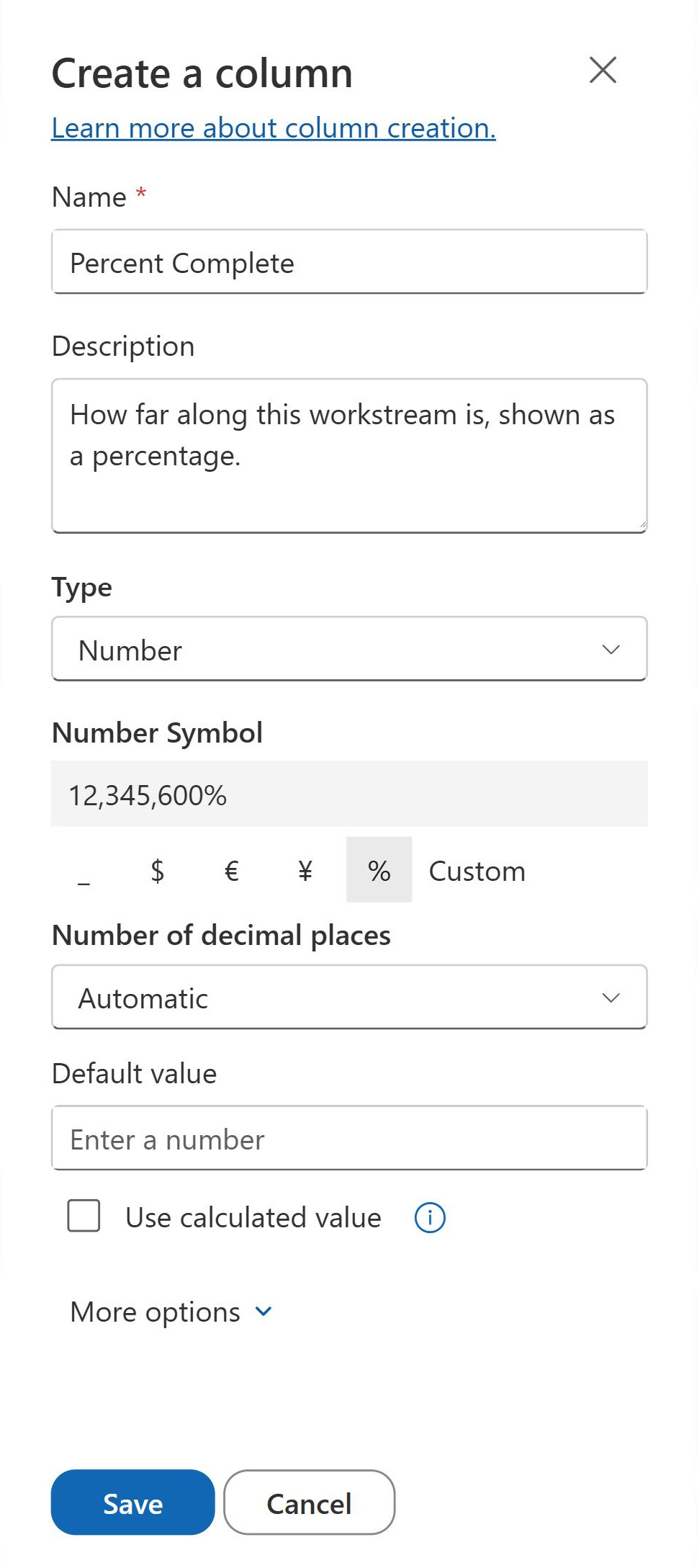
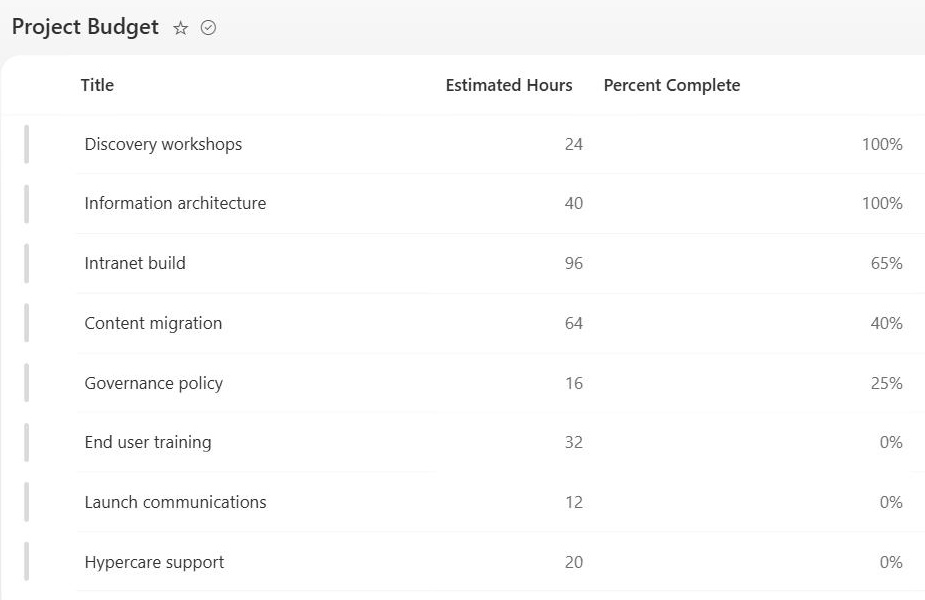
- Percentage display option: Number columns can display values as percentages with automatic multiplication by 100, making score and completion tracking cleaner
- Min/max validation: column validation rules can reject entries outside a defined numeric range, preventing data entry errors at the point of input
- View totals and aggregation: list views can display the Sum, Average, Minimum, Maximum, and Count of a Number column in the Total row for quick statistical summaries
Details
- Feature Category: Columns & Views
Limits and Nuances
- Decimal places are set at the column level: every row displays with the same precision; you cannot vary decimal places per item
- Floating point precision: numbers are stored as double-precision floating point, roughly 15 significant digits, so very long numbers get rounded; store long IDs and reference codes as text
- Single-column validation only: column-level validation can only reference its own column; rules that compare multiple columns must go in list-level validation instead
- One list-level formula: list validation allows only one formula per list, so plan multi-column rules accordingly
- Percentage display changes only the display: the stored value is the decimal, so 50% is stored as 0.5, which is what flows, formulas, and Power BI receive
- Leading zeros are dropped: a Number column stores 007 as 7; use Single line of text for codes
- Blank and zero are different: an empty Number column is not 0 in filters, totals, or formulas; set a default value of 0 if you need one
- Currency formatting is not a Number option: use a Currency column for money, or JSON column formatting for custom display
Common Questions About Number Columns
What is a Number column in SharePoint?
A Number column is the out-of-the-box column type for numeric data on lists and libraries: quantities, hours, scores, ratings, and metrics. Because values are stored as real numbers rather than text, they sort numerically, respect minimum and maximum validation, support decimal place control and percentage display, and can be totaled in views. It is the column to use for any field you intend to count, calculate, or report on.
How does the percentage option work on a Number column?
Turning on Show as percentage changes the display, not the data. SharePoint stores the underlying decimal and multiplies it by 100 on screen, so a stored 0.5 displays as 50%. That matters downstream: Power Automate flows, calculated columns, and Power BI all receive the decimal value. Enter values accordingly, and remember min/max validation also applies to the stored decimal, not the displayed percentage.
Can you restrict what numbers users enter in SharePoint?
Yes, two ways. The column’s own settings include minimum and maximum allowed values, which reject out-of-range entries the moment someone saves the item, perfect for scores that must stay between 1 and 10. For anything more nuanced, column validation accepts a formula plus a custom error message. Rules that compare several columns to each other belong in list-level validation settings instead.
Why does a Number column drop leading zeros?
Because it stores numbers, not text, and mathematically 007 is 7. The same applies to formatting: a Number column will not preserve dashes, spaces, or country codes. For employee IDs, phone numbers, postal codes, and reference numbers you never calculate with, use a Single line of text column instead. Reserve the Number column for values where math, sorting, and totals actually matter.
Can SharePoint total or average a Number column?
Yes. List views support a Totals row that can show the Sum, Average, Maximum, Minimum, or Count of any Number column, and the totals recalculate per group when the view is grouped: subtotals by project, department, or status with zero formulas. For richer analysis, the column’s clean numeric data feeds straight into Excel exports and Power BI without conversion.
How do I choose the right numeric column in SharePoint?
Use a Number column for general numeric values like quantities, hours, scores, and metrics; it sorts and totals correctly, and its percentage display suits completion and score tracking. Use a Currency column instead of Number for anything financial, since it adds a currency symbol and locale formatting. Use a Calculated column to derive a numeric result from other columns, such as Quantity times Unit Price. For numeric codes you never calculate with – phone numbers, postal codes, IDs – use Single line of text so leading zeros and dashes survive.
Should you use a Number column or a Currency column for money?
Use Currency for money. It formats values with the right currency symbol and locale, and it is accurate to 15 digits left of the decimal and 4 to the right, designed for financial data. A Number column works arithmetically but displays bare digits. Greg Zelfond, who builds SharePoint trackers for a living, treats this as a simple rule: budgets and costs get Currency, everything else numeric gets Number.