Currency Column
Common Use Cases
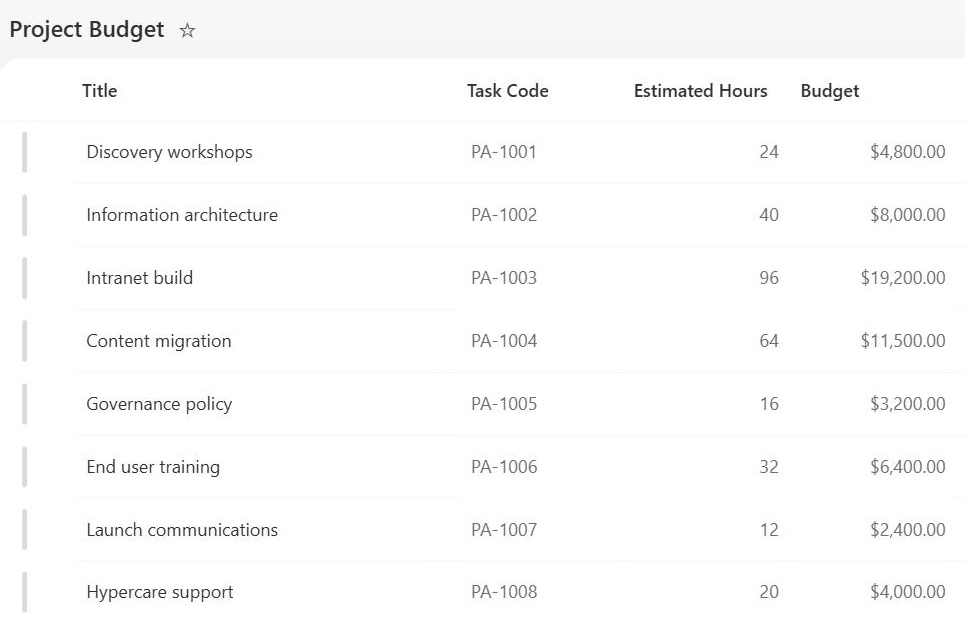
- Budget trackers: record allocated, committed, and spent amounts per department, project, or cost center
- Purchase requests: capture the estimated cost on each request so approvers see the amount at a glance
- Invoice logs: track invoice amounts in accounts payable lists alongside vendor, status, and due date metadata
- Asset registers: store purchase price and current value for equipment, hardware, and inventory
- Expense tracking: collect reimbursable amounts in lists that replace email threads and scattered spreadsheets
- Contract repositories: record contract value next to renewal dates and owners for portfolio-level reporting
Benefits
- Real money formatting: the currency symbol, separators, and decimals render consistently for every entry
- Numeric behavior: values sort and filter as numbers, so 9 never lands after 1,000 the way it would in a text column
- View totals: Sum, Average, Maximum, and Minimum can display at the bottom of any list view
- Formula ready: calculated columns can multiply quantity by unit price or apply a tax rate to currency values
- Built-in validation: optional minimum and maximum values catch typos before the item ever saves
- Global coverage: more than 100 country and region formats serve international teams out of the box
Details
- Feature Category: Columns & Views
How It Works
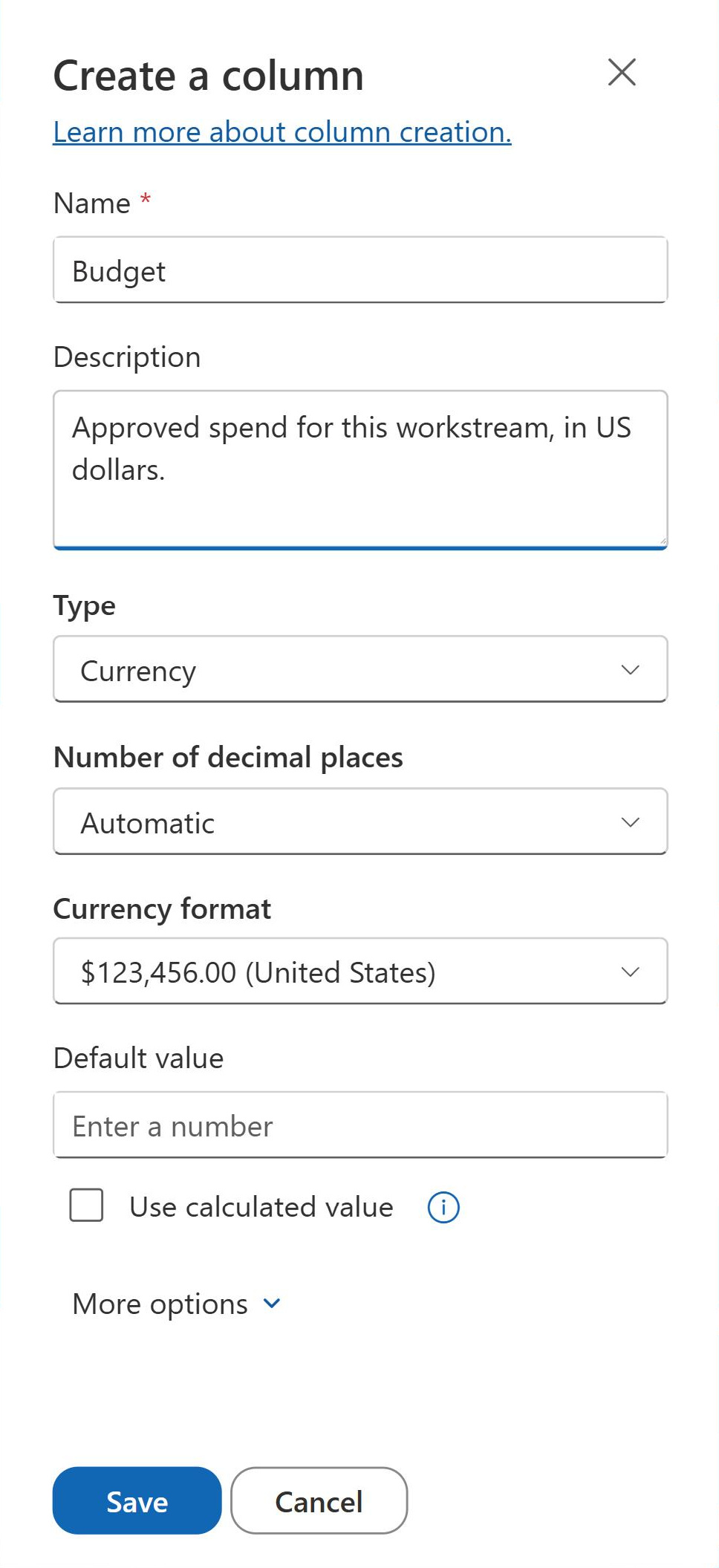
- Pick a locale: the currency format setting lists countries and regions, and the choice controls the symbol and number layout the column displays
- A number underneath: SharePoint stores the value as a numeric amount; the currency format affects display only
- High precision: currency values are accurate to 15 digits left of the decimal point and 4 digits to the right
- No exchange rates: the column formats amounts but never converts them between currencies
- Consistent everywhere: the formatted value appears the same way in views, forms, and grid editing
Limits and Nuances
- One format per column: the symbol is set at the column level, so a single column cannot show dollars on one row and euros on the next
- No conversion: SharePoint never applies exchange rates; multi-currency lists typically pair the amount with a Choice column holding the currency code
- Decimal display choices: the column displays the decimal places you configure, while storage precision allows up to four decimal digits
- Read-only when calculated: a calculated column can return a currency result, but that value cannot be edited directly
- Site regional settings matter: number formatting behavior ties into site regional settings, so verify the column displays as expected after changing the site locale
- Indexable: currency columns support indexing, useful as the first filter on lists approaching the List View Threshold
Common Questions About the Currency Column
What is a Currency column in SharePoint?
The Currency column is a list and library column type built for monetary values. You choose a currency format from more than 100 countries and regions, and SharePoint displays every entry with the matching symbol and number layout. Under the hood the value is a true number, so it sorts numerically, supports minimum and maximum validation, and works in calculated column formulas and view totals.
What is the difference between a Currency column and a Number column?
Both store numbers, and both sort, filter, and calculate the same way. The difference is presentation and intent: a Currency column displays a currency symbol and money-style formatting based on the locale you select, while a Number column shows a plain figure with optional percentage display. For budgets, prices, and costs, Currency communicates instantly that the figure is money and keeps formatting consistent.
Can a Currency column convert between currencies?
No. The currency format controls only the symbol and the way the number displays; SharePoint never applies exchange rates or converts amounts. If a list genuinely tracks several currencies, the common pattern is one Currency column for the amount plus a Choice column for the currency code, or separate columns per currency with a calculated column handling any fixed-rate math.
How precise is a Currency column?
Currency values in SharePoint are accurate to 15 digits to the left of the decimal point and 4 digits to the right, which is more than enough for everyday business amounts. For display, you choose the number of decimal places when configuring the column, with two being the standard choice for money and zero useful for round figures like budget allocations.
Can I total a Currency column in a view?
Yes. List views support totals on numeric columns, and a Currency column can display Sum, Average, Maximum, and Minimum beneath the view. Combined with grouping, this is a quick way to see spend per department or per project without exporting to Excel. The totals recalculate automatically as items are added, edited, or filtered.
When should I use a Currency column in a SharePoint tracker?
Any time the field represents money: budget trackers, purchase request lists, invoice logs, contract repositories, asset registers. Greg Zelfond, the consultant behind LookBook 365, uses Currency columns throughout the trackers in his design sets because they validate input, format consistently, and total in views, all out of the box with no custom code or Power Apps required.