Forms
Key Features
- Form Builder: Create surveys, quizzes, or polls
- Real-Time Responses: View submissions instantly
- Branching Logic: Customize paths based on answers
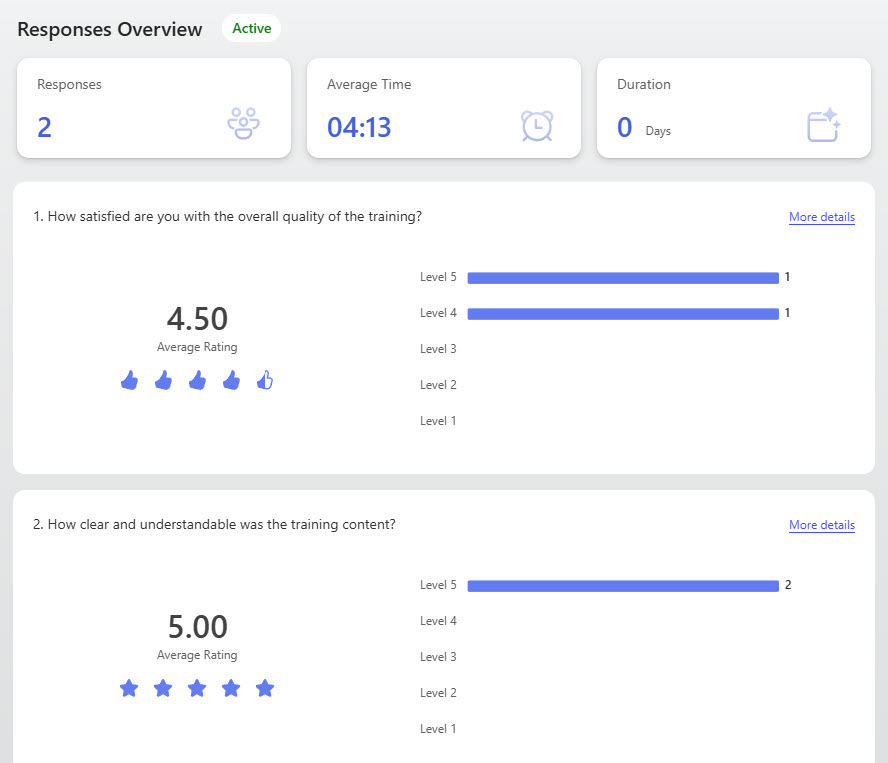
- Analytics: View charts and export to Excel
- Anonymous or Named: Choose response type
- Mobile Friendly: Optimized for phones and tablets
- Excel Integration: responses flow into a live Excel workbook for deeper analysis and reporting
Common Use Cases
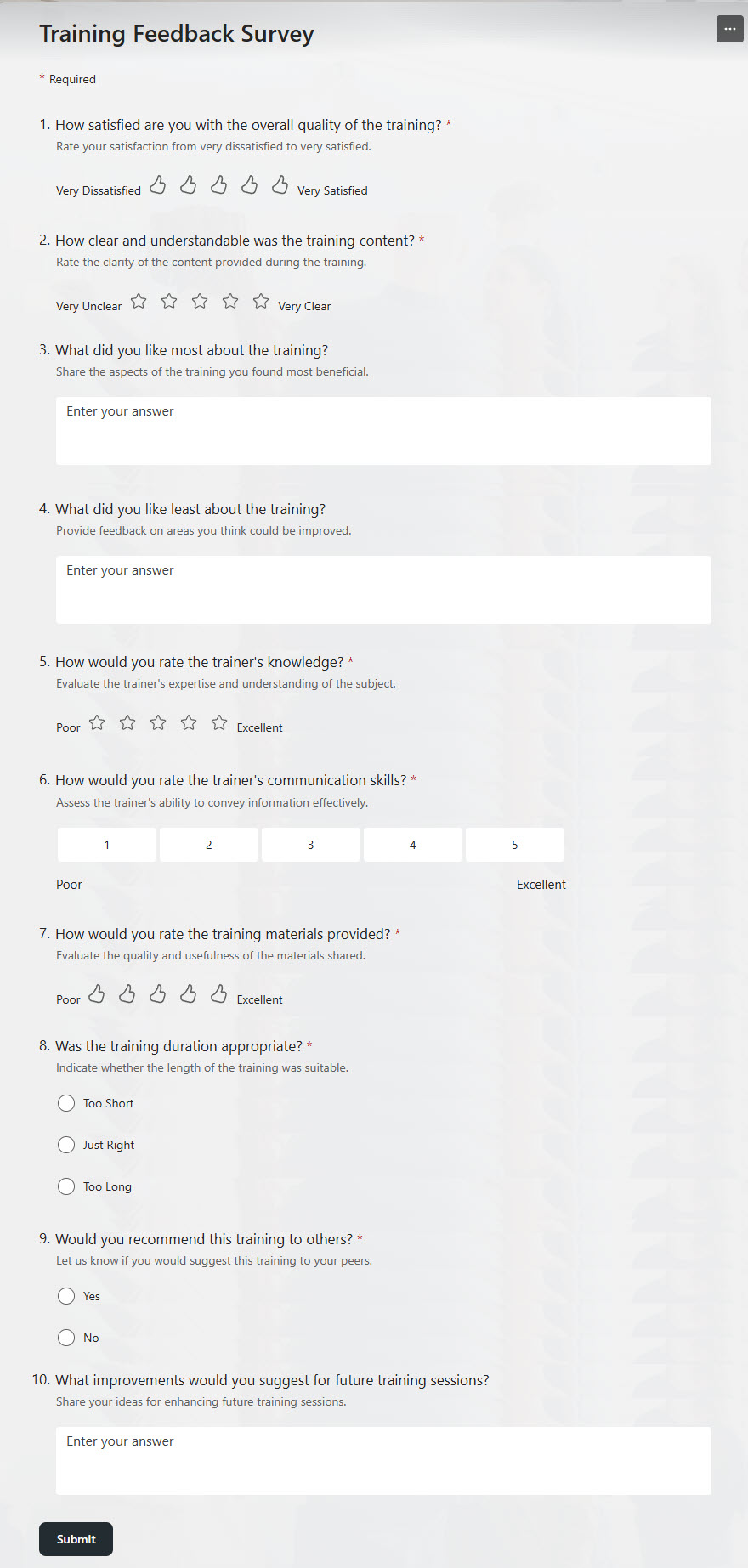
- Customer satisfaction surveys
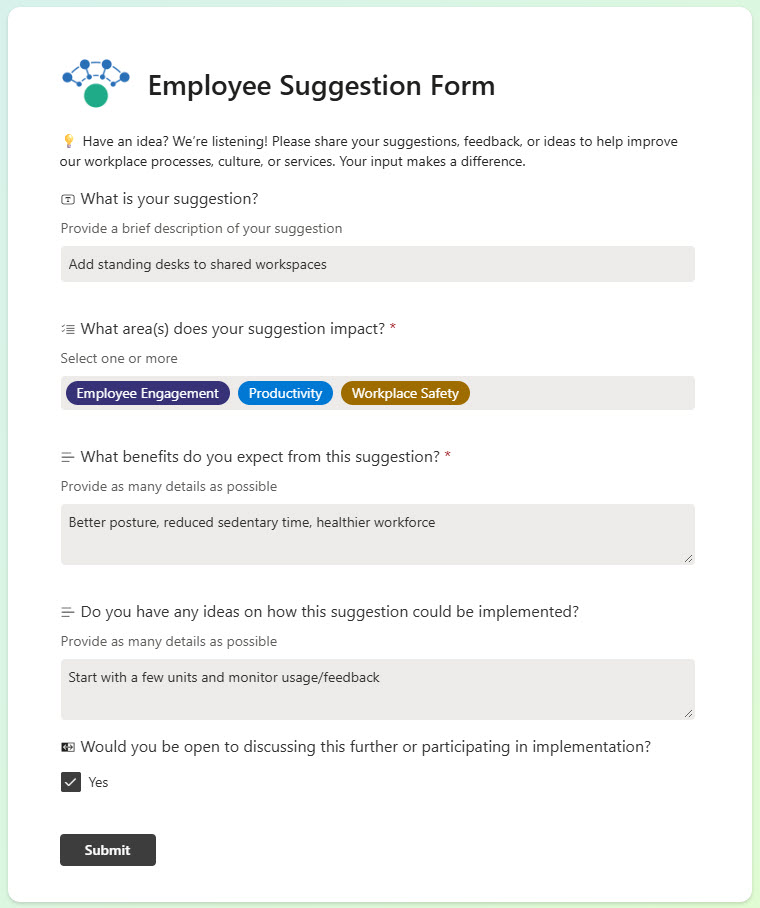
- Employee feedback and polls
- Event RSVPs and registrations
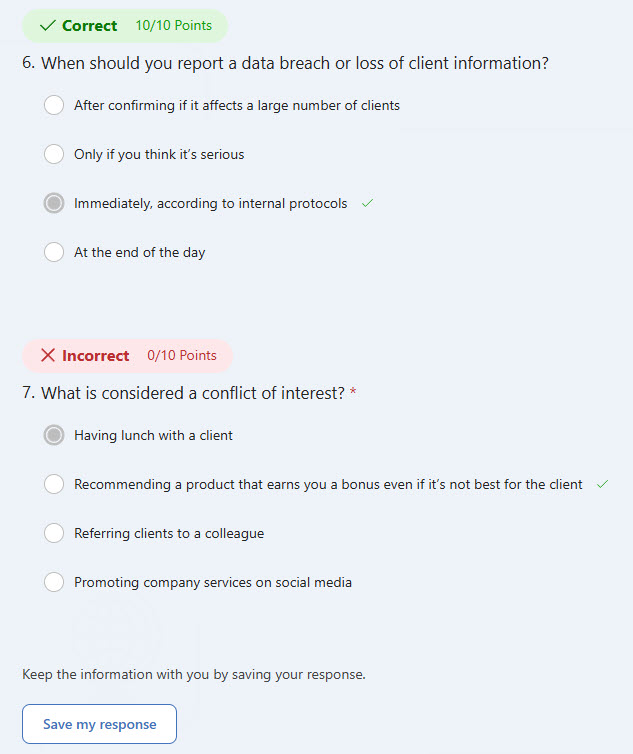
- Knowledge assessments or quizzes
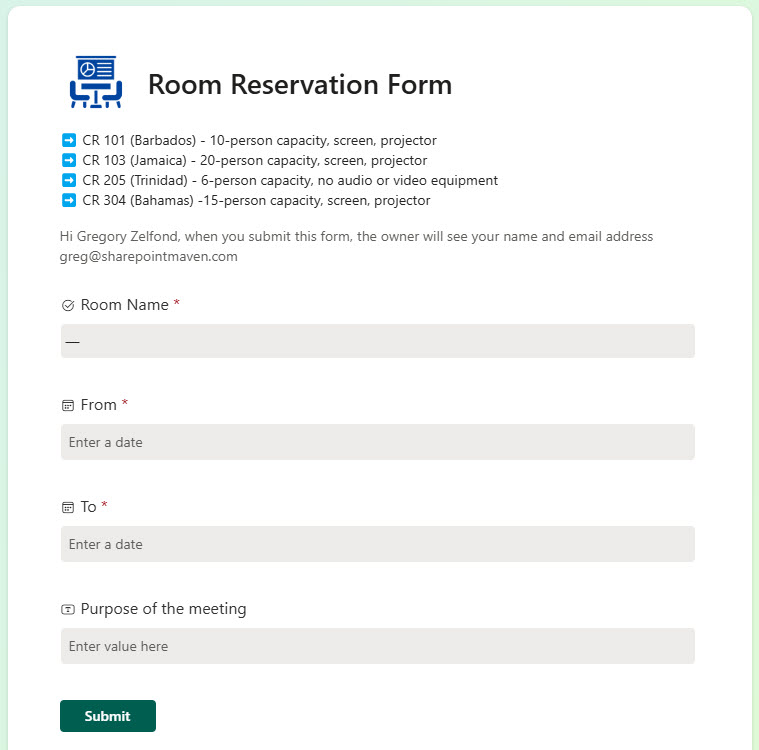
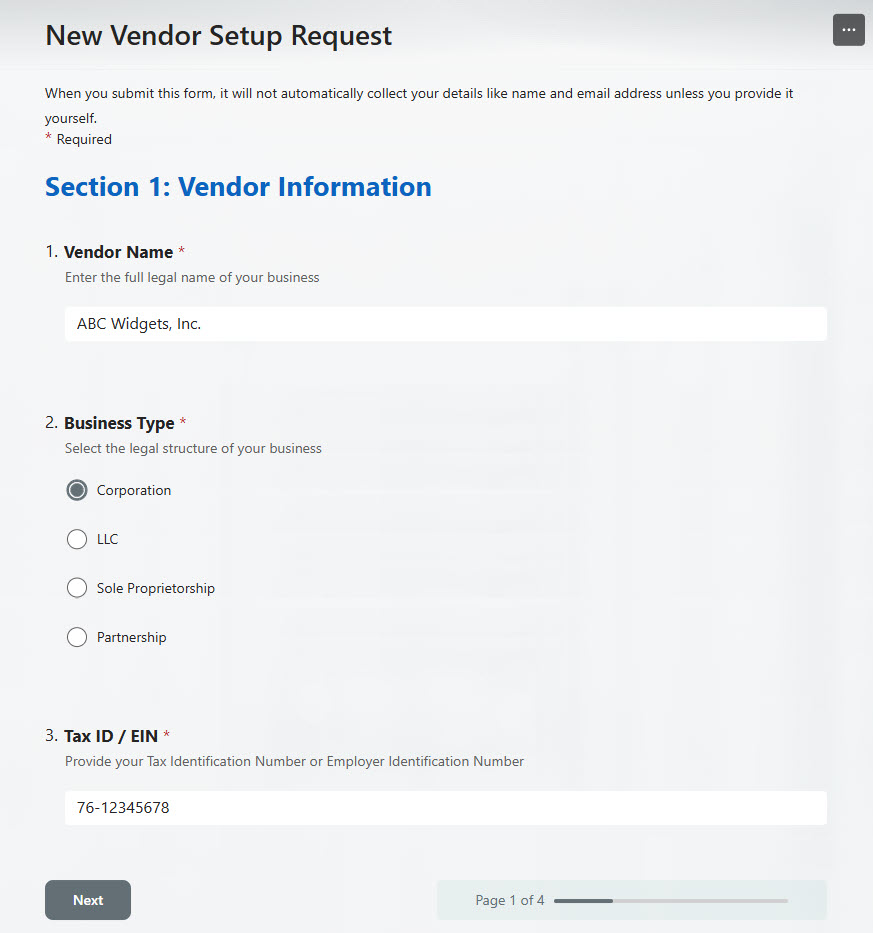
- IT or HR request forms
How Microsoft Forms Fits Into Microsoft 365
- SharePoint: the Microsoft Forms web part embeds a form, or its live results, directly on any SharePoint page
- Excel: responses sync to an Excel workbook, so the analysis happens in a tool everyone already knows
- Power Automate: a new response can trigger a flow that sends notifications, requests approvals, or writes the answer into a SharePoint list
- Teams: forms and quick polls can be created and answered right inside channels and meetings
- Outlook and PowerPoint: polls can be inserted into emails and live presentations to capture answers on the spot
Limits and Nuances
- Response capacity: a single form can collect up to 5 million responses in business and education plans
- Form limit: each person can create up to 400 forms and 400 polls, with another 400 group forms available per team
- Question limit: up to 200 questions per form, and each Likert statement counts as its own question
- Big-form tradeoffs: above 50,000 responses, summary charts and individual response views switch off, with full CSV export still available
- Character limits: a submission is capped at 200,000 characters in total, with up to 4,000 characters per answer
- One response per person: the setting is only enforced within a continuous block of 50,000 responses
- Targeted distribution: the specific-people option covers up to 100 names or groups, including up to 20 groups of up to 1,000 members each
- Included with Microsoft 365: no separate license to buy; personal Microsoft accounts get far lower caps (200 responses free, 1,000 paid)
- Forms vs lists: Forms collects one-time submissions, while SharePoint lists hold data people return to and update over time
Common Questions About Microsoft Forms
What is Microsoft Forms used for?
Collecting structured input, mainly. Organizations use Forms for surveys, polls, registrations, and feedback – employee pulse checks, event RSVPs, training evaluations – and for quizzes with automatic grading. Every response appears instantly in built-in charts and can flow into Excel for deeper analysis. Because Forms is part of Microsoft 365, results stay inside the organization’s environment, and a finished form can be shared by link, QR code, or embedded on a SharePoint page.
What is the difference between Microsoft Forms and SharePoint lists?
Forms is for collecting; lists are for managing. A form gathers one-time submissions – a survey answer, a registration – and shows the results as charts. A SharePoint list stores data people return to, update, sort, and filter over time. The two work well together: a Power Automate flow can write each new form response into a SharePoint list, giving you a friendly front door and a structured database behind it.
Is Microsoft Forms included in Microsoft 365?
Yes – Forms comes with Microsoft 365 business, enterprise, and education plans, so there is nothing extra to buy. The included limits are generous: each person can create up to 400 forms, and a single form can collect up to 5 million responses. Personal Microsoft accounts also get Forms, with much lower caps of 200 responses on free accounts and 1,000 on paid subscriptions.
How many responses can a Microsoft Form collect?
Up to 5 million per form on business and education plans, which covers virtually any internal scenario. There are practical tradeoffs at scale: once a form passes 50,000 responses, the summary charts and individual response views switch off, and results are handled through a full CSV export instead. Each form supports up to 200 questions, and a single submission can contain up to 200,000 characters of text.
Can you put a Microsoft Form on a SharePoint page?
Yes – SharePoint includes a dedicated Microsoft Forms web part that embeds either the form itself or its live results directly on a page. That is how suggestion boxes, registration forms, and feedback surveys end up on intranet pages, and several LookBook 365 examples use exactly this pattern. People submit without leaving the intranet, and responses still land in Forms and Excel as usual.
Can people outside the organization fill out a Microsoft Form?
Yes, when the form owner sets it to accept responses from anyone with the link – external respondents answer anonymously without signing in. For internal-only forms, the audience can be restricted to the organization or to specific people and groups, with names recorded automatically. That flexibility is why Forms handles everything from public customer surveys to named employee feedback with the same tool.