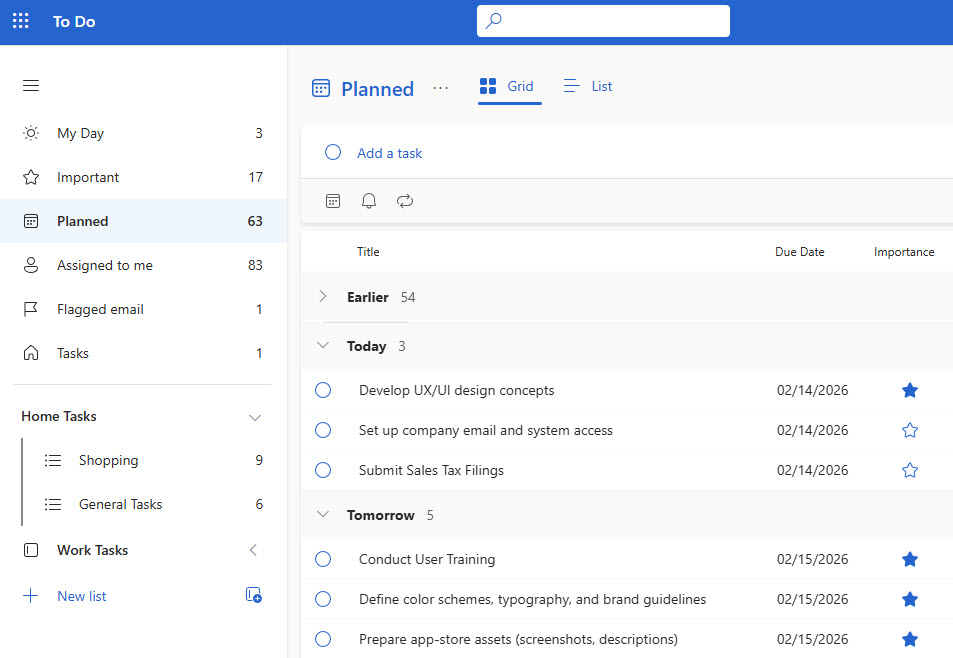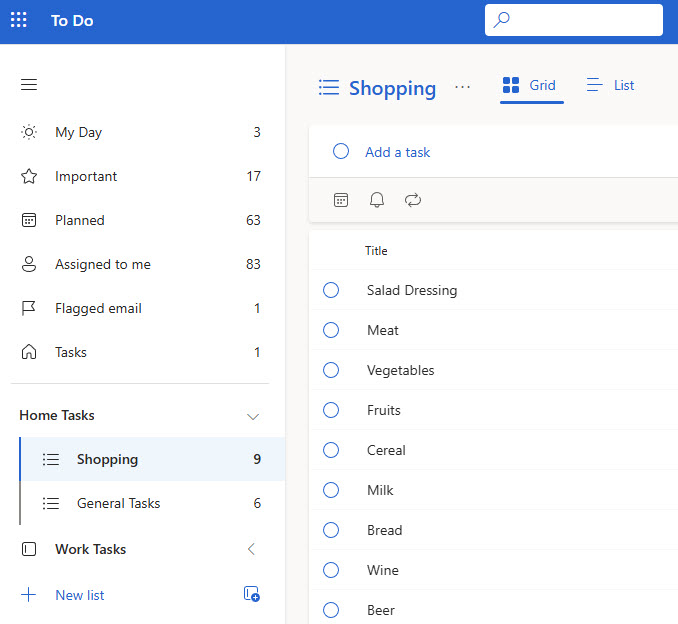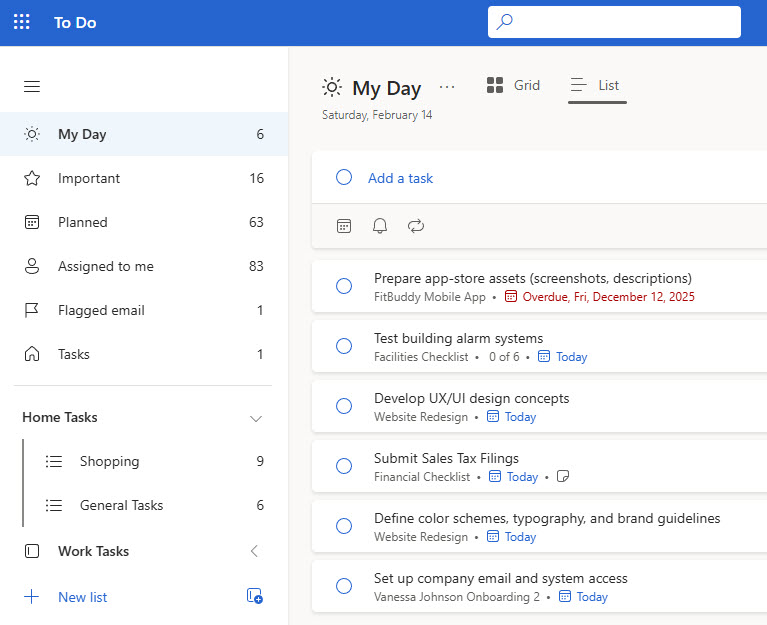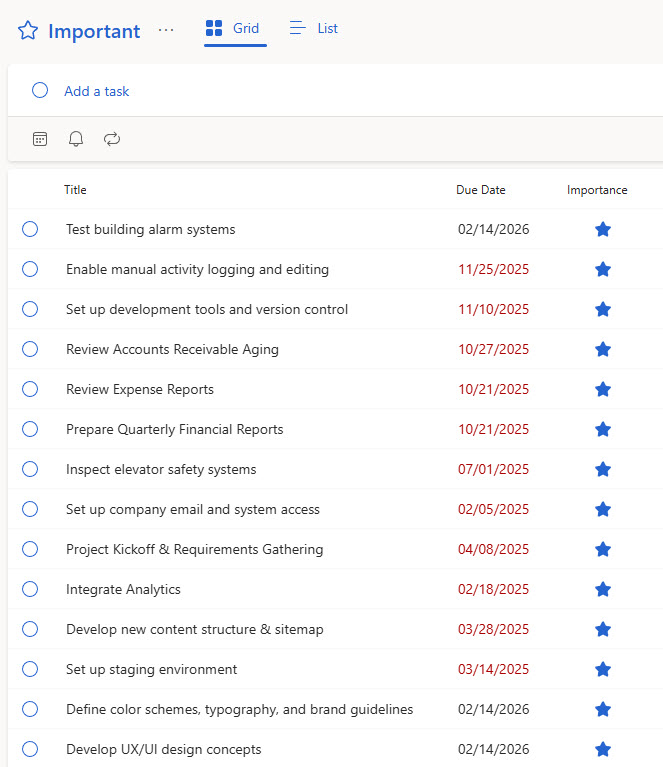
To Do
Key Features
- Daily Task List: My Day feature for focus
- Custom Lists: Organize tasks your way
- Reminders & Due Dates: Stay on schedule
- Integration with Outlook: Sync flagged emails
- Subtasks and Notes: Add detail to each task
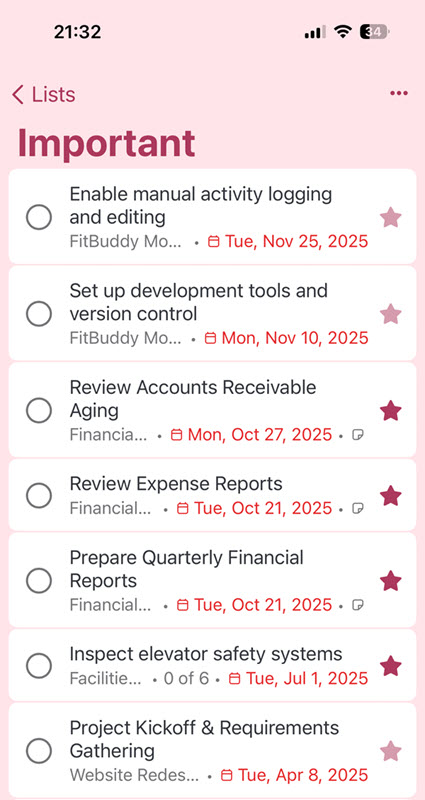
- Cross-Device Sync: Use on desktop and mobile
Common Use Cases
- Personal to-do list management
- Work task tracking
- Shopping or packing lists
- Follow-up reminders from email
- Goal tracking and prioritization
How To Do Fits Into Microsoft 365
- Outlook: flagged emails appear as tasks in To Do, and tasks created in either app show up in both, because they share one Exchange Online task store
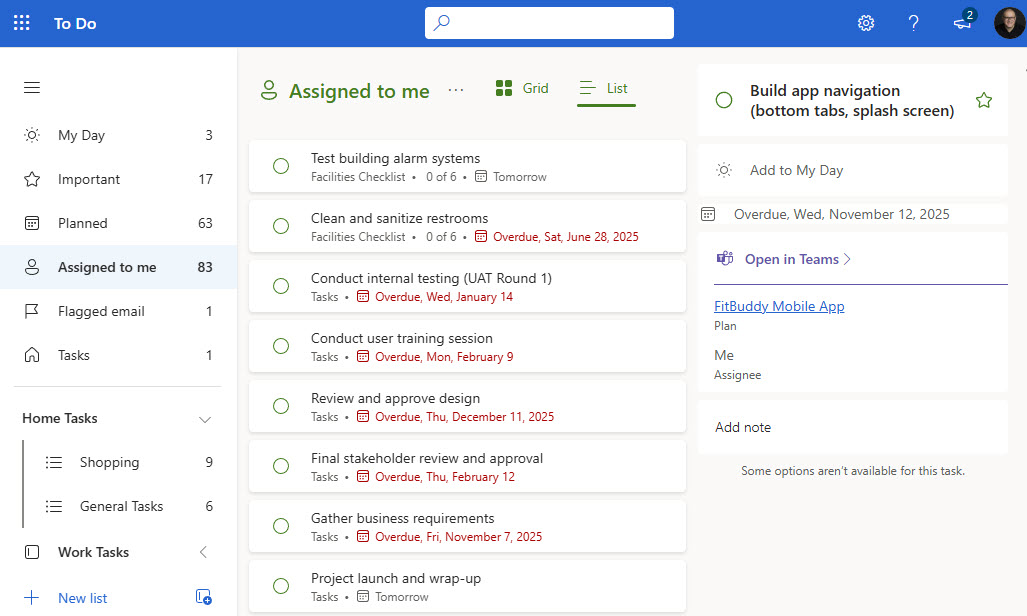
- Planner: tasks assigned to you in Planner show up in To Do’s Assigned to Me list, so team work and personal work meet in one place
- Teams: the Planner app in Teams brings To Do, Planner, and Project tasks together in a single view
- Exchange Online: tasks are stored in your mailbox, which is why they roam across devices and survive app reinstalls
- SharePoint: To Do covers personal tasks; for shared team checklists and trackers, SharePoint lists are the better home, as many examples on LookBook 365 show
Limits and Nuances
- Free to use: To Do works with any Microsoft account at no charge and is included in Microsoft 365 business and enterprise plans
- Exchange Online powers work accounts: with a work account, To Do stores tasks in the Exchange Online mailbox, so a mailbox license is required
- Flagged email starts with a window: the Flagged email list initially fills with the 100 most recently flagged messages from the last 30 days
- Primary mailbox only: flags from shared or secondary mailboxes do not flow into To Do
- List sharing stays inside the organization: work and school accounts can share lists only with people in the same organization, and personal accounts only with other personal accounts
- My Day resets daily: the view clears each morning by design; unfinished tasks stay safely in their lists and reappear as suggestions
- Personal, not team: To Do has no boards, no assigning tasks to others, and no progress charts; that is Planner’s job, and the two are designed to work side by side
Common Questions About Microsoft To Do
What is Microsoft To Do used for?
Personal task management. To Do keeps your work to-dos, follow-ups, and reminders in simple lists with due dates, recurring schedules, and steps for breaking bigger tasks down. The My Day view offers a fresh start each morning – you pick what matters today, and suggestions surface yesterday’s leftovers. Because tasks sync through Microsoft 365, the same lists appear on desktop, web, and mobile automatically.
What is the difference between To Do and Planner?
To Do is for your tasks; Planner is for the team’s. To Do manages personal lists that only you see unless you share them, while Planner organizes shared plans with boards, buckets, and tasks assigned across a team. They meet in the middle: anything assigned to you in Planner automatically appears in To Do’s Assigned to Me list, so one app shows everything on your plate.
Is Microsoft To Do free?
Yes. Microsoft To Do is free with any Microsoft account, and it is included in Microsoft 365 business and enterprise plans with no extra license to buy. With a work account, tasks are stored in your Exchange Online mailbox, which is what powers the sync between To Do, Outlook, and the Planner app in Teams across all of your devices.
Do flagged Outlook emails show up in To Do?
Yes – that is one of To Do’s best tricks. Once the Flagged email list is turned on, any message you flag in Outlook appears as a task in To Do, complete with a preview of the email text. A few nuances: it works with your primary mailbox only, and the list initially fills with the 100 most recently flagged messages from the last 30 days.
Can I share a To Do list with my team?
You can share any list with colleagues – for work and school accounts, sharing is limited to people inside the same organization. Shared lists work well for small, informal task sets. For structured team checklists and trackers with views, statuses, and reporting, a SharePoint list is the stronger tool – the checklist and tracker examples on LookBook 365 show what that looks like out-of-the-box.
Where are To Do tasks stored?
In your mailbox. To Do is built on Exchange Online, so every task lives in the same place as your email and calendar. That design is why tasks sync instantly across the To Do apps, Outlook, and the Planner app in Teams, why they survive device changes and reinstalls, and why work tasks stay within your organization’s existing security and compliance boundary.