Quick Steps
Common Use Cases
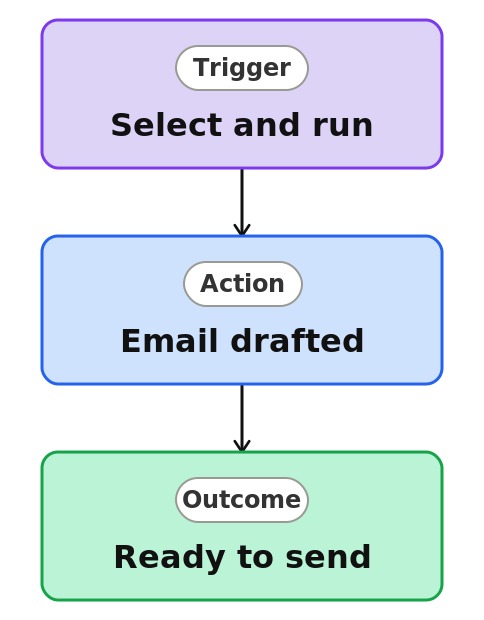
- Draft a stakeholder email: select an item or file and trigger a Quick Step that opens an email dialog with a predefined message and the item link already inserted; perfect for review requests, status notes, or hand-offs
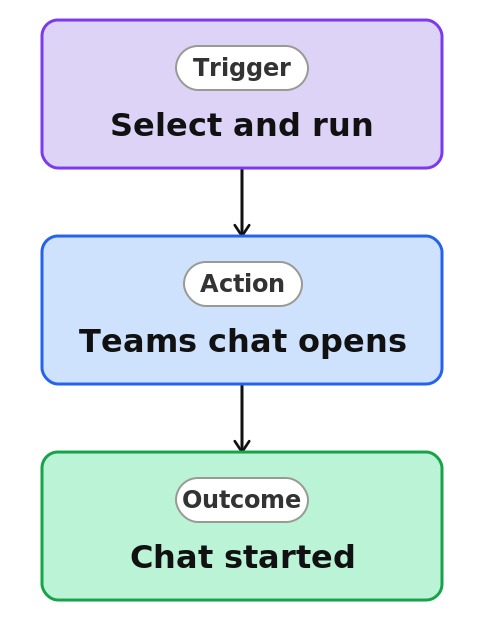
- Start a Teams chat: kick off a Teams conversation about a selected item with a single click; Quick Steps opens the chat window with the item link prepopulated so the recipient lands directly on the relevant content
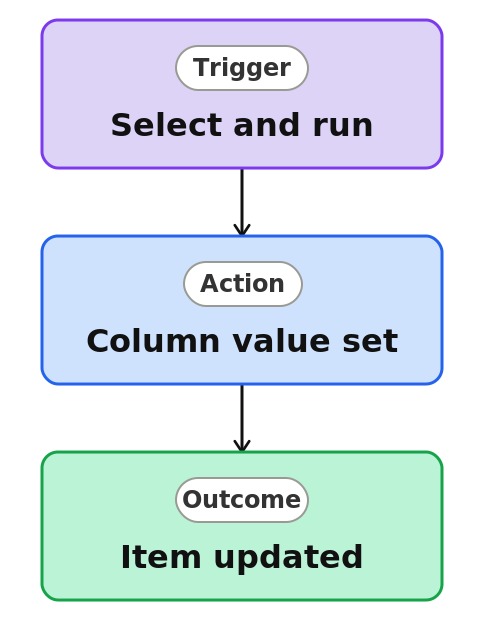
- Set a column value: stamp a column instantly: flip status to Active or Complete, mark a date column with today’s date, or apply a fixed category, without opening the item’s edit form
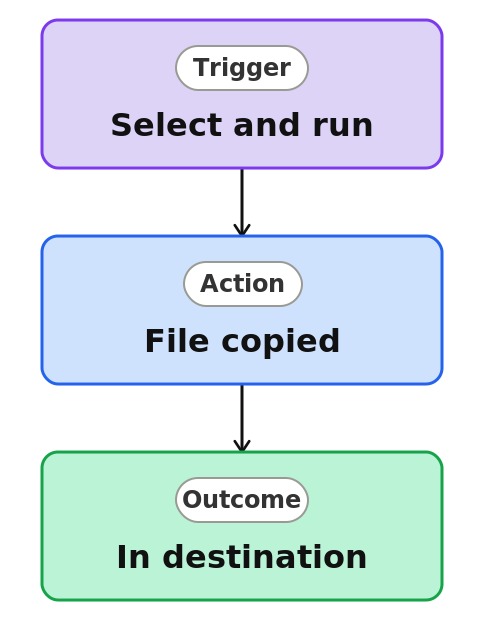
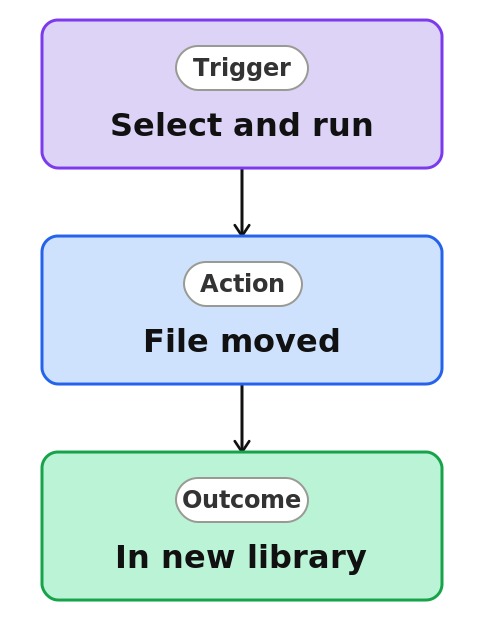
- Move or copy files between sites: in document libraries, send a selected file to a designated archive site, downstream processing library, or a backup folder
- Ask SharePoint (Copilot): run a predefined Copilot prompt, such as Summarise this document, against the selected file so users get instant AI output without crafting the prompt themselves
- Send an approval request: ask a manager or reviewer to approve a selected file or list item with one click, without building an approval flow from scratch
Benefits
- Built into SharePoint: Quick Steps ships natively with SharePoint Online lists and libraries; no add-ins, third-party tools, or custom development required to surface common automations to end users
- Replaces simple custom flows: many everyday automations (notify a colleague, set a status, archive a file) can be handled directly by Quick Steps, reducing the need to build and maintain bespoke Power Automate flows
- No-code configuration: Quick Steps are set up through a guided dialog; administrators and site owners can configure actions without writing expressions, JSON, or flow logic for the most common scenarios
- Respects existing permissions: Quick Step actions honor list, library, and target-site permissions; users only see and run actions they are entitled to perform
- Consistent across lists and libraries: the same set of action types is available on both SharePoint lists and document libraries, giving site owners a single mental model for surfacing automation across content types
Details
- Feature Category: File Management
How It Works
- One-time setup: a site owner defines a Quick Step once on a list or library, and from then on anyone with access selects an item and runs the action with a single click
- Two entry points: Quick Steps appear at the top of the Automate menu in the command bar and in the right-click menu whenever an item or file is selected
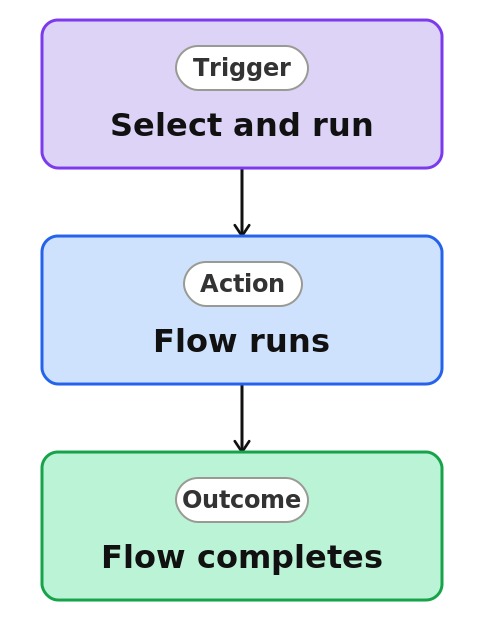
- Seven action types: draft an email, start a Teams chat, set a column value, send an approval request, execute a Power Automate flow, move or copy a file, and run an Ask SharePoint (Copilot) prompt
- Prefilled messages: email and Teams chat actions open with the predefined message and a link to the selected item already inserted, so the user just reviews and sends
- Instant stamping: the set a value action updates a column in place, flipping a status to Complete or setting a date to today without opening the edit form
- Buttons in the view: the Quick Steps column type turns actions into visible buttons next to every row, with custom colors and conditional display based on another column’s value
- Shared automatically: every user with access to the list or library sees and can run the Quick Steps you create
Limits and Nuances
- Fixed action set: Quick Steps cover email, Teams chat, set a value, approval request, run a flow, move or copy, and Copilot prompts; anything outside this set still needs a full Power Automate flow
- One action per Quick Step: to chain several steps together, build a Power Automate flow and trigger it from the Quick Step instead
- Scoped per list or library: there is no tenant-wide or site-wide deployment, so recreate Quick Steps on each list that needs them
- Standard move job limits: move and copy actions inherit SharePoint’s limits on file size, item count, and content types, so large transfers may run slowly or be rejected
- Permissions to configure and run: creating or managing Quick Steps needs Edit permission, while running depends on the action: email, Teams chat, and run-a-flow work with Read, but set a value and approval requests need Edit
- Flow access errors: users without permission to run a connected flow see an error when they click; adding the list or library as a co-owner on the flow fixes it
- Copilot prerequisites: Ask SharePoint actions require the Knowledge Agent to be enabled by an admin and a Microsoft 365 Copilot license for the user running the prompt
- Full lifecycle control: every Quick Step can be enabled, disabled, edited, or deleted at any time after it is created, so actions can evolve with the process they support
Common Questions About Quick Steps
What are Quick Steps in SharePoint?
Quick Steps is a built-in automation feature for SharePoint lists and document libraries. A site owner defines a one-click action – like drafting an email, starting a Teams chat, setting a column value, or moving a file – and every user with access can then run it on any selected item. It ships natively with SharePoint Online, so there is nothing to install and no code to write.
What actions can a Quick Step perform?
The supported actions are: draft an email with a predefined message and item link, start a Teams chat about the item, set a column value, send an approval request, execute a Power Automate flow, move or copy a file to another library or site, and run an Ask SharePoint (Copilot) prompt against the selected file. Each Quick Step performs one of these actions per click.
How are Quick Steps different from Power Automate flows?
Quick Steps handle the simple, everyday cases – notify someone, stamp a status, archive a file – with a guided setup instead of flow logic, so there is nothing to build or maintain. Power Automate remains the tool for multi-step processes, scheduled triggers, and logic with conditions. The two also work together: a Quick Step can launch an existing flow with one click.
What is the Quick Steps column?
It is a column type that surfaces Quick Steps as buttons directly in the list or library view, next to every row. Instead of selecting an item and digging into the Automate menu, users just click the button. You can color the buttons, edit the action behind them, and even show a button conditionally – for example, only when a status column equals a certain value.
Who can create and run Quick Steps in SharePoint?
Creating or managing Quick Steps requires Edit permission on the list or library, so site members and owners can set them up while visitors cannot. Running them depends on the action: drafting an email, starting a Teams chat, and executing a flow work with Read access, while setting a value or sending an approval request requires Edit permission, since those change the item.
Do Quick Steps require an extra license?
No – Quick Steps are included with SharePoint Online at no extra cost, and most actions need nothing beyond standard list permissions. The one exception is the Ask SharePoint action, which requires a Microsoft 365 Copilot license and the Knowledge Agent enabled by an admin. Greg Zelfond often recommends starting with Quick Steps before investing in custom flows – they cover a surprising share of everyday automation.