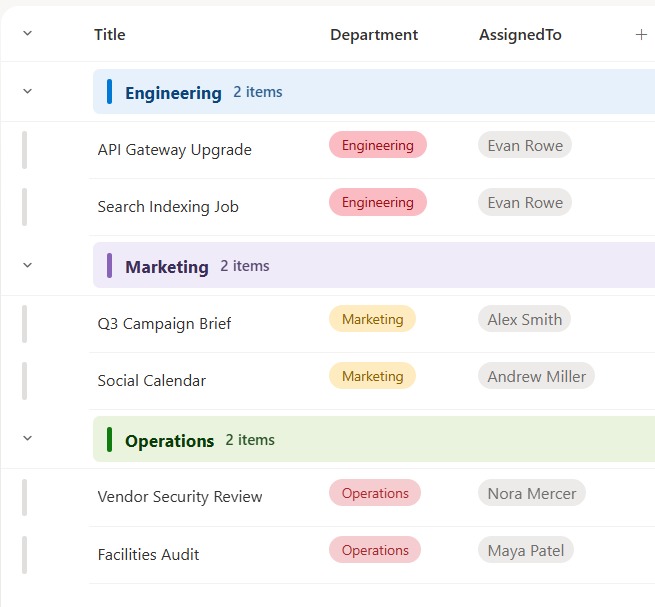
Colored Group Header (View Formatting)


Overview
- Tints each group header in a grouped view by its value, so sections stand out
- A colored accent bar and a soft background keyed to the value make groups easy to scan
- The group value and its item count both show in the header
- The collapse and expand behavior stays native to SharePoint grouping
- Applied as view formatting JSON on the group header, so it changes nothing about the rows or the data
- Works on any grouped column, and the colors are easy to map to your own values
Common Use Cases
- Tasks grouped by department or team
- Items grouped by region or location
- Requests grouped by category
- Projects grouped by status
- Inventory grouped by type
- Any grouped list that reads better with color
How to Apply JSON Formatting
1. Create a list with the following columns:
[Title] Single line of text
[Department] Choice
[AssignedTo] Person
2. Populate the list with data.
3. Group the view by Department (open the Department column header menu and choose Group by Department, or set it under view settings).
4. Open the view dropdown at the top right and choose Format current view.
5. Switch to Advanced mode, paste the JSON below, and click Save.
JSON Code – Select, Copy and Paste
{
  "$schema": "https://developer.microsoft.com/json-schemas/sp/v2/view-formatting.schema.json",
  "groupProps": {
    "headerFormatter": {
      "elmType": "div",
      "style": {
        "display": "flex",
        "align-items": "center",
        "box-sizing": "border-box",
        "width": "100%",
        "padding": "9px 12px",
        "border-radius": "6px",
        "background-color": "=if(@group.fieldData == 'Marketing', '#f0ebf8', if(@group.fieldData == 'Engineering', '#e6f1fb', if(@group.fieldData == 'Operations', '#eaf3de', if(@group.fieldData == 'Finance', '#fbeee0', '#f3f2f1'))))"
      },
      "children": [
        {
          "elmType": "div",
          "style": {
            "width": "5px",
            "height": "22px",
            "border-radius": "2px",
            "margin-right": "11px",
            "background-color": "=if(@group.fieldData == 'Marketing', '#8764b8', if(@group.fieldData == 'Engineering', '#0078d4', if(@group.fieldData == 'Operations', '#107c10', if(@group.fieldData == 'Finance', '#ca5010', '#a19f9d'))))"
          }
        },
        {
          "elmType": "div",
          "style": {
            "font-size": "15px",
            "font-weight": "700",
            "color": "=if(@group.fieldData == 'Marketing', '#3b2e58', if(@group.fieldData == 'Engineering', '#0c447c', if(@group.fieldData == 'Operations', '#0b3b09', if(@group.fieldData == 'Finance', '#7a3309', '#3b3a39'))))"
          },
          "txtContent": "@group.fieldData"
        },
        {
          "elmType": "div",
          "style": {
            "font-size": "13px",
            "font-weight": "600",
            "color": "=if(@group.fieldData == 'Marketing', '#3b2e58', if(@group.fieldData == 'Engineering', '#0c447c', if(@group.fieldData == 'Operations', '#0b3b09', if(@group.fieldData == 'Finance', '#7a3309', '#3b3a39'))))",
            "opacity": "0.85",
            "margin-left": "10px"
          },
          "txtContent": "=@group.count + ' items'"
        }
      ]
    }
  }
}
Common Questions About the Colored Group Header
What is the Colored Group Header built with?
It is built with a standard Microsoft List (SharePoint list) and view formatting JSON applied to the group header. There is no custom development, no SPFx solution, and no third-party tools. It is the kind of clean, maintainable formatting Greg Zelfond builds for teams that want easier-to-scan grouped views without ongoing development overhead.
Does this change how grouping works?
No. SharePoint still does the grouping, sorting, and the collapse and expand. The JSON only changes how the group header looks – it tints the header and shows the count – so all the normal grouped-view behavior stays exactly the same.
How does it know which color to use?
The header reads the group’s value and the item count from SharePoint, and a short color map in the JSON turns each value into an accent and a tint. You edit that map to match the values in your column and your brand.
Does this design use any custom development or third-party tools?
No. It uses only out-of-the-box SharePoint view formatting, which Microsoft supports natively. That keeps it stable and easy to maintain, and nothing breaks when SharePoint is updated. Out-of-the-box is the only way Greg builds, so you can own and extend the design yourself for years.
If LookBook 365 is code-free and out-of-the-box, why does this example include JSON?
Because SharePoint formatting JSON is not custom code – it is a native configuration feature built into lists and libraries. It is declarative: it only describes how existing columns and views look, and cannot run scripts, reach external services, or change your data. Nothing is deployed and nothing breaks when Microsoft updates SharePoint, and you can edit or remove it anytime. That is why LookBook 365 treats it as out-of-the-box and low risk.
Can Greg build a view like this for our team?
Yes – this is exactly the kind of work Greg Zelfond does. As an independent SharePoint consultant and Microsoft MVP, he designs out-of-the-box list and library formatting like this so your team can read and maintain it without a developer. Reach out through the contact page to talk about your lists.