End Date On or After Start Date
This list validation uses a SharePoint formula to require the end date to fall on or after the start date. Applied as list validation, it compares the columns when the item is saved and blocks the entry if the rule is not met.


How It Works
- What it does: Compares the two dates and blocks the save if the End Date is before the Start Date.
- If it passes: End Date is on or after Start Date, so the item saves.
- If it fails: The save is blocked and your message appears, for example: End date must be on or after the start date.
Common Use Cases
- Valid project date ranges
- Event start and end integrity
- Booking windows
- Preventing reversed dates
Details
- Formula Type: List Validation
- Formula Category: Dates & Time
Required Columns
| Display name | Column type |
|---|---|
| End Date | Date and Time |
| Start Date | Date and Time |
Prerequisites
- Create the columns the formula reads: End Date and Start Date
- Add or edit a few items so there is data for the formula to work with
How to Apply the Formula
- Go to List settings (or Library settings), then Validation settings
- Paste the formula below, which compares the columns
- Add a user message explaining the rule
- Save. New or edited items must satisfy the rule
Formula
=[End Date]>=[Start Date]Common Questions About End Date On or After Start Date Formula
What does this formula do?
Date order rule. It runs as list validation, comparing the columns when the item is saved.
Which columns do I need to set this up?
You need: End Date (Date), Start Date (Date). The formula reads these to produce its result.
Why use list validation instead of column validation?
List (or library) validation can compare several columns to each other in the same item, which column validation cannot do.
If LookBook 365 is code-free and out-of-the-box, why does this example use a formula?
A SharePoint formula is native, declarative configuration, not custom development. It only works with the item’s own fields and simple logic – it cannot run scripts, reach external services, or change other data, and nothing is deployed to your tenant. It keeps working through Microsoft updates. If you would rather not set this up yourself, this is exactly the kind of thing I configure for clients.
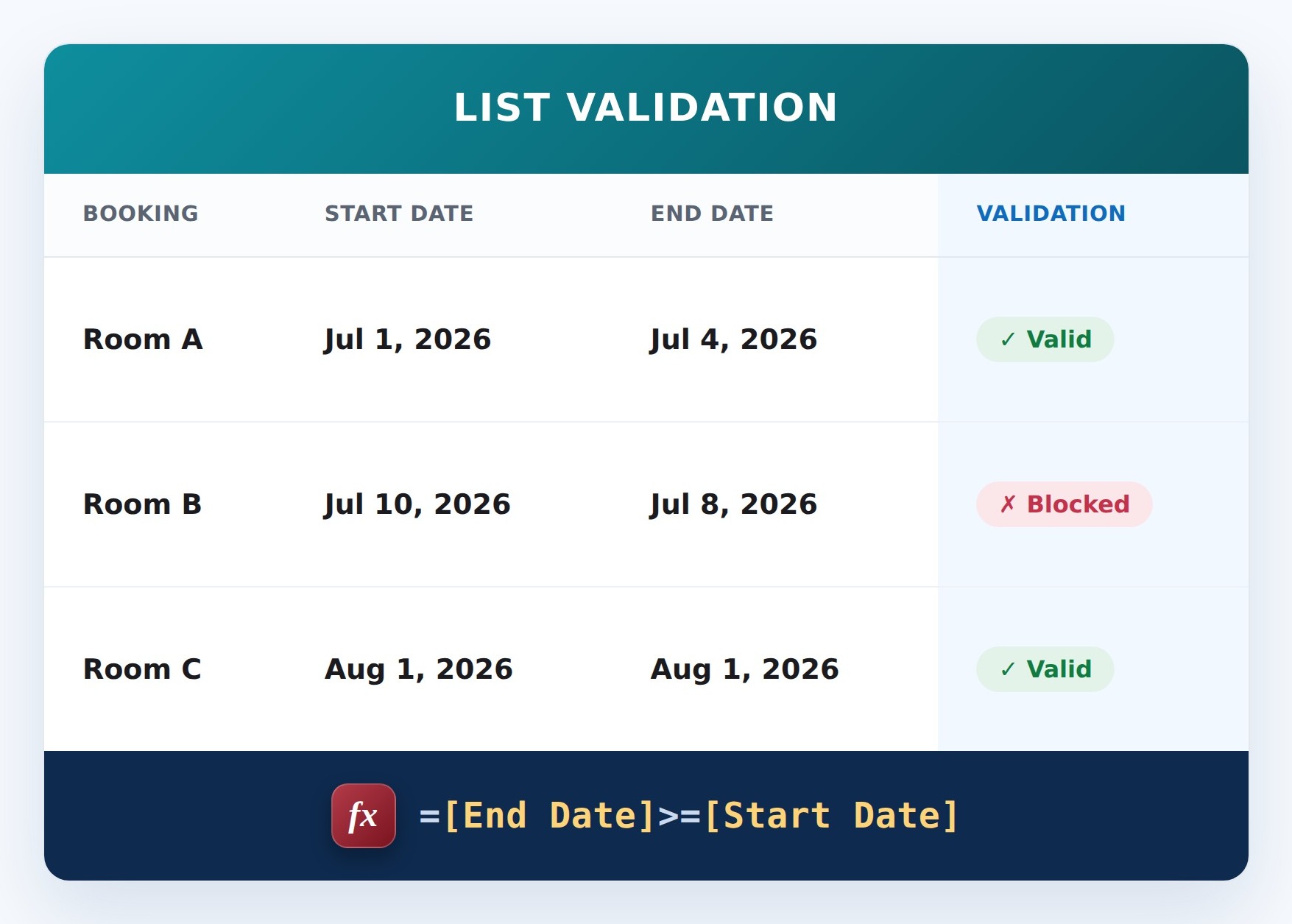
End Date On or After Start Date Formula Example