Check In Comment Column
Common Use Cases
- Change explanations: record why each version was created
- Readable version history: turn version numbers into a change log
- Review context: tell reviewers what changed since last time
- Controlled documents: document the reason for each revision
- Handoff notes: leave context for the next editor
- Audit support: provide a human explanation alongside the timestamp
How It Works
- Captured at check-in: the note is typed in the check-in dialog
- Optional: you can check in without a comment
- Tied to a version: the comment attaches to the version it created
- Shows in version history: appears next to the version number and editor
- Read-only column: set by the action, not by editing a cell
- Libraries only: check-in comments apply to document libraries
Benefits
- Context per version: each revision carries its own explanation
- Better collaboration: editors understand each other’s changes
- Lightweight audit: a human reason to go with the metadata
- Easier reviews: reviewers see what changed at a glance
- No add-on: built into check-in on every library
- Searchable history: notes make old versions understandable
Details
- Feature Category: Columns & Views
Limits and Nuances
- Optional and often skipped: editors can and do check in with no comment
- Libraries only: list items have no check-in comment
- Requires check-out habit: most valuable when check-in is part of the routine
- Per-version only: a comment describes one version, not the whole file
- Read-only: you cannot edit a comment after the fact in the cell
- Short note, not a diff: it explains, it does not show the actual changes
Common Questions About the Check In Comment Column
What is the Check In Comment column in SharePoint?
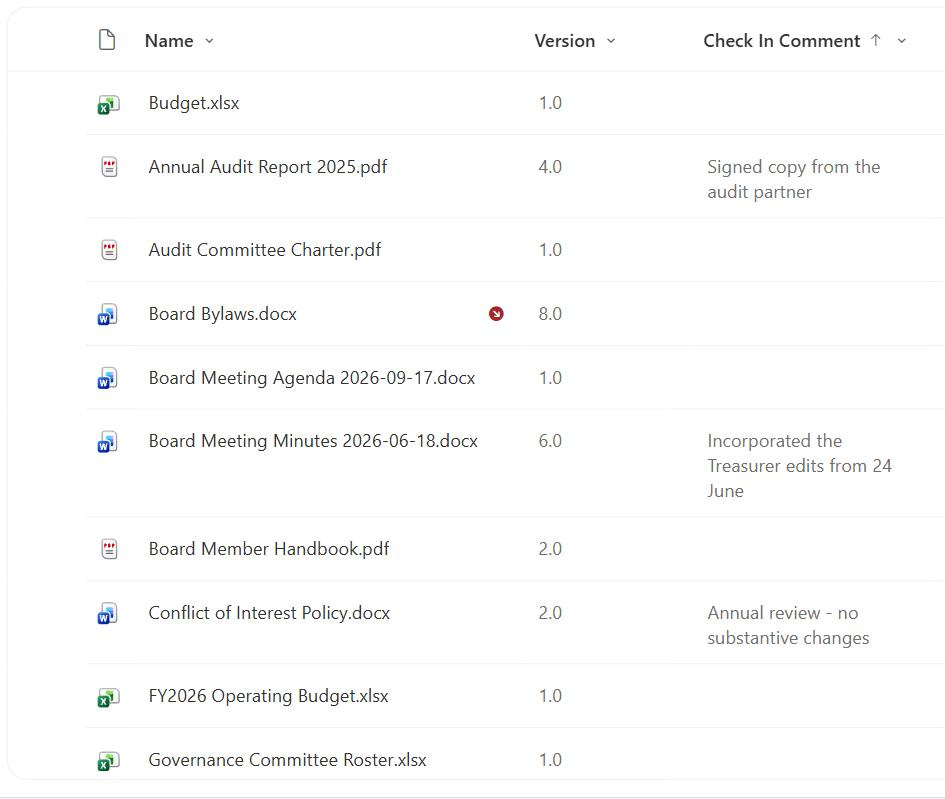
Check In Comment is a built-in column that holds the short note a person types when they check a file back into a document library. It records why a change was made and attaches to the specific version it created, showing up in version history next to that version’s number, editor, and timestamp. It is optional and read-only in the grid, because you fill it in through the check-in dialog rather than by editing a cell.
Where do check-in comments appear?
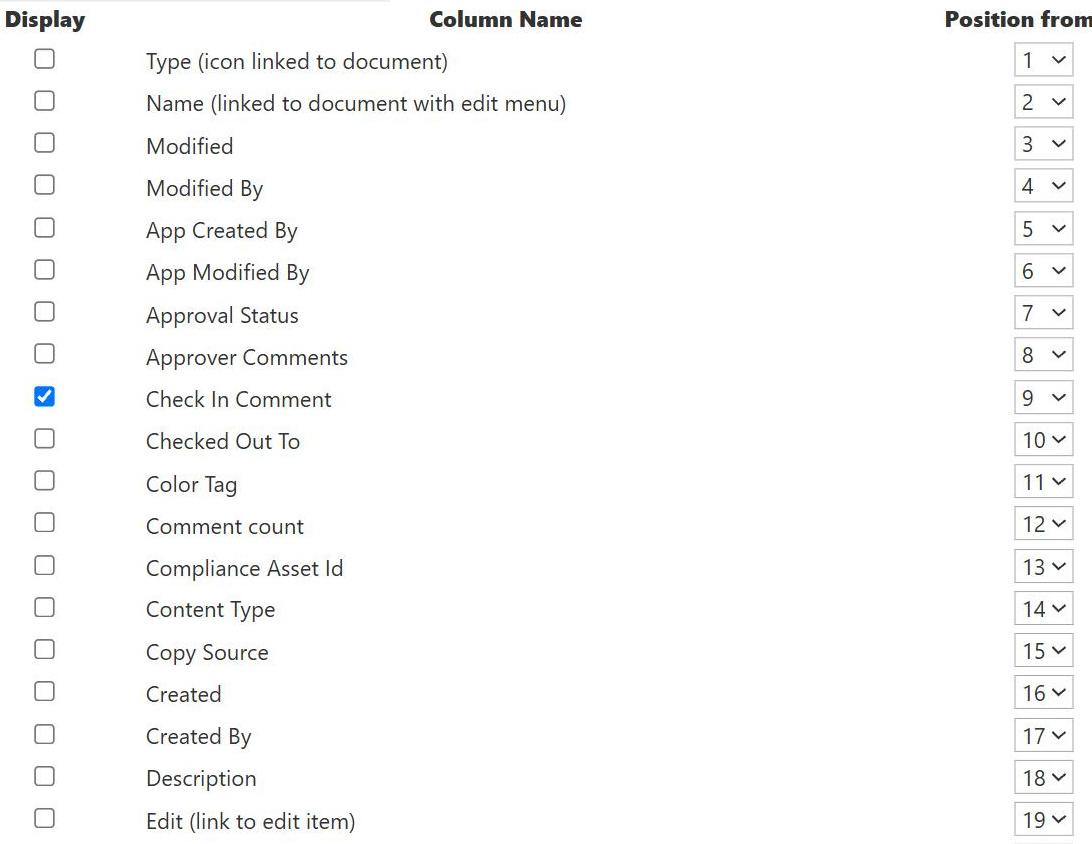
They appear in the file’s version history, listed beside each version along with who made it and when, which turns a plain list of version numbers into a readable change log. You can also add the Check In Comment column to a library view to surface the most recent comment. Reading them in version history is the most common way to understand what changed across a document’s revisions without opening each version.
Are check-in comments required?
No, they are optional. A person can check a file in without typing anything, and the comment for that version will simply be blank. This is convenient but means the change log is only as good as the team’s habits. Where change context matters, such as controlled or reviewed documents, it is worth establishing a norm that editors always add a brief, meaningful comment so the history stays useful for everyone.
Do list items have check-in comments?
No. Check-in and its comment apply to files in document libraries, not to items in a list. Lists track changes through versioning, but there is no check-in dialog to capture a per-version note in the same way. If you need change explanations on list items, you would use a dedicated comments or notes column, or rely on version history, rather than expecting the library-style check-in comment behavior.
Can I edit a check-in comment after checking in?
Not directly in the column, because it is read-only and tied to the moment of check-in. The comment is a record of what was said when that version was created, which keeps the history trustworthy. If a note was wrong or missing, the practical fix is to add a clearer comment on the next check-in rather than trying to rewrite past entries, preserving the integrity of the version log.
How do I get real value from check-in comments?
Consistency is everything, since a change log full of blanks helps no one. Greg Zelfond, the consultant behind LookBook 365, pairs check-in comments with versioning and, where needed, content approval, and coaches teams to write short, specific notes, so version history becomes a genuine record of why documents changed, making reviews, audits, and handoffs far easier than relying on timestamps and version numbers alone.