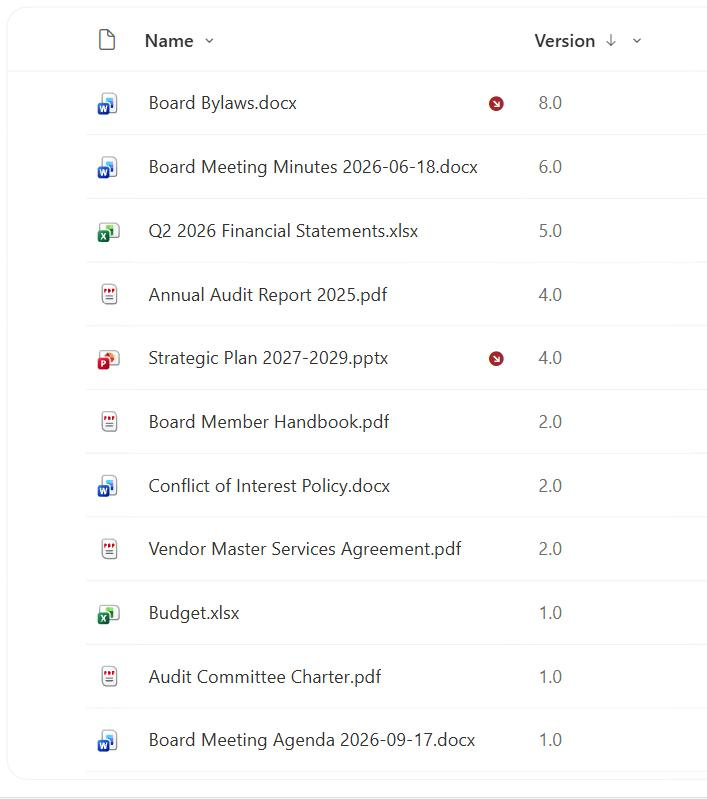
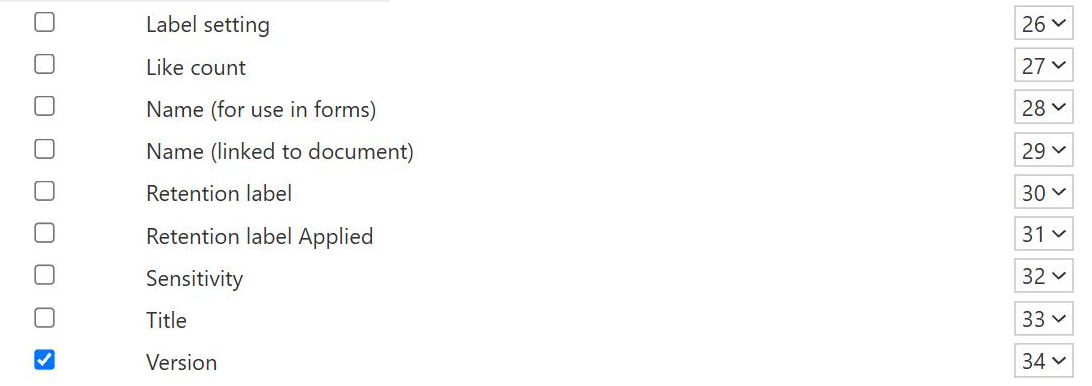
Version Column
Common Use Cases
- Draft vs published: tell at a glance whether a file is a 1.3 draft or a 2.0 release
- Change tracking: see how many revisions a document has been through
- Rollback readiness: know a prior version exists before making risky edits
- Approval pipelines: combine minor drafts with content approval for publishing
- Policy control: prove a controlled document is on its latest approved version
- Collaboration confidence: let people edit freely knowing history is preserved
How It Works
- Requires versioning on: the column is only meaningful once versioning is enabled
- Major versions: whole numbers like 1.0 and 2.0 for published releases
- Minor versions: decimals like 1.1 and 1.2 for working drafts
- Publishing rolls up: publishing a draft advances it to the next whole number
- Lists are major-only: lists track whole-number versions, libraries can do both
- Reflects the current state: the column shows where the item sits right now
Benefits
- Safe editing: every change is preserved, so nothing is lost
- Clear status: the number instantly signals draft or published
- Easy rollback: restore any earlier version from history
- Audit support: a numbered trail of how a document evolved
- Controlled publishing: minor drafts keep work in progress hidden until ready
- Built-in: no add-on needed, just a setting to switch on
Details
- Feature Category: Columns & Views
Limits and Nuances
- Off by default in old sites: libraries created long ago may not have minor versions on
- Storage cost: every version consumes space unless limits or thinning apply
- Lists cannot do minor: only document libraries support draft decimals
- Not a content diff: the number tells you which version, not what changed
- Read-only column: you cannot type a version number yourself
- Limits can prune history: exceeding the version limit drops the oldest versions
Common Questions About the Version Column
What is the Version column in SharePoint?
The Version column shows the current version label of an item or file, such as 1.0, 2.0, or 3.2. It only carries meaningful numbers when versioning is enabled. Whole numbers are major, published versions and decimals are minor, draft versions. The column gives you a quick read on where an item sits in its revision sequence and pairs with full version history, which lets you view and restore earlier versions.
What is the difference between major and minor versions?
Major versions are whole numbers like 1.0 and 2.0 and represent published releases everyone can see. Minor versions are decimals like 1.1 and 1.2 and represent working drafts, usually visible only to editors. Each save can bump the minor number until someone publishes, which rolls the item up to the next whole number. Document libraries support both, while lists use major versions only.
Why does my Version column only show whole numbers?
That means only major versioning is enabled, or the item lives in a list rather than a document library. Lists support whole-number versions only, so you will never see decimals there. In a library, you get draft decimals only after enabling major and minor versions in the versioning settings. If you want a draft or approval stage, switch the library to major and minor versions.
Does versioning use a lot of storage?
It can, because each version keeps a copy of the item, so a large file edited many times multiplies its footprint. SharePoint mitigates this with version limits that cap how many versions are retained and, in newer tenants, automatic version thinning that trims older versions over time. Setting sensible limits keeps history useful for rollback without letting a single document quietly consume large amounts of storage.
Can I edit the version number in the column?
No, the Version column is read-only and controlled entirely by SharePoint. The number advances automatically as items are saved, drafted, and published, following the versioning rules you configured. If you need a human-managed label, such as ‘Rev C’ on a controlled document, create a separate text or choice column for that and let the system version number track the underlying revision sequence in the background.
How should I set up versioning for a controlled document library?
Typically you enable major and minor versions, set version limits, and often add content approval so drafts only become published major versions after review. Greg Zelfond, the consultant behind LookBook 365, tailors these settings to each library, balancing rollback safety, draft privacy, and storage, so the Version column becomes a trustworthy signal of exactly which release people are looking at rather than an afterthought.