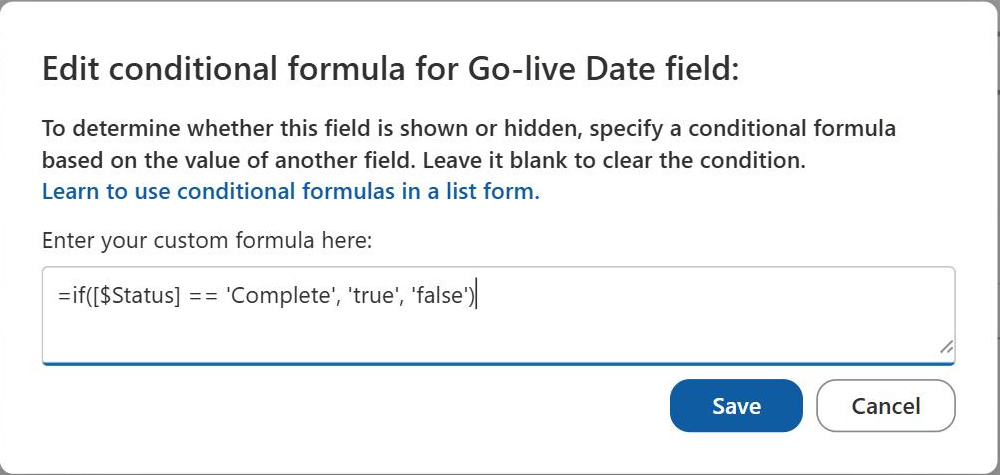
Conditional Show / Hide Column
Common Use Cases
- Other, please specify: reveal a free-text box only when a choice column is set to Other.
- Category-driven detail: show hardware fields on a hardware request and nothing else on the rest.
- Approval justification: surface a reason box only once an amount goes past a threshold.
- Status follow-up: show resolution and closure fields the moment a status changes to Closed.
- Two-condition gates: reveal escalation fields only when a request is both Open and High priority.
- Shorter forms: hide advanced fields most people never need, without deleting the columns.
Benefits
- No code and no licensing: everything is typed into the browser, with no Power Apps required.
- Shorter forms: people only see the fields that apply to what they are actually submitting.
- Fewer wrong entries: irrelevant fields cannot be filled in by mistake if they are not on screen.
- Faster completion: a five-field form gets finished; a thirty-field form gets abandoned.
- Instant feedback: fields appear and disappear as the user types or selects, with no page reload.
- Per-form control: New, Edit and Display forms can each carry their own visibility rules.
How It Works
- Where the formula goes: Edit form in the form pane, then Edit conditional formula on the field.
- Return values: the formula returns the quoted string true to show or false to hide.
- Internal names: other columns are referenced as [$InternalName], never by display name.
- Comparison operators: ==, !=, <, >, <= and >= rather than Excel-style equals.
- Logical operators: && for AND and || for OR, combining several conditions in one expression.
- One formula per field: each column carries its own independent rule.
Settings
- Form pane: open a list form, choose Edit form, then Edit conditional formula on the target field.
- Finding the internal name: check the Field value in the column settings URL – it never changes after creation.
- Person fields: reference sub-properties such as [$Owner.email] rather than the column itself.
- Date comparisons: wrap the date in Date(‘1/1/2026’) so the expression can compare it.
- Separate forms: set the rule independently on the New, Edit and Display forms.
- Save and test: the rule takes effect immediately, so test it with a real item before rolling it out.
Limits and Nuances
- Internal names only: a display name in the formula silently fails – this is the most common mistake.
- Visibility, not protection: a hidden field keeps its value and is not cleared, secured or made optional.
- Modern forms only: classic forms ignore conditional formulas entirely.
- Not in grid view: Quick Edit, datasheet view and imports bypass form logic completely.
- Unsupported column types: multi-select choice, lookup, person, currency, location, calculated and managed metadata.
- Pair with validation: if a revealed field must be filled in, a list validation rule has to enforce it.
Conditional Show / Hide Formula Examples
• Show or Hide a Field Based on a Choice: =if([$Category] == 'Other', 'true', 'false')
• Show Field on Two Conditions: =if([$Status] == 'Open' && [$Priority] == 'High', 'true', 'false')
• Show Field After a Date: =if([$StartDate] >= Date('1/1/2026'), 'true', 'false')
• Show Field Over an Amount: =if([$Amount] > 1000, 'true', 'false')
Common Questions About Conditional Show and Hide Columns
What is a conditional show and hide column in SharePoint?
It is an out-of-the-box way to make a list or library form dynamic by showing or hiding a column based on another field’s value. You add a short formula in the Edit form pane and the field appears or disappears as somebody fills the form in. No code, no Power Apps and no licensing – it is a setting on the form, configured entirely in the browser.
What does the conditional formula actually look like?
It follows an =if pattern that returns the quoted string true or false. A typical rule reads =if([$Category] == ‘Hardware’, ‘true’, ‘false’), which shows the field only when Category is Hardware. Columns are referenced by internal name inside square brackets with a dollar sign, comparisons use == and !=, and several conditions are joined with && for AND or || for OR.
Do I use the display name or the internal name?
Always the internal name. It is set when the column is first created and never changes afterwards, even if the column is later renamed. Find it by opening the column settings and reading the Field value at the end of the URL, then write it as [$InternalName]. A display name in the formula does not raise an error – the field simply never appears, which is why this trips so many people up.
Does hiding a column protect or clear its value?
No. The formula controls visibility on a form and nothing else. Any value the field already holds stays exactly where it is, and the column can still be populated through grid view, an import, a flow or the API. If a value genuinely has to be blank or has to be supplied, that is a job for validation or for a required setting, not for a conditional formula.
Why is my column not available for a conditional formula?
Several column types are simply not supported: multi-select choice, multi-select lookup and person, currency, location, calculated and managed metadata. Check the field type first. Then confirm you are editing a modern form rather than a classic page, because classic forms ignore conditional formulas completely, as do Quick Edit and datasheet view.
When should I use conditional columns instead of Power Apps?
Use the built-in formulas when the need is straightforward field visibility – showing a detail box when a category is Other, or an escalation field over a threshold. Step up to Power Apps when you need multi-step wizards, complex validation or connections to other data sources. Greg Zelfond, the consultant behind LookBook 365, works through the out-of-the-box options first, because a form that a site owner can maintain themselves outlives one that needs a developer.