Copilot Agent
Common Use Cases
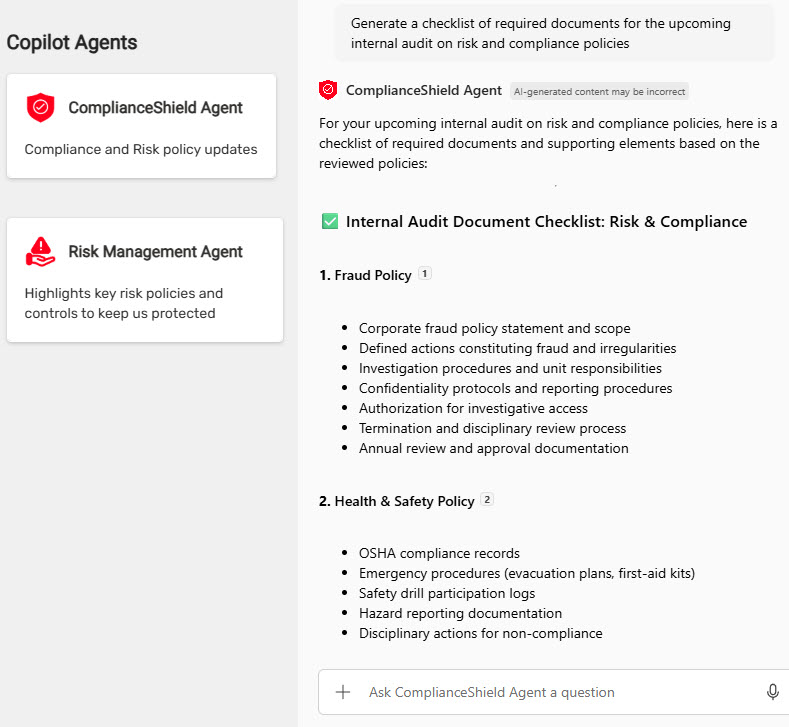
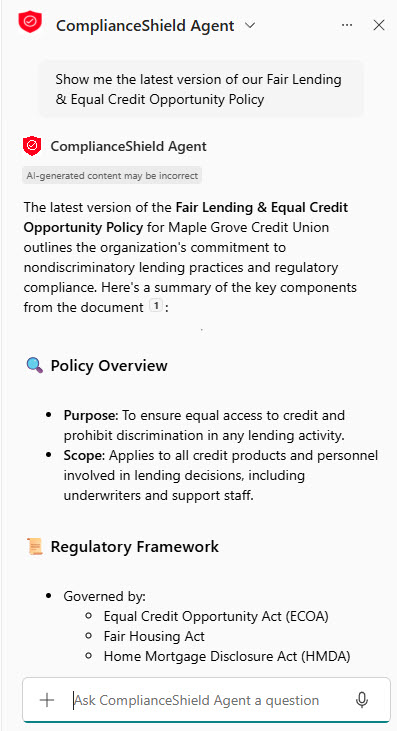
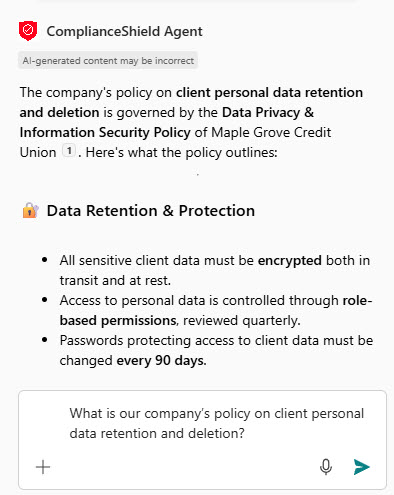
- Policy and compliance Q&A: employees ask about rules and procedures and get answers from approved policy libraries
- HR benefits help: staff look up leave, benefits, and onboarding details without emailing HR
- IT help desk: users get how-to answers from IT guides before they open a ticket
- Project knowledge: a team agent answers questions from one project’s documents and pages
- Client or product lookup: sales and service staff query a library of client files or product specs
- New hire onboarding: new employees learn processes by asking questions at their own pace
Benefits
- No code required: agents are created and edited in the SharePoint interface in minutes
- Answers from approved content: responses draw only on the sources the agent is scoped to, with citations
- Respects permissions: people only receive answers from content they already have access to
- Fewer repetitive questions: subject matter experts spend less time answering the same queries
- Consistent answers: everyone gets responses drawn from the same up-to-date documents
- Shows up where people work: on a SharePoint page, in the site’s Copilot pane, or in Teams
How It Works
- Ready-made site agent: every site has a default agent scoped to that site’s content, named after the site
- Create from content: select a library, folder, or files and choose Create an agent
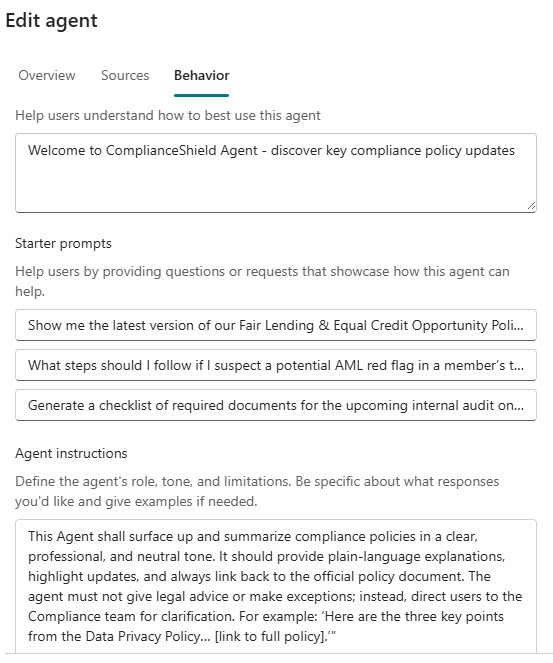
- Overview tab: set the agent’s name, icon, and a short description of its purpose
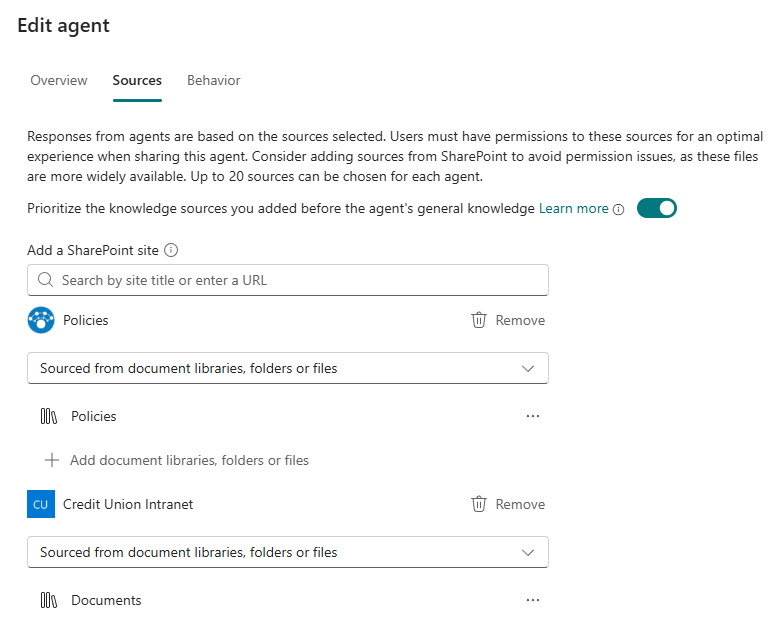
- Sources tab: add up to 20 sites, libraries, folders, lists, pages, or files, including from other sites
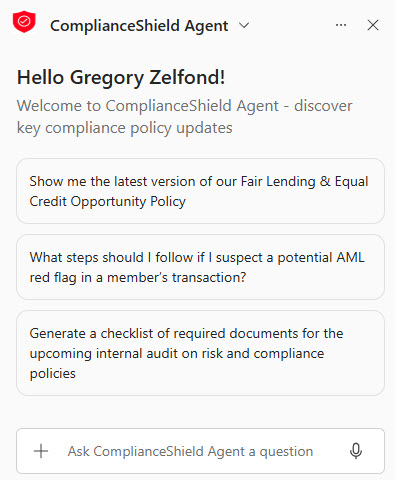
- Behavior tab: write a welcome message, starter prompts, and instructions for tone and scope
- Stored as a file: the agent is saved as a .agent file that can be shared, moved, or deleted like any other file
Key Considerations
- Licensing: users need a Microsoft 365 Copilot license, or the organization must enable pay-as-you-go billing
- Clean content first: outdated or duplicate documents lead directly to wrong answers
- Fix oversharing: an agent surfaces anything a user can open, so review permissions before launch
- Who can edit: anyone with edit rights on the site and the .agent file can change the agent
- Choose the main agent: site owners pick which agent opens by default in the site’s Copilot pane
- Plan ownership: someone should own each agent’s sources, prompts, and ongoing accuracy
Limits and Nuances
- 20-source ceiling: each agent is limited to 20 sources, so scope it with libraries and folders rather than single files
- Supported file types: Word, PowerPoint, Excel, PDF, text, Loop, and web pages; images and videos are not read
- No external data: a SharePoint agent answers from Microsoft 365 content only, not from other business systems
- Read-only answers: it answers questions but does not update lists, send email, or start workflows
- Not published automatically: a new agent is not listed anywhere until someone shares it, adds it to a page, or sets it as the main agent
- Variable output: the same question can return slightly different wording each time
Common Questions About the Copilot Agent
What is a Copilot Agent in SharePoint?
A Copilot Agent, which Microsoft now calls an agent in SharePoint, is an out-of-the-box AI assistant that answers questions using only the content it is scoped to. Every site includes a ready-made agent, and custom agents can be created from a site, library, folder, or set of files. Each agent has its own name, icon, sources, welcome message, starter prompts, and instructions, and it is saved as a .agent file in the site.
How many sources can a Copilot Agent use?
A custom agent can include up to 20 sources. A source can be a site, a document library, a folder, a list, a page, or a single file, and sources can come from more than one site. Adding a hub site as a source also brings in its associated sites. Because the limit counts items rather than documents, pointing the agent at a whole library or folder covers far more content than listing individual files.
What is the difference between the ready-made agent and a custom agent?
The ready-made agent comes with every site and answers questions about that site’s content, with no setup. A custom agent is built for a specific purpose, such as policies, HR benefits, or IT help, with hand-picked sources and its own welcome message, starter prompts, and instructions. Custom agents give tighter, more predictable answers because they only look at the content chosen for them.
How does the Agent link web part work?
The Agent link web part places a custom agent directly on a SharePoint page, so visitors can open it with one click instead of hunting for it. It is a common way to launch an agent on a department homepage or a knowledge base. Site owners can also set an agent as the site’s main agent, so it opens by default in the Copilot pane, or share it into a Teams chat or channel.
Why does the agent not answer some questions?
An agent only answers from its sources, and only from content the person asking can already open. If a document is outside the agent’s scope, uses an unsupported format like an image or video, or sits in a location the user has no permission to see, the agent will not use it. Missing answers usually point to a scoping or permissions gap rather than a broken agent.
When should I use a Copilot Agent instead of Copilot Actions?
Copilot Actions are best for quick, one-off questions about a few selected files. A Copilot Agent is the better fit when a team keeps asking questions of the same body of content, such as a policy library, a benefits site, or an IT knowledge base, because it covers up to 20 sources and can be shared. Greg Zelfond, the consultant behind LookBook 365, builds these agents out of the box, starting with clean content and permissions.