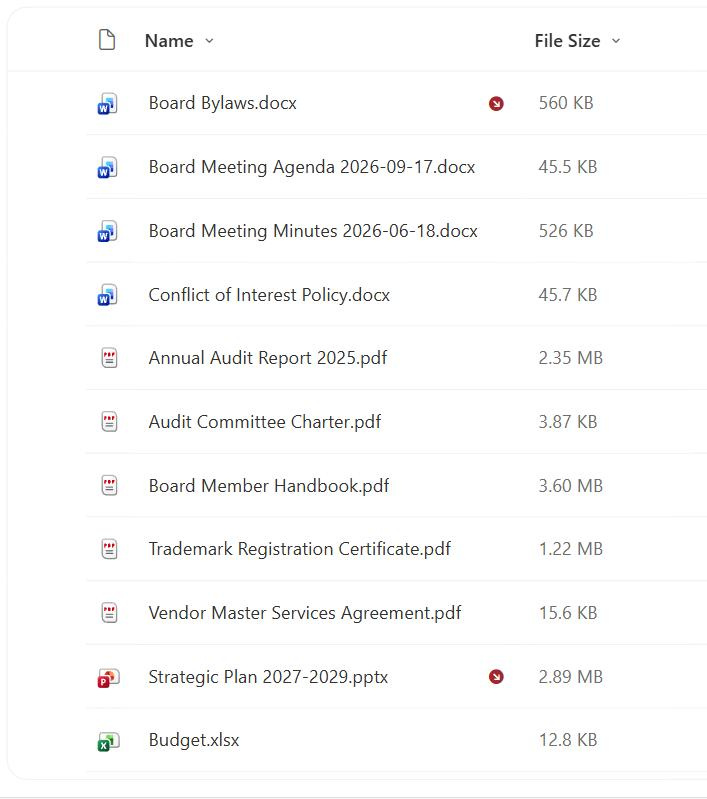
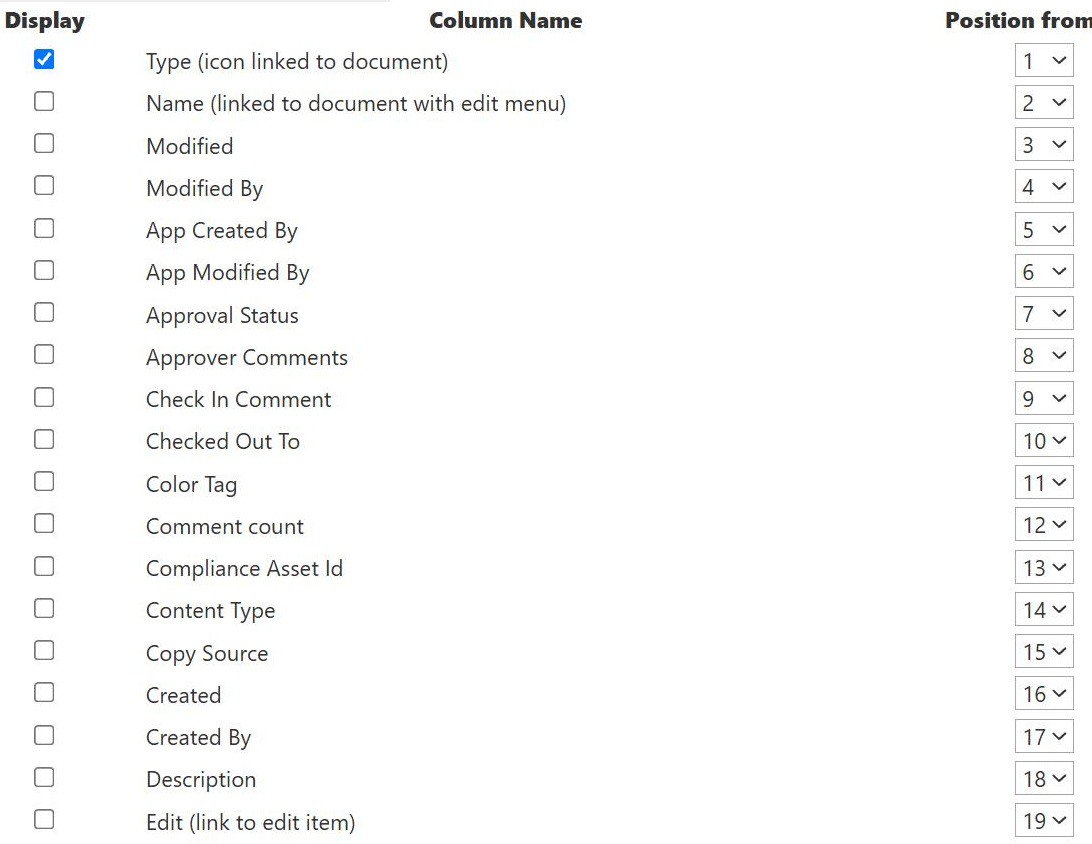
File Type Column
Common Use Cases
- Filter by format: show only PDFs, spreadsheets, or presentations
- Group a library: roll content up by file type
- Icon recognition: let users spot formats by the document icon
- Compliance sweeps: find files of a format that needs handling
- Cleanup by type: target outdated formats for review
- Reporting: summarize a library by the mix of file types
How It Works
- Derived from the extension: the type comes from the file name suffix
- Drives the icon: controls the document icon shown per file
- Read-only: you cannot type or change the type directly
- Raw extension values: shows docx, xlsx, pdf, and similar
- Files only: folders and file-less items show nothing
- Related to DocIcon: the underlying field behind the type and icon
Benefits
- Clean format slicing: isolate a single file type in one click
- Visual recognition: icons help users scan a mixed library
- No setup: present and populated in every library
- Grouping power: organize views by format effortlessly
- Governance input: find formats that need special handling
- Pairs well: combine with size or name for precise views
Details
- Feature Category: Columns & Views
Limits and Nuances
- Extension-based only: it trusts the file name suffix, not the true content
- Renaming can mislead: changing an extension changes the reported type
- Files only: folders and list items without a file show nothing
- Not a content type: File Type is the format, not a SharePoint content type
- Read-only: you cannot set it independently of the file
- Case handling: extensions are treated consistently regardless of case
Common Questions About the File Type Column
What is the File Type column in SharePoint?
File Type is a built-in, read-only column that shows a file’s format based on its extension, such as docx, xlsx, or pdf, and it drives the document icon SharePoint displays next to each file. It is derived automatically from the file name, so there is nothing to fill in. It only applies to files, so folders and file-less list items show no value. Add it to a view to filter or group a library by format.
What is the difference between File Type and Content Type?
They sound similar but are very different. File Type is simply the file’s format extension, like pdf or docx, derived from the name. A Content Type is a SharePoint construct that defines a category of item along with its own columns, template, and behavior, such as a Contract or Invoice content type. File Type describes the file format; Content Type describes the business kind of document and what metadata it carries.
Can I change a file’s File Type value?
Not directly, because the column is read-only and derived from the file’s extension. The only way to change what it reports is to change the file itself, for example by renaming its extension, which is risky because the extension tells applications how to open the file. Changing docx to pdf in the name does not convert the document, it just mislabels it, so treat File Type as a reflection of the real file, not an editable field.
How do I show only one type of file, like PDFs?
Add the File Type column to a view and filter it to the extension you want, such as pdf, or group the view by File Type to cluster every format together. This is a fast, no-code way to carve a mixed library down to exactly the documents you care about. You can combine it with other columns, like File Size, to find, for example, only the large PDFs in a library.
Why does File Type rely on the extension rather than the actual file?
SharePoint reads the file name’s suffix to determine the type, which is how virtually every system identifies formats. This is efficient and accurate for normally named files, but it does mean a wrongly renamed file will report the wrong type, since the column trusts the extension. In practice this is rarely a problem, but it is worth knowing that File Type reflects the name’s suffix rather than inspecting the file’s true internal format.
How should I use File Type to organize a library?
Use it to build format-based views, group mixed content, and target specific formats for cleanup or compliance. Greg Zelfond, the consultant behind LookBook 365, often combines File Type with metadata and content types, so a library can be sliced by format when that is useful while still being organized around the business meaning of each document, giving users both quick format filters and meaningful, structured navigation.