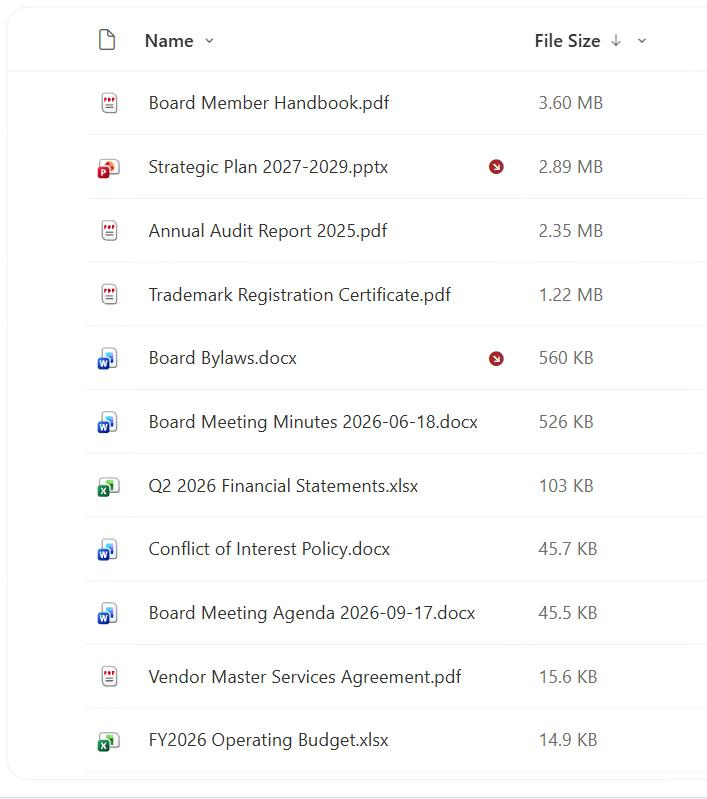
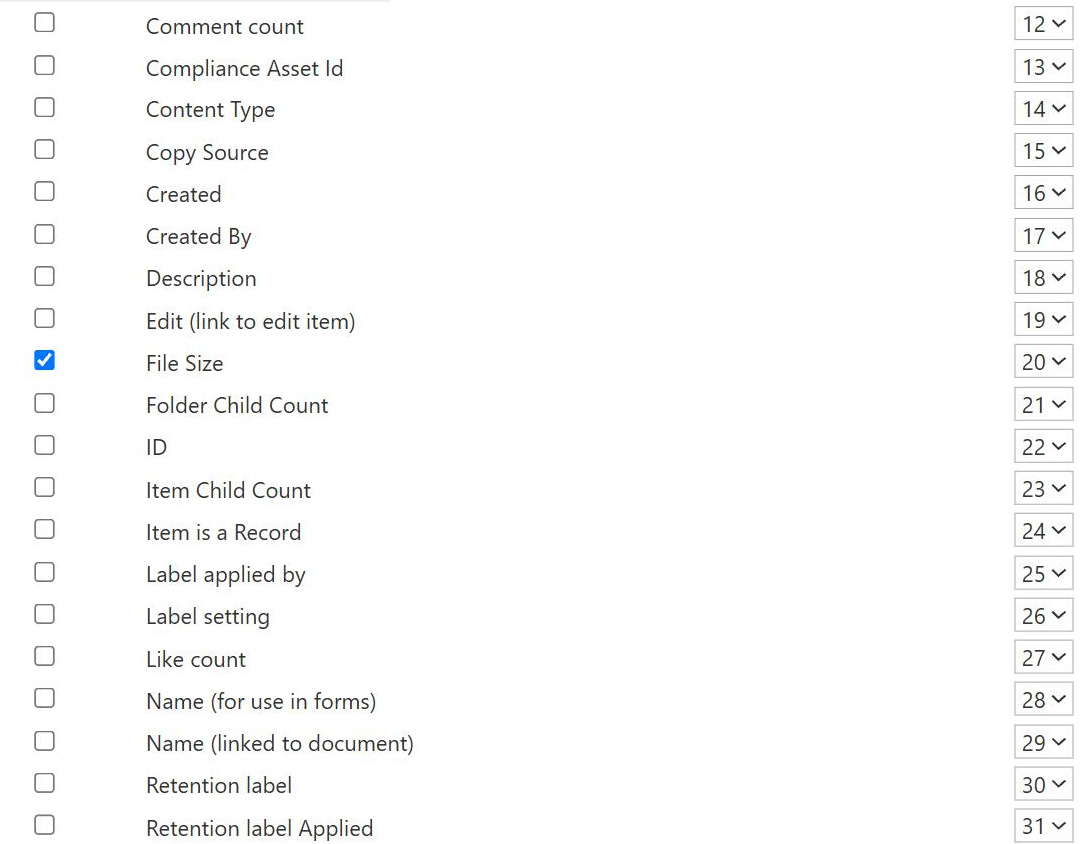
File Size Column
Common Use Cases
- Find large files: sort a library to surface the biggest documents first
- Storage cleanup: identify space-hungry files before a review
- Upload sanity checks: confirm a file uploaded at the expected size
- Attachment planning: spot files too large to email before sharing
- Reporting: summarize content by size band for governance
- Sync considerations: flag heavy files that slow desktop sync
How It Works
- Calculated automatically: SharePoint derives the size from the stored file
- Friendly units: displays as KB, MB, or GB as appropriate
- Read-only: there is no control to type or change the size
- Files only: folders and file-less list items show no value
- Reflects the file: shows the size of the document itself
- Add to a view: insert the column to display size beside each file
Benefits
- Instant visibility: see file sizes without opening properties
- Easy cleanup: quickly locate the heaviest content
- No setup: present and calculated on every library
- Sort and filter: order or narrow a library by size
- Governance input: supports storage and lifecycle decisions
- Sharing awareness: helps users judge whether to email or link a file
Details
- Feature Category: Columns & Views
Limits and Nuances
- No folder totals: a folder does not sum the size of its contents here
- Blank for folders: folders and file-less items show nothing
- Version storage differs: the column shows the current file, not all versions combined
- Read-only: you cannot edit or override the value
- Not a quota view: it shows one file, not the whole site’s storage use
- Rounding: the friendly display rounds, so it is approximate
Common Questions About the File Size Column
What is the File Size column in SharePoint?
File Size is a built-in, read-only column that shows how large a file is, displayed in friendly units such as KB, MB, or GB. SharePoint calculates it automatically for every document in a library, so there is nothing to configure. Because it describes files, folders and list items without a file show no value. Add it to a view whenever you want to see, sort, or manage content by how much space each file occupies.
Why do folders show no value in the File Size column?
Because the column reports the size of an individual file, and a folder is a container, not a file. The File Size column does not roll up or total the size of everything inside a folder, so folders correctly appear blank. If you need to understand how much a folder holds, you would look at storage reporting or the child count columns for item counts, since File Size is strictly a per-file measurement.
Does the File Size column include all the file’s versions?
No, it shows the size of the current file, not the combined size of every retained version. A document with many versions can consume far more storage than the File Size column suggests, because each version is stored separately. When you are auditing storage seriously, remember that version history adds to the real footprint, which is why version limits and thinning matter for keeping libraries lean.
How do I find the largest files in a library?
Add the File Size column to a view and sort it in descending order so the biggest documents rise to the top. You can also filter to files above a threshold to focus a cleanup. This is one of the fastest out-of-the-box ways to spot the content driving storage use, and it needs no reports or add-ons, just the column and a sort applied to your view.
Can I change or override a file’s size value?
No, File Size is read-only and reflects the actual stored file. The only way the value changes is by changing the file itself, such as uploading a smaller version or compressing the document before upload. There is no field to type a size into, which keeps the column honest for storage decisions. If you need editable metadata about a file, add your own columns rather than expecting to alter its size.
How should I use File Size in storage governance?
Use it to surface heavy content, plan cleanups, and guide decisions about archiving or compressing files, ideally alongside version limits and retention. Greg Zelfond, the consultant behind LookBook 365, folds File Size into governance views so oversized files are visible and manageable, treating storage as something you design for with out-of-the-box columns rather than a problem you only notice once a site is nearly full.