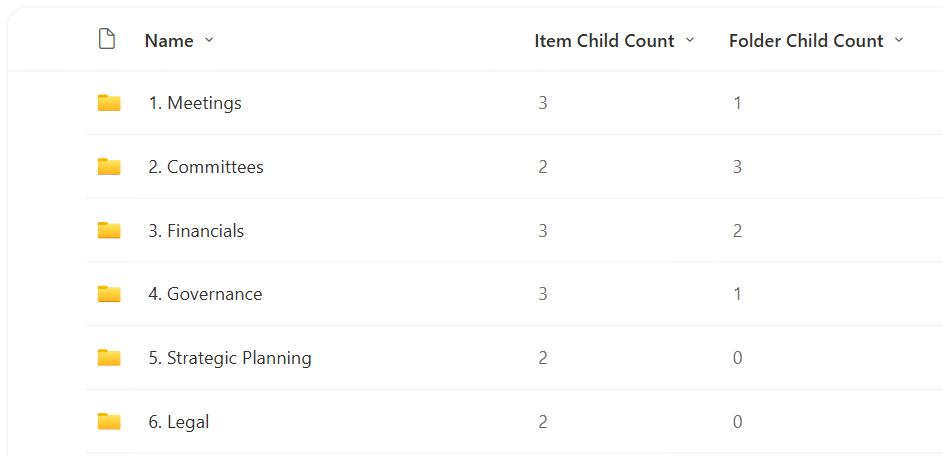
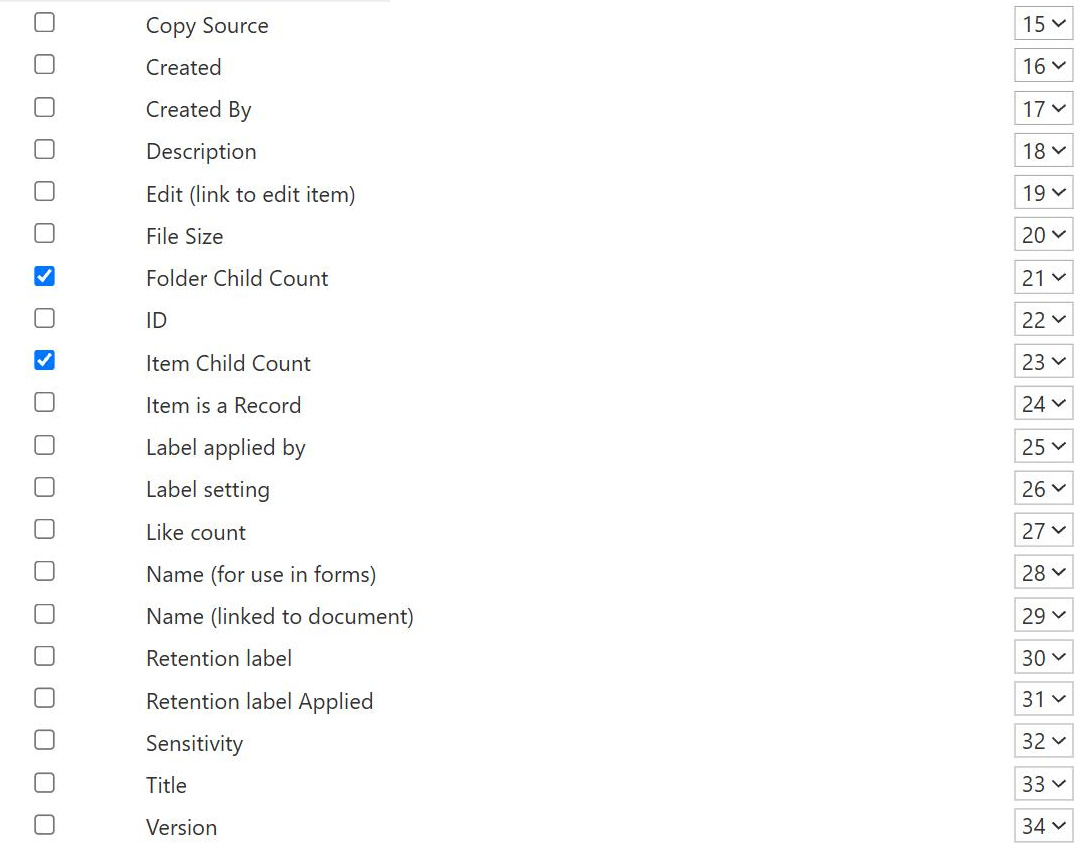
Item Child Count and Folder Child Count Columns
Common Use Cases
- Folder fullness: show how many files sit directly inside each folder
- Subfolder counts: reveal how many subfolders a folder contains
- Empty-folder cleanup: spot folders with zero children for tidying up
- Overloaded-folder alerts: flag folders that are getting unwieldy
- Navigation aids: give users a sense of scale before they open a folder
- Automation triggers: drive a flow when a folder crosses a count threshold
How They Work
- Item Child Count: counts items and files directly inside a folder
- Folder Child Count: counts subfolders directly inside a folder
- Folder-level only: values appear on folders, not on individual items
- Direct children only: nested contents deeper down are not included
- Read-only and calculated: SharePoint maintains the numbers automatically
- Internal names: referenced as ItemChildCount and FolderChildCount
Benefits
- Instant scale cues: see folder contents without opening each one
- Cleaner views: build folder-centric views that show structure at a glance
- Cleanup support: quickly identify empty or bloated folders
- No setup: the columns already exist, just add them to a view
- Automation-friendly: usable as conditions in flows and formatting
- Lightweight: no custom calculated column needed for basic counts
Details
- Feature Category: Columns & Views
Limits and Nuances
- Hidden by default: the columns are not shown until you add them
- Direct children only: they do not total everything nested deeper
- Folders only: items and files return no value for these columns
- Not editable: the counts are system-maintained and read-only
- Flat views hide them: a no-folders view has nothing to count against
- Not a library-wide total: they do not sum the whole library, only each folder
Common Questions About the Child Count Columns
What are the Item Child Count and Folder Child Count columns?
They are two hidden system columns that describe what is inside a folder. Item Child Count returns the number of items or files directly inside a folder, and Folder Child Count returns the number of subfolders directly inside it. Both are read-only and only produce a value at the folder level, so ordinary items show nothing. Their internal names are ItemChildCount and FolderChildCount, and you can add them to a view when you want to see folder contents at a glance.
Do the child count columns include everything nested inside a folder?
No, they count only the direct children of a folder, not items buried several levels deeper. If a folder holds three files and two subfolders, and those subfolders each hold more files, Item Child Count shows three and Folder Child Count shows two. The deeper contents are counted against their own parent subfolders, not rolled up. This direct-children behavior is important to understand before relying on the numbers.
Why do the child count columns show nothing for my files?
Because they are folder-level columns. Individual items and files are children, not containers, so they have no children of their own to count and correctly show a blank value. You will only see meaningful numbers on rows that are folders. If your view is flat and hides folders, there is nothing for the counts to attach to, so switch to a view that displays folders to see them.
How do I display the child count columns?
They are hidden by default, so you add them to a view through the view’s column settings, or reference them by their internal names, ItemChildCount and FolderChildCount, in column formatting and Power Automate. Once added to a folder-showing view, each folder row displays its counts. Many teams place them next to the folder Name so users can size up a folder before clicking into it.
Can I use child counts to find empty or overloaded folders?
Yes, that is one of their best uses. Filtering or formatting a view by Item Child Count lets you spot folders with zero children for cleanup, or folders that have grown large and unwieldy. You can also feed the counts into a flow that reacts when a folder crosses a threshold. They turn folder structure, which is otherwise invisible, into something you can see and act on.
Should I rely on folders and child counts, or use metadata instead?
It depends on the scenario. Folders and their counts are simple, but metadata columns and views usually scale better for findability. Greg Zelfond, the consultant behind LookBook 365, weighs this per library, sometimes using child counts to keep a folder structure healthy and sometimes replacing folders with metadata-driven views entirely, so the structure serves the way people actually search rather than just mirroring a file share.