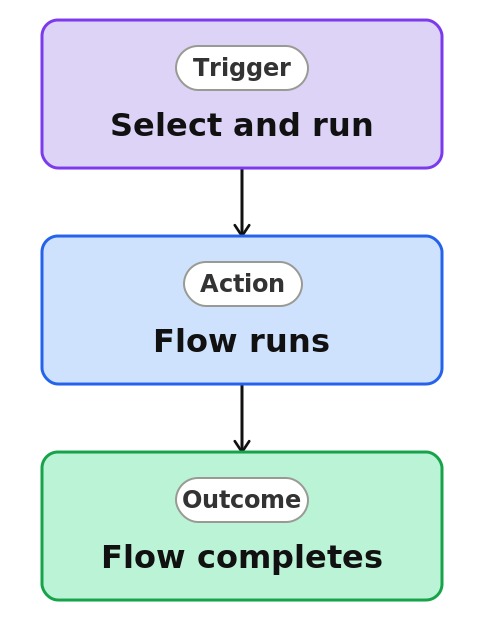
Run a Flow (Quick Step)


Overview
- Runs a chosen Power Automate flow on a selected item in one click
- Configured once from the Automate menu, then reused by the team
- Puts an existing flow behind a simple, discoverable button
- Works on a single item or several selected at once
- Available on both lists and libraries
- A native Quick Step that hands off to Power Automate for the work
Common Use Cases
- Kicking off an approval flow for a selected request
- Triggering a document-generation flow on demand
- Running a notification or escalation flow for an item
- Starting a multi-step process on a chosen record
- Letting non-technical users run a flow without opening Power Automate
- Giving a complex flow a friendly one-click entry point
Common Questions About Running a Flow with a Quick Step
If LookBook 365 is code-free and out-of-the-box, why does this example include Power Automate?
The Quick Step itself is native and no-code – you set it up from the Automate menu. It simply launches a Power Automate flow you already have. The flow is where multi-step logic lives, and I can build that flow for you when your process needs more than a rule or a simple Quick Step.
Do I need to build a flow first?
Yes. This action runs an existing Power Automate flow, so the flow needs to exist. Building that flow is the part I typically handle.
Why use a Quick Step instead of running the flow directly?
It gives your team a clear one-click button right on the item, so people do not need to open Power Automate or know how the flow works.
Who can run it?
Anyone with access to the item, subject to the flow’s own permissions.
Can you build the flow and set this up?
Absolutely. I design the list or library, set up the automation, and show your team how to manage it. When your process grows beyond this, I can extend it into a full Power Automate flow that fits how you actually work.