Numbered List Card


Overview
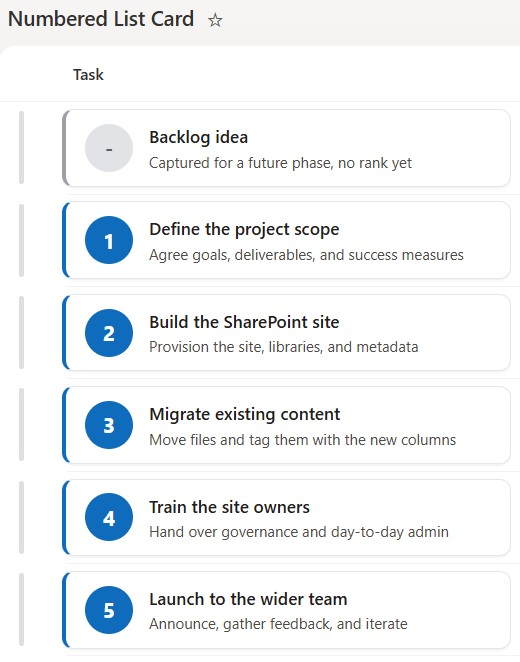
- Renders each list row as a clean card led by a bold, colored sequence number
- Turns an ordered or ranked list into something you can read in sequence at a glance
- Pairs the number badge with the item’s title and a short one-line description
- Uses a plain Number column for the order, so you set the sequence without dragging rows around
- Applied as column-formatting JSON on the title column, so it changes how the row looks but never the underlying data
- Any item left without a rank falls back to a neutral gray badge instead of breaking the layout
Common Use Cases
- New-hire onboarding steps
- A top-ten or ranked priority list
- A step-by-step process or playbook
- Ranked FAQs or a knowledge base
- An event agenda in session order
- A leaderboard or set of standings
Details
- Design Pattern: Cards & Tiles
- Format Scope: Column
Required Columns
| Display name | Column type | Internal name |
|---|---|---|
| Task | Single line of text | [Title] |
| Rank | Number | [Rank] |
| Description | Single line of text | [Description] |
Prerequisites
- Build a list with these columns before you paste the JSON.
- Then populate the list, giving each item a number in the Rank column.
- Internal column names (in brackets) must match the JSON exactly.
How to Apply JSON code
- Select the Task column header, then Column settings, then Format this column.
- Switch to Advanced mode.
- Paste the JSON below and click Save.
- Widen the Task column and hide the others so each card has room.
JSON Code
{
  "$schema": "https://developer.microsoft.com/json-schemas/sp/v2/column-formatting.schema.json",
  "elmType": "div",
  "style": {
    "display": "flex",
    "flex-direction": "row",
    "align-items": "center",
    "gap": "14px",
    "padding": "12px 16px",
    "margin": "6px 0",
    "background-color": "#ffffff",
    "border": "1px solid #e5e7eb",
    "border-left": "=if([$Rank] == '', '4px solid #9aa0a6', '4px solid #0f6cbd')",
    "border-radius": "10px",
    "box-shadow": "0 1px 2px rgba(0,0,0,0.08)",
    "box-sizing": "border-box"
  },
  "children": [
    {
      "elmType": "div",
      "style": {
        "flex-shrink": "0",
        "width": "42px",
        "height": "42px",
        "border-radius": "50%",
        "display": "flex",
        "align-items": "center",
        "justify-content": "center",
        "background-color": "=if([$Rank] == '', '#e1e3e6', '#0f6cbd')",
        "color": "=if([$Rank] == '', '#605e5c', '#ffffff')",
        "font-size": "18px",
        "font-weight": "700"
      },
      "txtContent": "=if([$Rank] == '', '-', [$Rank])"
    },
    {
      "elmType": "div",
      "style": {
        "display": "flex",
        "flex-direction": "column",
        "gap": "4px",
        "min-width": "0"
      },
      "children": [
        {
          "elmType": "div",
          "style": {
            "font-size": "15px",
            "font-weight": "600",
            "color": "#201f1e",
            "white-space": "nowrap",
            "overflow": "hidden",
            "text-overflow": "ellipsis"
          },
          "txtContent": "@currentField"
        },
        {
          "elmType": "div",
          "style": {
            "font-size": "13px",
            "color": "#4f4b47",
            "white-space": "nowrap",
            "overflow": "hidden",
            "text-overflow": "ellipsis"
          },
          "txtContent": "[$Description]"
        }
      ]
    }
  ]
}
Common Questions About the Numbered List Card
What is the Numbered List Card built with?
It is built with a standard Microsoft List (SharePoint list) and a small piece of column-formatting JSON applied to the title column. There is no custom development, no SPFx solution, and no third-party tools. It is the kind of clean, maintainable formatting Greg Zelfond builds for teams that want an ordered list to read like a set of numbered cards without ongoing development overhead.
What columns does it need?
It needs three columns: the item title (the built-in Title), a Number column for the order, and a single line of text for the short description. The card refers to the number and description columns by their internal names, so the JSON and the columns must line up – in this example those internal names are Rank and Description.
How is the order controlled?
The sequence comes from a plain Number column, so you decide the order by typing a number rather than dragging rows. Sort the view by that column and the cards read one, two, three down the page. Any item you leave without a number shows a neutral gray badge so the list still looks intentional.
Does this design use any custom development or third-party tools?
No. It uses only out-of-the-box SharePoint column formatting, which Microsoft supports natively. That keeps it stable and easy to maintain, and nothing breaks when SharePoint is updated. Out-of-the-box is the only way Greg builds, so you can own and extend the design yourself for years.
If LookBook 365 is code-free and out-of-the-box, why does this example include JSON?
Because SharePoint formatting JSON is not custom code – it is a native configuration feature built into lists and libraries. It is declarative: it only describes how an existing column looks, and cannot run scripts, reach external services, or change your data. Nothing is deployed and nothing breaks when Microsoft updates SharePoint, and you can edit or remove it anytime. That is why LookBook 365 treats it as out-of-the-box and low risk.
Can Greg build a design like this for our lists?
Yes – this is exactly the kind of work Greg Zelfond does. As an independent SharePoint consultant and Microsoft MVP, he designs out-of-the-box list and library formatting like this so your team can read and maintain it without a developer. Reach out through the contact page to talk about your lists.