Profile Card


Overview
- Each list item is rendered as a card in a responsive grid using the SharePoint Gallery (tiles) layout
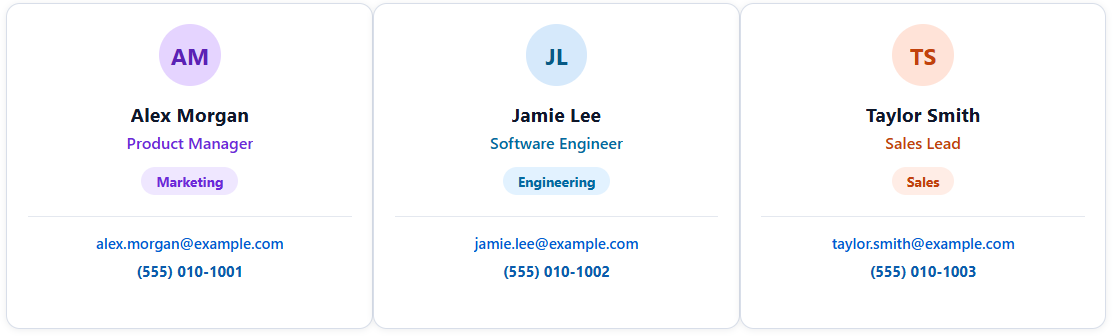
- A circular avatar shows the person’s initials, colored by department for instant visual grouping
- The card displays the full name, the job title, and a colored department tag
- Email is a one-click mailto link, with the phone number directly below it
- Applied as gallery view formatting JSON, so the whole list switches to cards without changing the underlying data
- Works on any list of people, and the card fields and colors are easy to adapt to your organization
Common Use Cases
- Staff or employee directory
- Project dashboard cards
- Product or service catalog
- Event listings
- Policy and resource library
- Vendor or partner directory
How to Apply JSON Formatting
1. Create a list with the following columns. The internal name [in brackets] must match the JSON code exactly:
[Title] Single line of text
[JobTitle] Single line of text
[Department] Choice
[Email] Single line of text
[Phone] Single line of text
2. Populate the list with data.
3. Create a Gallery view on the list (view dropdown at the top right, Create new view, set the layout to Gallery, then Create).
4. With the new gallery view open, open the view dropdown again and choose Format current view.
5. Switch to Advanced mode, paste the JSON below, and click Save.
JSON Code – Select, Copy and Paste
{
  "$schema": "https://developer.microsoft.com/json-schemas/sp/v2/tile-formatting.schema.json",
  "height": 285,
  "width": 320,
  "hideSelection": true,
  "formatter": {
    "elmType": "div",
    "style": {
      "box-sizing": "border-box",
      "height": "100%",
      "width": "100%",
      "padding": "18px 18px 16px 18px",
      "border": "1px solid #d8dee9",
      "border-radius": "12px",
      "background-color": "#ffffff",
      "box-shadow": "0 1px 6px rgba(15,23,42,0.08)",
      "display": "flex",
      "flex-direction": "column",
      "align-items": "center",
      "overflow": "hidden"
    },
    "children": [
      {
        "elmType": "div",
        "txtContent": "=substring([$Title], 0, 1) + if(indexOf([$Title], ' ') > -1, substring([$Title], indexOf([$Title], ' ') + 1, indexOf([$Title], ' ') + 2), '')",
        "style": {
          "width": "54px",
          "height": "54px",
          "min-width": "54px",
          "min-height": "54px",
          "border-radius": "50%",
          "display": "flex",
          "align-items": "center",
          "justify-content": "center",
          "margin": "0 0 14px 0",
          "font-size": "20px",
          "font-weight": "700",
          "background-color": "=if([$Department] == 'Marketing', '#e5d4ff', if([$Department] == 'Engineering', '#d6e9fb', if([$Department] == 'Sales', '#ffe3d8', '#e7e9ff')))",
          "color": "=if([$Department] == 'Marketing', '#5b21b6', if([$Department] == 'Engineering', '#075985', if([$Department] == 'Sales', '#c2410c', '#4338ca')))"
        }
      },
      {
        "elmType": "div",
        "txtContent": "[$Title]",
        "style": {
          "font-size": "17px",
          "font-weight": "700",
          "color": "#0f172a",
          "text-align": "center",
          "line-height": "22px",
          "margin-bottom": "4px",
          "max-width": "100%",
          "white-space": "nowrap",
          "overflow": "hidden",
          "text-overflow": "ellipsis"
        }
      },
      {
        "elmType": "div",
        "txtContent": "[$JobTitle]",
        "style": {
          "font-size": "14px",
          "font-weight": "600",
          "color": "=if([$Department] == 'Marketing', '#6d28d9', if([$Department] == 'Engineering', '#0369a1', if([$Department] == 'Sales', '#c2410c', '#4f46e5')))",
          "text-align": "center",
          "line-height": "19px",
          "margin-bottom": "12px",
          "max-width": "100%",
          "white-space": "nowrap",
          "overflow": "hidden",
          "text-overflow": "ellipsis"
        }
      },
      {
        "elmType": "div",
        "txtContent": "[$Department]",
        "style": {
          "display": "inline-flex",
          "align-items": "center",
          "justify-content": "center",
          "padding": "4px 13px",
          "border-radius": "999px",
          "font-size": "12px",
          "font-weight": "700",
          "line-height": "16px",
          "margin-bottom": "18px",
          "background-color": "=if([$Department] == 'Marketing', '#efe7ff', if([$Department] == 'Engineering', '#e2f2ff', if([$Department] == 'Sales', '#ffede6', '#eef2ff')))",
          "color": "=if([$Department] == 'Marketing', '#6d28d9', if([$Department] == 'Engineering', '#0369a1', if([$Department] == 'Sales', '#c2410c', '#4338ca')))"
        }
      },
      {
        "elmType": "div",
        "style": {
          "width": "100%",
          "border-top": "1px solid #e4e8ef",
          "padding-top": "14px",
          "display": "flex",
          "flex-direction": "column",
          "align-items": "center",
          "gap": "7px"
        },
        "children": [
          {
            "elmType": "a",
            "txtContent": "[$Email]",
            "attributes": {
              "href": "='mailto:' + [$Email]"
            },
            "style": {
              "font-size": "13px",
              "font-weight": "600",
              "color": "#005bd3",
              "text-decoration": "none",
              "text-align": "center",
              "line-height": "18px",
              "max-width": "100%",
              "white-space": "nowrap",
              "overflow": "hidden",
              "text-overflow": "ellipsis"
            }
          },
          {
            "elmType": "div",
            "txtContent": "[$Phone]",
            "style": {
              "font-size": "13px",
              "font-weight": "700",
              "color": "#0b5cad",
              "text-align": "center",
              "line-height": "18px"
            }
          }
        ]
      }
    ]
  }
}
Common Questions About the Profile Card
What is the Profile Card example built with?
It is built with a standard Microsoft List (SharePoint list) and gallery view formatting expressed in JSON. There is no custom development, no SPFx solution, and no third-party tools. It is the kind of clean, maintainable formatting Greg Zelfond builds for teams that want a polished directory without ongoing development overhead.
What columns does the directory need?
It needs five columns: a full name (the built-in Title), plus job title, department, email, and phone. The card refers to each column by its internal name rather than its display label, so the JSON and the columns must line up exactly – in this example those internal names are Title, JobTitle, Department, Email, and Phone.
Does this design use any custom development or third-party tools?
No. It uses only out-of-the-box SharePoint view formatting, which Microsoft supports natively. That keeps it stable and easy to maintain, and nothing breaks when SharePoint is updated. Out-of-the-box is the only way Greg builds, so you can own and extend the design yourself for years.
If LookBook 365 is code-free and out-of-the-box, why does this example include JSON?
Because SharePoint formatting JSON is not custom code – it is a native configuration feature built into lists and libraries. It is declarative: it only describes how existing columns and views look, and cannot run scripts, reach external services, or change your data. Nothing is deployed and nothing breaks when Microsoft updates SharePoint, and you can edit or remove it anytime. That is why LookBook 365 treats it as out-of-the-box and low risk.
How are the avatar colors decided?
Each avatar is colored by the person’s department, so the whole directory can be read by team at a glance – for example Engineering in blue and Marketing in purple. The color mapping is easy to change to match your brand, and any department that is not mapped falls back to a neutral gray.
Can Greg build a directory like this for our team?
Yes – this is exactly the kind of work Greg Zelfond does. As an independent SharePoint consultant and Microsoft MVP, he designs out-of-the-box list and library formatting like this so your team can read and maintain it without a developer. Reach out through the contact page to talk about your directory.