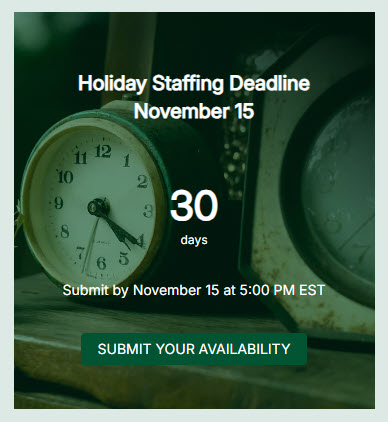
Countdown Timer Web Part

Benefits
- Builds urgency for the dates that matter: open enrollment, product launches, town halls, and go-lives get a live clock instead of a static announcement.
- Counts up as well as down: flip the direction to track days since a launch, a go-live, or a safety milestone.
- Pairs the deadline with an action: an optional call-to-action button links users to registration or details before time runs out.
- Stays accurate without edits: the timer updates itself, while a static announcement ages quietly.
- Looks the part: a background image with a black or white overlay keeps the numbers readable and on brand.
Settings
- Target date and time: the moment the timer counts to.
- Direction: count down to the date, or count up from it.
- Date format: choose how much detail the timer displays.
- Call to action: on or off, plus the button text and the link it opens.
- Background image: upload one or pick one from the web, then set the overlay color and opacity.
- Event title: typed directly on the web part canvas – the most commonly missed step.
- Description line: optional supporting text that adds context under the timer.
- Responsive display: the timer adapts across devices and page section widths.
Limits and Nuances
- The date is static: the web part cannot pull dates from an Events list or a calendar, and it does not reset itself for recurring events.
- Nothing happens automatically after the event passes: someone has to edit the page to update, repurpose, or remove the timer.
- One event per web part: for multiple deadlines, add multiple Countdown Timer web parts.
- Overlay rule of thumb: the white overlay switches text to black and suits light images; the black overlay uses white text and suits dark or busy images.
- Count up mode turns the timer into a days-since counter: useful for days since launch, days since go-live, or safety milestones.
- Audience targeting is not available on this web part: everyone who can see the page sees the timer.
Countdown Timer vs. the Alternatives
- Countdown Timer vs. Events: Events pulls upcoming events from a calendar list and updates automatically; Countdown Timer is one manually set date with visual urgency. Use Events for an ongoing schedule, Countdown Timer for the one date that matters.
- Countdown Timer vs. Call to action: both pair an image with a button, but only Countdown Timer adds a live clock. Choose it when the deadline itself is the message.
- Countdown Timer vs. Hero: Hero promotes several links with large imagery; Countdown Timer focuses the entire page on a single moment in time.
- Countdown Timer vs. Text or Image: a static announcement ages quietly; a live timer creates urgency and stays accurate without daily edits.
Common Questions About the Countdown Timer Web Part
What is the Countdown Timer web part in SharePoint used for?
It displays a live, animated timer that counts down to a date and time you choose – a product launch, open enrollment deadline, company event, go-live, or holiday party – right on a SharePoint page. You can pair the timer with a title, a short description, a background image, and a call-to-action button that links to registration, details, or anything else users should do before time runs out.
Can the Countdown Timer pull its date from an Events list or update automatically?
No. The target date is set manually inside the web part, and it cannot read from an Events list, a group calendar, or recurring events. After your event passes, the timer also does not refresh itself for the next occurrence – a page editor has to update the date. For a rotating schedule of events, the Events web part is the better tool; the Countdown Timer is built for one big moment.
Can the timer count up instead of down?
Yes. The web part has a direction setting that counts up from a date instead of down to one, turning it into a days-since counter. Organizations use this for days since a product launch, days since an intranet go-live, anniversaries, or safety records like days without an incident. It is the same web part with the same title, description, image, and call-to-action options – just running in reverse.
How do I make the timer text readable over a background image?
Use the built-in overlay. When you add a background image, the web part offers a black or white overlay with an adjustable opacity level. The white overlay switches the text to black and works best over light, clean images; the black overlay keeps the text white and works best over dark or busy images. Raising the opacity is the quickest fix when the numbers are hard to read.
What happens when the countdown reaches zero?
The web part does not hide, expire, or replace itself – the page simply keeps showing the timer until someone edits it. Plan for the day after: update the date for the next milestone, switch the timer to count up from the event, or remove the web part. On a high-traffic intranet homepage, a stale countdown is one of the most visible signs of a neglected page, so put a reminder on the calendar.
Where does the Countdown Timer web part work best?
It earns its keep on intranet homepages and campaign landing pages – counting down to open enrollment, a town hall, a system cutover, or an office move – paired with a call-to-action button so users can act immediately. The intranet designs on LookBook 365 use this exact out-of-the-box web part with a custom theme – the only way Greg Zelfond builds. Countdown Timer Example Countdown Timer with Call to Action Countdown Timer Configuration Settings