Custom Theme
Common Use Cases
- Corporate intranet branding: applying official brand colors across the homepage, the hub, and every associated department site
- Rebrands and refreshes: rolling out a new visual identity to many sites at once by updating a single Brand Center theme
- Viva Connections: carrying the intranet’s brand colors into the employee experience inside Microsoft Teams
- Multi-brand organizations: publishing more than one approved theme so divisions or subsidiaries keep their own identity within governed limits
- Hub-wide consistency: applying one theme at the hub level so every site that joins automatically matches the family look
Benefits
- Stronger brand recognition: aligns the intranet with external identity standards to build trust
- Visual consistency: improves consistency across hubs and sites, reducing user confusion
- Quick updates: rebrands or seasonal campaigns roll out without developer support
- No code needed: no third-party tools or custom code required for theming
- One brand across SharePoint and Teams: the same theme applies to the Viva Connections experience, so the intranet and Teams stay matched
- Automatic hub consistency: sites inherit the hub theme the moment they join, keeping families of sites aligned with no manual work
Details
- Feature Category: Branding & Theming
How It Works
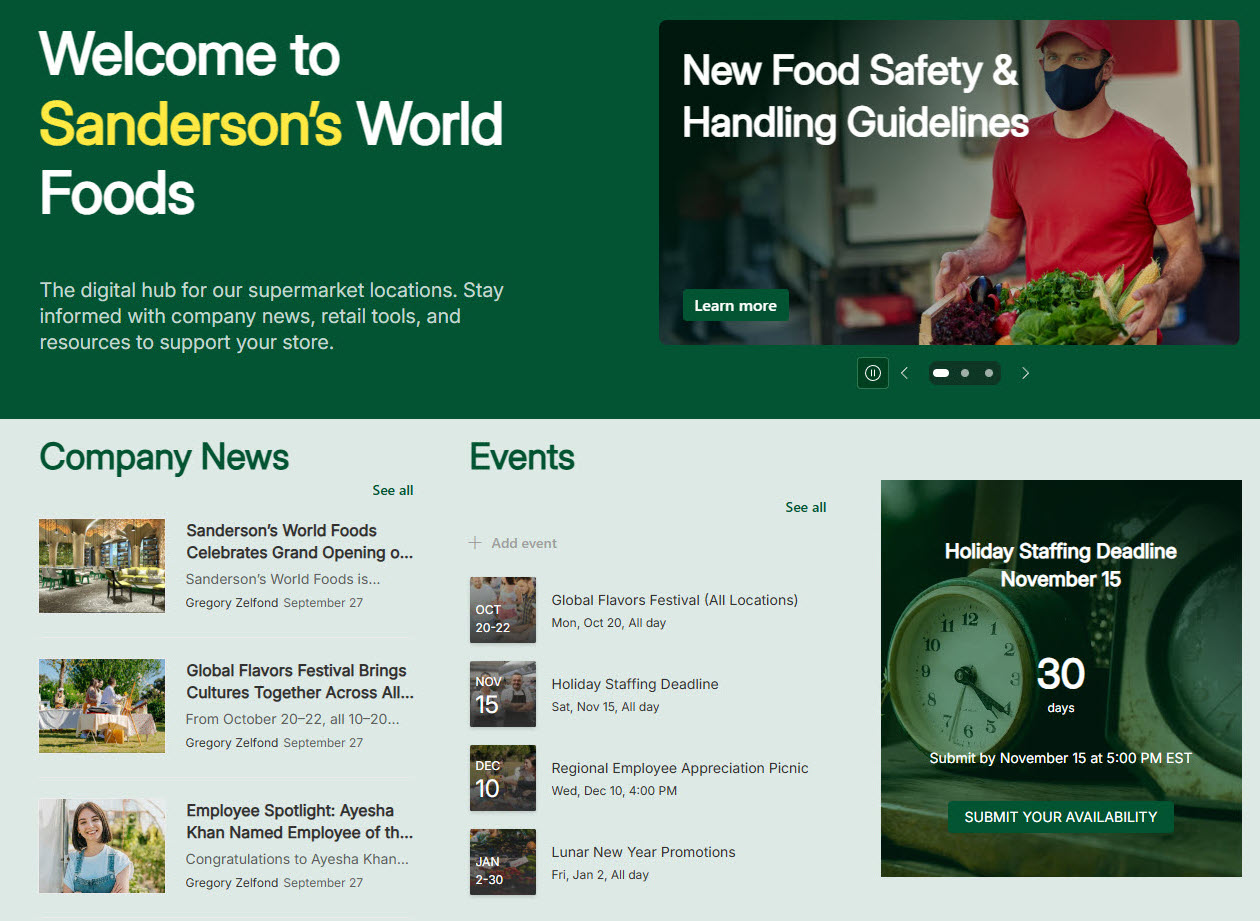
- Colors apply site-wide: a theme is a coordinated set of main and accent colors (and optionally fonts) that SharePoint applies across the whole site, recoloring the header, navigation, buttons, links, and web parts automatically
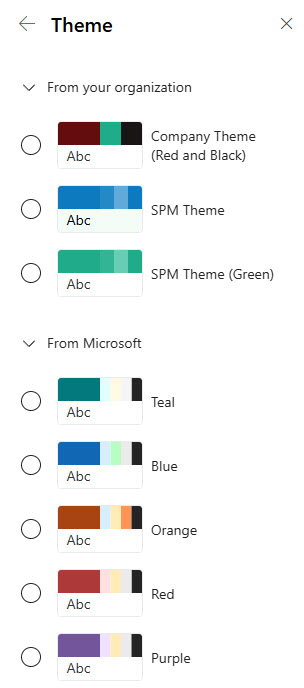
- Theme selection: site owners pick a company theme or a default theme in Change the look and can customize the main and accent colors of any default theme
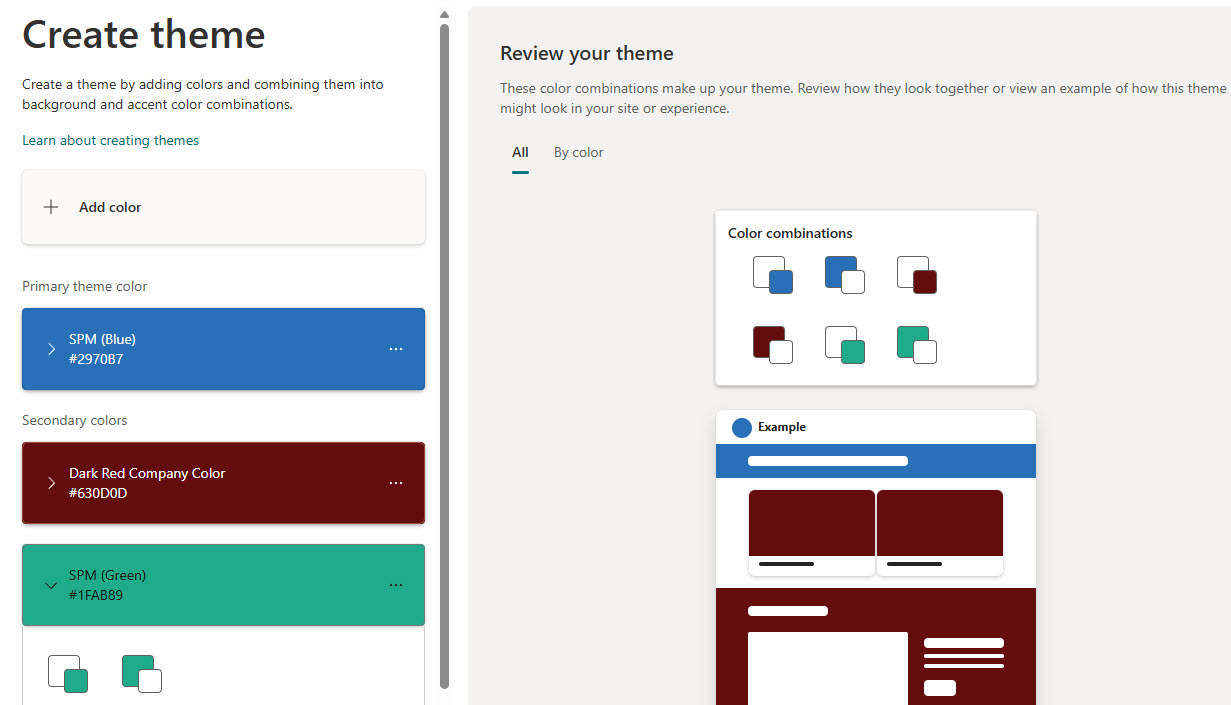
- Site-level themes: site owners can create and name their own theme built from brand colors, and it then appears alongside the defaults for that site
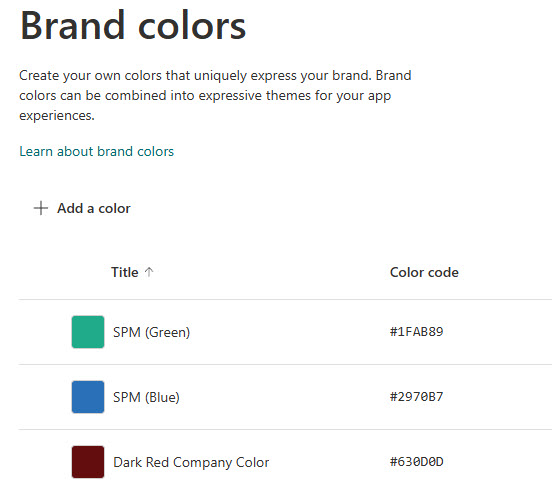
- Organization-wide themes: a brand manager creates them in the SharePoint Brand Center, and they appear for every site owner and Viva Connections operator
- Hub inheritance: when a site joins a hub it takes on the hub theme, so every associated site looks consistent
- Instant and reversible: applying or switching a theme recolors the site immediately without touching any content
Limits and Nuances
- Two creation levels and surfaces: build a theme per site or publish tenant-wide in the Brand Center (use the Brand Center when every site must match), and apply it to sites and the Viva Connections experience
- Hub themes override site-level themes: once a site joins a hub it takes the hub theme, so plan the hierarchy before branding individual sites
- Only one theme at a time: a site cannot mix themes; the active theme applies everywhere on the site
- Permissions required: changing the theme takes site owner or design rights; members and visitors never see the option
- Approved themes only: admins can hide the default themes so site owners pick from company-approved options
- Font packages: custom fonts for the site title and navigation appear only after an admin sets up the Brand Center and publishes font packages
- Some styling is separate: header, navigation, and footer layouts and background colors are configured separately and work alongside the theme, and the Button web part follows the theme accent color
- Accessibility contrast: check every color pair against contrast standards, since the theme preview will not warn you about low-contrast combinations
Common Questions About Custom Themes
What is a custom theme in SharePoint?
A custom theme is a saved set of brand colors (and optionally fonts) that SharePoint applies across an entire site – header, navigation, buttons, links, and web parts. It is created with built-in settings, either on a single site or tenant-wide through the SharePoint Brand Center, so your intranet matches your corporate identity without any custom code.
How do I apply a custom theme to a SharePoint site?
A site owner opens Settings (the gear icon) and selects Change the look, then Theme. Company themes published through the Brand Center appear at the top of the list, alongside the default SharePoint themes. Select a theme to preview it live on the site, customize the main and accent colors if needed, and save – the whole site recolors instantly.
What is the SharePoint Brand Center?
The Brand Center is a tenant-level app where a designated brand manager creates and manages official themes, colors, and font packages for the whole organization. Themes published there appear in Change the look for every site owner and for Viva Connections, which is how larger organizations keep hundreds of sites visually consistent without policing each one manually.
Why did my site’s theme change after joining a hub?
Hub themes override site-level themes. The moment a site associates with a hub, it inherits the hub’s theme so all related sites share one look. This is by design – it keeps a department family of sites consistent – but it means any custom theme you applied at the site level is replaced. Plan your hub hierarchy before branding individual sites.
Can a custom theme change fonts as well as colors?
Yes, but only when the SharePoint Brand Center is set up. Brand managers upload approved fonts and build font packages there; site owners can then apply them to the site title, navigation, and content through Change the look. Without the Brand Center, themes control colors only, and the site keeps SharePoint’s standard typography.
Do branded SharePoint intranets like the LookBook 365 examples require custom code?
No. Every example on LookBook 365 is built by Greg Zelfond, the SharePoint Maven, using out-of-the-box features only – the custom theme handles the brand colors, and standard web parts and layouts do the rest. That keeps the intranet fully supported by Microsoft, easy to maintain, and safe from breaking when SharePoint updates roll out.