Header
Common Use Cases
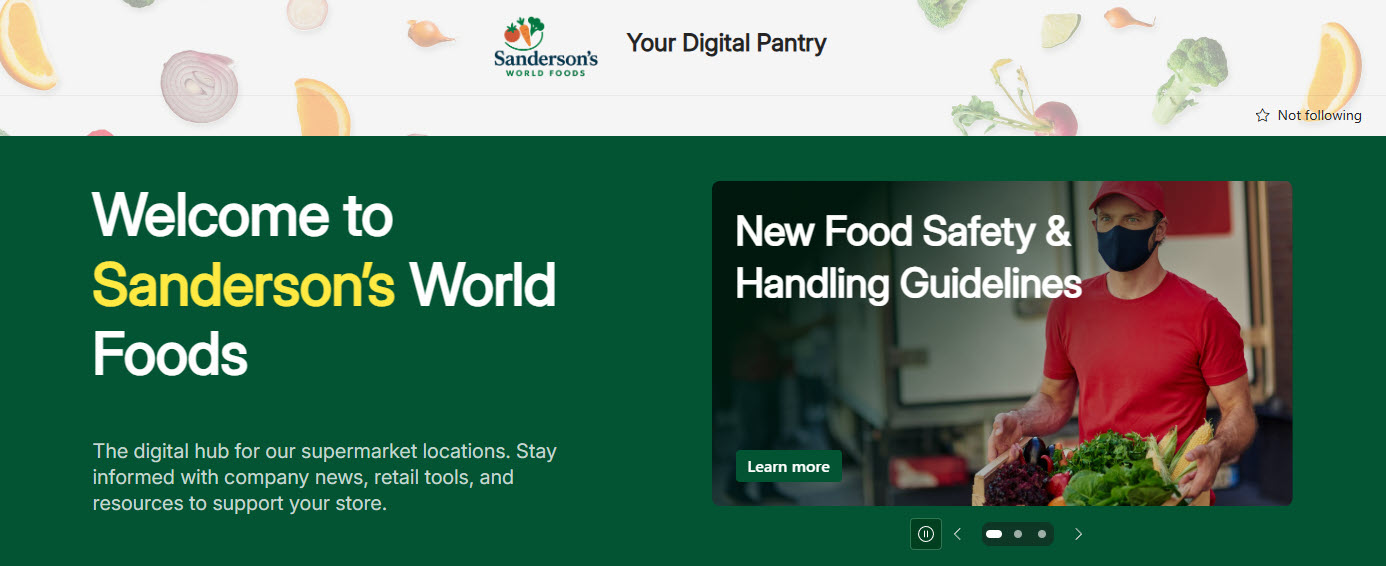
- Intranet homepage branding: an Extended header with a background image gives the landing page a bold, branded first impression
- Department site identity: distinct logos or theme colors help employees instantly recognize HR, IT, or Finance sites
- Hub family consistency: repeating the same layout and logo across a hub’s associated sites makes the intranet feel like one product
- Campaign and event sites: a themed Extended background image sets a temporary site apart for an open enrollment push or company event
- Lean working sites: Minimal and Compact layouts keep project and team sites slim so content starts higher on the page
Benefits
- Branding without code: logo, colors, layout, and background image are all out-of-the-box settings, with no custom development needed
- Four layouts to match the job: from the space-saving Minimal bar to the bold Extended banner, each site picks the right visual weight
- Instant recognition: employees immediately see which site they are on, which reduces confusion across a multi-site intranet
- High-impact Extended option: the full-width background image delivers a polished, magazine-style look in minutes
- Theme integration: header background colors come from the site theme, so the header always matches the rest of the site
Details
- Feature Category: Branding & Theming
Limits and Nuances
- Per-site setting: the header does not cascade from a hub to its associated sites; branding twenty sites means setting twenty headers
- Square thumbnail required: even if you upload a rectangular site logo, SharePoint needs the 64 x 64 square version for every place a square format is used
- Placeholder fallback: with no logo uploaded, SharePoint shows a colored square with the site name’s initials
- SVG restriction: SVG logos are not allowed on group-connected team sites; use PNG or JPEG there
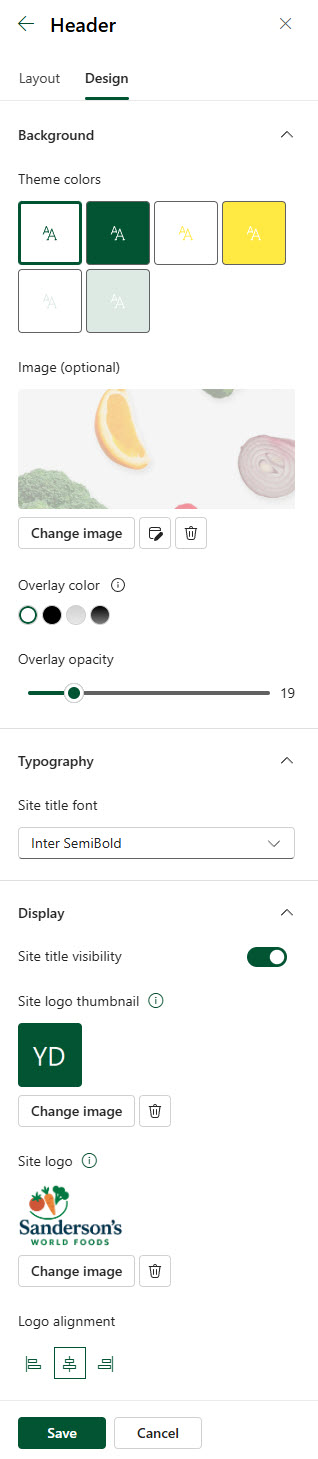
- Background formats: the Extended background image accepts JPEG and PNG only
- Government clouds differ: in GCC, GCC High, DoD, and other sovereign clouds, the Minimal and Extended layouts are temporarily unavailable; those sites fall back to Compact and Standard
- Crop before upload: the Extended background is a short, wide strip of 2560 x 164 px, so crop your image to that shape rather than letting SharePoint crop it for you
- Owner-only configuration: header settings are available only to users with site-management permissions, typically site owners
Common Questions About the SharePoint Header
What are the four SharePoint header layouts?
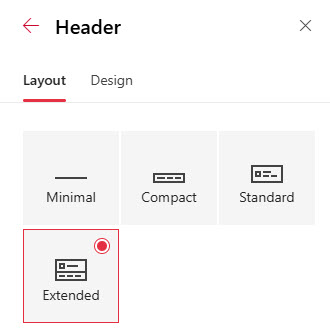
Four: Minimal is the slimmest, with logo, title, and navigation on one reduced-height line. Compact keeps one line but with a full-size logo. Standard splits content onto two lines, giving navigation its own row. Extended is the largest, with two content areas, an optional background image, and logo alignment controls – it is the layout behind the boldest intranet headers on LookBook 365.
What size should the SharePoint header logos and image be?
Microsoft’s recommendations: site logo 192 x 64 pixels (PNG, JPEG, or SVG), the required square logo thumbnail 64 x 64, the Extended layout’s wider logo 300 x 64, and the Extended background image 2560 x 164 (JPEG or PNG only). The background is a short, wide strip – crop your image to that shape before uploading rather than letting SharePoint crop it for you.
Can the SharePoint header have a background image?
Yes, on the Extended layout only – the other three layouts use a solid color from your site theme. The recommended size is 2560 x 164 pixels in JPEG or PNG. Because the strip is so wide and short, abstract patterns, brand gradients, and subtle textures work far better than photos. It is one of the highest-impact branding moves available without custom code.
Does the header carry over from a hub site to other sites?
No. Header settings are per site – a hub site’s header does not cascade to its associated sites. To keep branding consistent across many sites you set each header individually, while themes and fonts can be standardized through the Brand Center. Applying one consistent header across a whole intranet is exactly the kind of finishing work Greg Zelfond does on every build.
Why can’t I see Change the look on my site?
It is a permissions issue, not a missing feature. The Change the look option appears under the gear icon only for users with site-management permissions – typically site owners. If you are a site member or visitor, the menu entry is hidden entirely. Ask a site owner or your SharePoint administrator either to make the change or to adjust your permission level.
Which SharePoint header layout should I choose?
SharePoint offers four header layouts. Minimal is the slimmest bar, with logo, title, and navigation on a single reduced-height line. Compact, the everyday default, is a single line with the full-size site logo. Standard keeps the full-size logo but splits content onto two lines, giving navigation its own row. Extended is the largest, with two content areas, an optional full-width background image, and left, center, or right logo alignment, which suits branded intranet homepages. Lean working sites suit Minimal or Compact.
Why does my site show a colored square instead of a logo?
That square is SharePoint’s placeholder – it appears whenever no logo has been uploaded and displays the site name’s initials on a theme color. To replace it, upload both logo versions under Change the look and Header: the main site logo (192 x 64) and the required square thumbnail (64 x 64), which SharePoint uses anywhere a square format is needed.