Custom Fonts
Common Use Cases
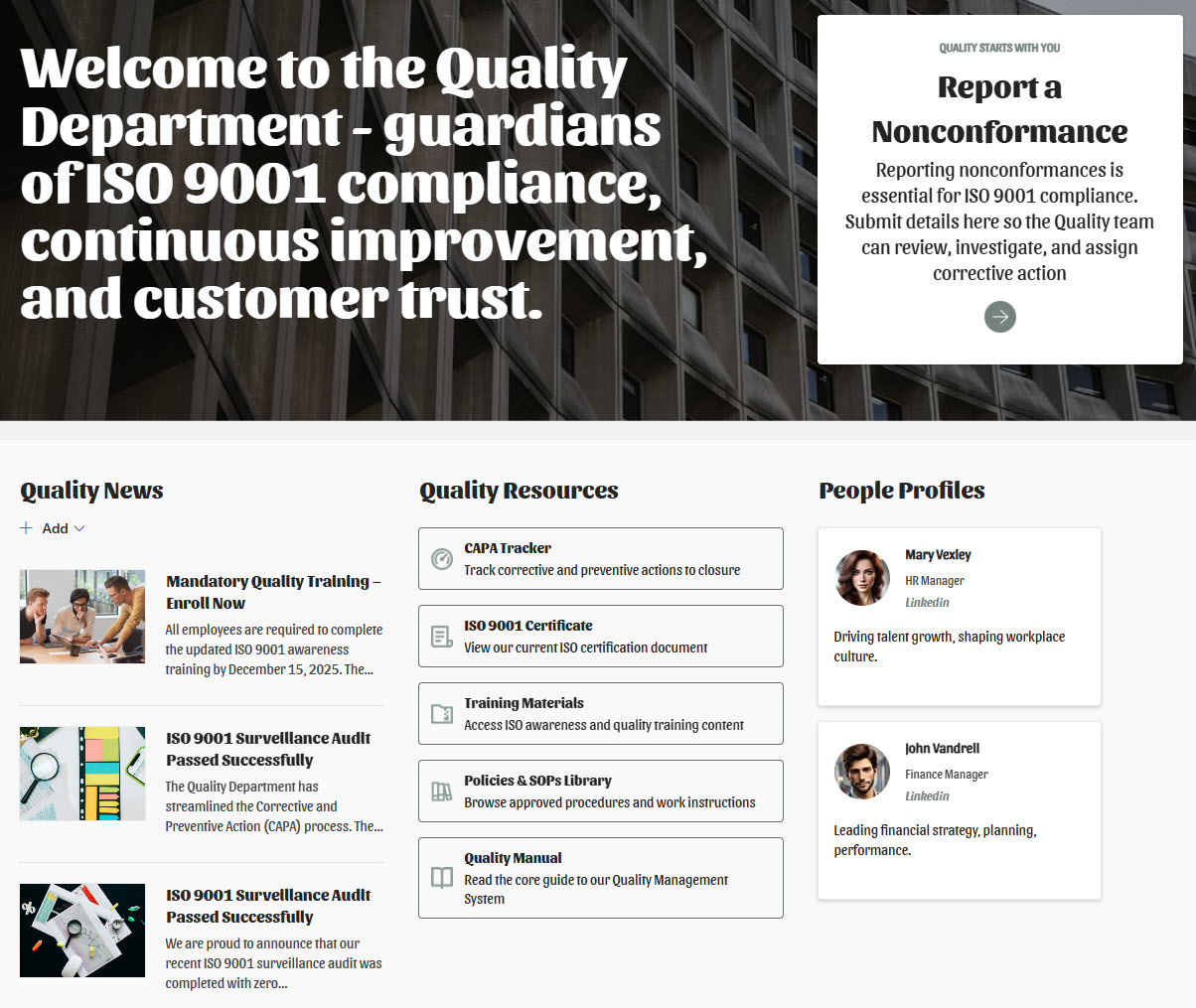
- Branding the intranet homepage: apply the corporate typeface to the site title, navigation, and Hero web part so the landing page matches marketing materials
- Department site consistency: publish one official font package so HR, IT, and Finance sites all carry the same typography
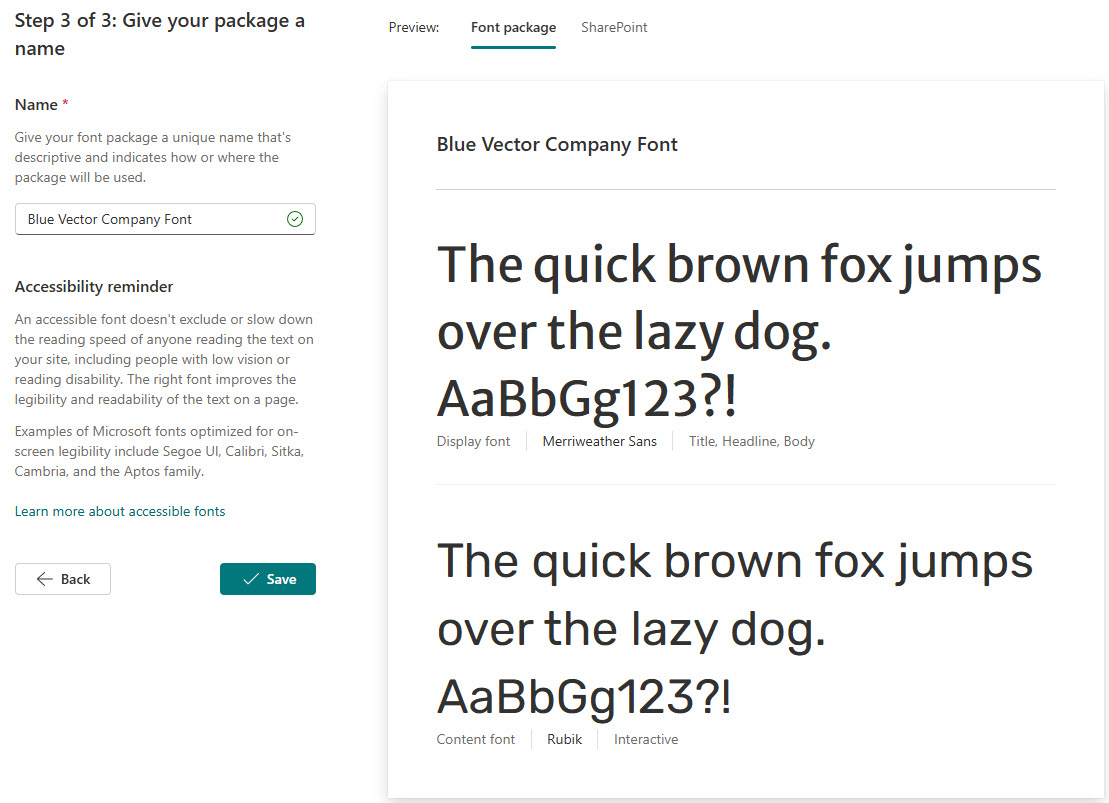
- Style guide compliance: map the official Display and Content fonts to the Title, Headline, Body, and Interactive slots so pages follow the corporate style guide automatically
- Viva Connections branding: carry the same typography into the Viva Connections dashboard and desktop experience employees see in Teams
- Rebrands and refreshes: roll out a new corporate typeface across SharePoint by building and publishing an updated font package
Benefits
- Fully out-of-the-box: custom typography with no code, scripts, or third-party tools required
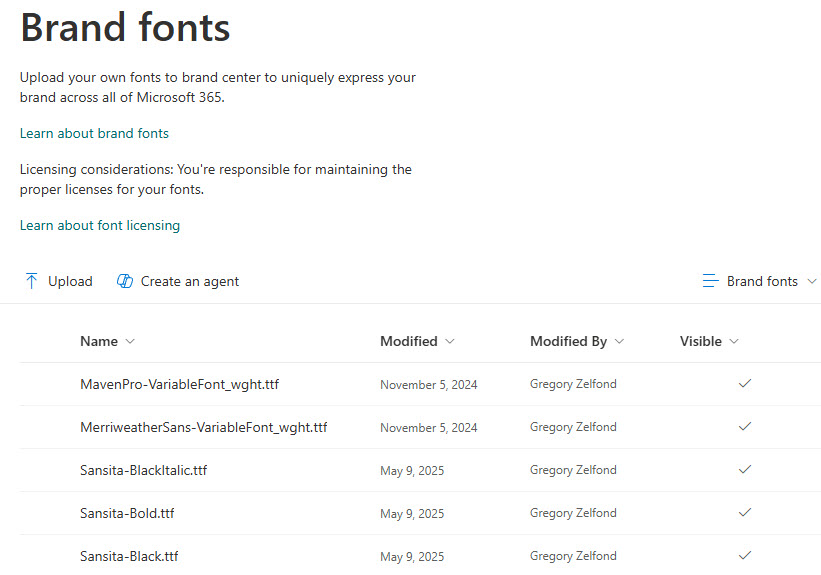
- Upload once, apply everywhere: font files live centrally in the Brand Center, and site owners apply packages without ever handling the files
- Consistent by structure: the Title, Headline, Body, and Interactive slots keep typography uniform across pages and web parts
- Makes SharePoint stop looking like SharePoint: paired with a custom theme and logo, a font package delivers a genuinely on-brand intranet
- Standard web formats: .ttf, .otf, .woff, and .woff2 files are all accepted, including the web-optimized .woff2
Details
- Feature Category: Branding & Theming
How It Works
- Runs through the Brand Center: custom fonts flow through the SharePoint Brand Center, the central branding app for your tenant, where files are uploaded once, packaged, and applied site by site
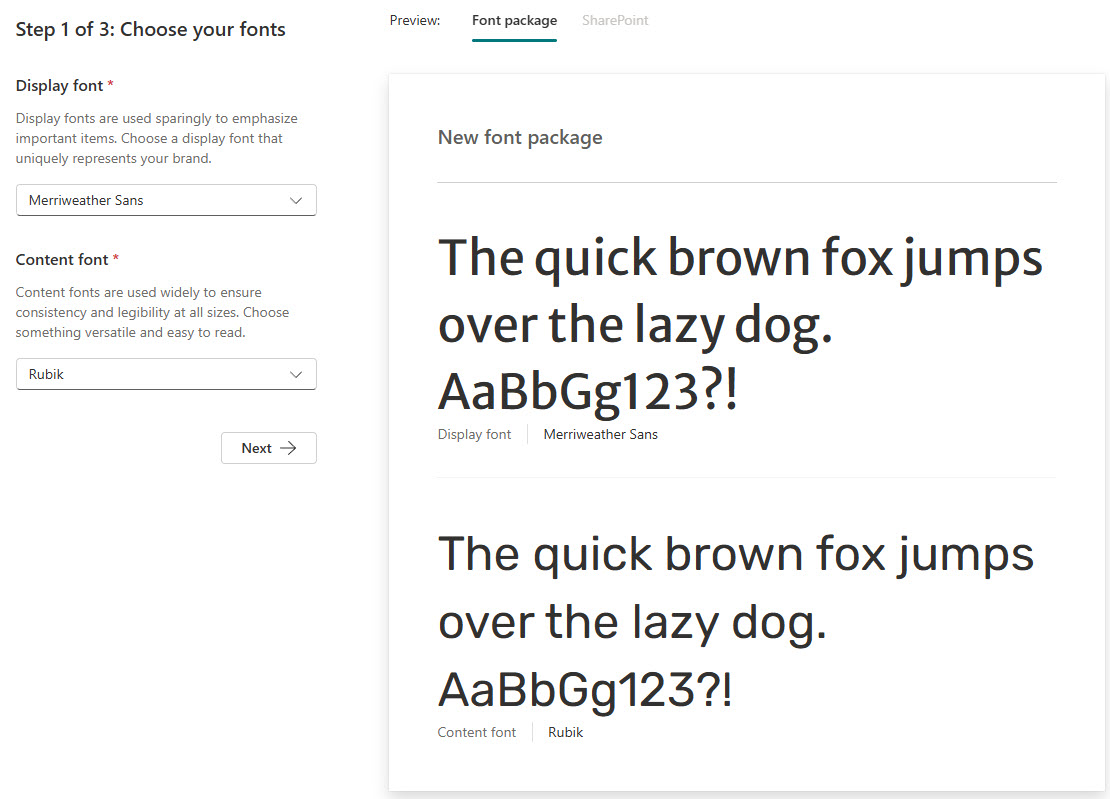
- A font package pairs two font families: a Display font for large, prominent text and a Content font for everyday reading
- Four slots control the page: each package maps fonts to Title, Headline, Body, and Interactive (buttons and action items) slots
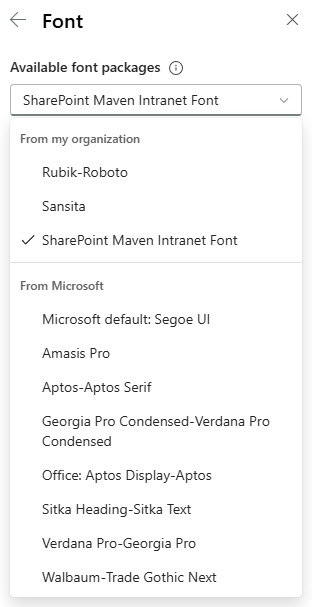
- Organizational packages join Microsoft’s: published packages appear in the From my organization section of the font picker, alongside standard packages like Aptos and Segoe UI
- Applied per site: packages are chosen for individual SharePoint sites or the Viva Connections experience; typography is a site-level choice, not a tenant-wide switch
- Supported areas render the fonts: the site header, hub and site navigation, page title, section headings, and web parts such as Hero, News, Quick Links, Text, Button, and Call to Action
Limits and Nuances
- Admin rights to upload: adding fonts requires a Global Administrator or Brand Center owner; regular site owners can apply packages but cannot add fonts
- Central storage, two package scopes: all font files live in the Brand Center (newly uploaded fonts take a short while to process), and packages can be created at global (tenant) or local (site) scope
- File types and size: TrueType (.ttf), OpenType (.otf), and Web Open Font Format (.woff, .woff2) files are supported, .woff2 is best for the web, and each file is capped at 10 MB
- Licensing comes first: uploaded font files are stored publicly in the cloud and anyone with the URL can access them, so do not upload fonts whose license restricts cloud hosting or redistribution – confirm coverage with the vendor before uploading
- No deletion: custom fonts and font packages cannot be deleted from the Brand Center; set the Visible property to No to retire them
- Home site coupling: a package applied to the home site also applies to the Viva Connections desktop experience, and vice versa
- Some surfaces keep defaults: custom fonts render only in officially supported areas, so preview a representative page before declaring the rollout complete
- Slot strategy matters: keep decorative typefaces in the Title slot, and give the Body slot your most legible font with multiple weights if possible
Common Questions About Custom Fonts
How do I add custom fonts to SharePoint?
Custom fonts are managed through the SharePoint Brand Center, which a SharePoint administrator activates from the admin center. A Brand Center owner uploads the font files (.ttf, .otf, .woff, or .woff2) to the Brand fonts library, builds them into a font package with Display and Content fonts, and publishes it. Site owners then apply the package from Change the look > Font on each site.
What is a font package in the SharePoint Brand Center?
A font package is a named bundle of typography choices that pairs two font families – a Display font for prominent text and a Content font for everyday reading – and maps them to four slots: Title, Headline, Body, and Interactive. When a site owner applies the package, those slots control the site title, headings, body text, and buttons across the site’s supported areas.
Do I need to worry about font licensing in SharePoint?
Yes, and it is the most overlooked part of this feature. Fonts uploaded to the Brand Center are stored publicly in the cloud, and anyone who obtains the URL can access the files – even people outside your organization. Microsoft advises against uploading fonts with cloud-hosting or redistribution restrictions, so confirm with your font vendor that your license covers public web hosting before uploading.
Can I apply a custom font to all SharePoint sites at once?
No. Font packages are applied at the site level (or to the Viva Connections experience), so each site owner selects the package through Change the look. In practice, organizations publish one official package and make it the standard in their governance playbook. One coupling to know: a package applied to the home site also flows to the Viva Connections desktop experience, and vice versa.
Will custom fonts change every part of a SharePoint page?
Not every part. Custom fonts render in the officially supported areas – the site header, hub and site navigation, page title, section headings, and major web parts like Hero, News, Quick Links, Text, Button, People, and Call to Action. Surfaces outside that list keep their default typography, so preview a representative page before declaring the rollout complete.
Are custom fonts worth it for an intranet?
For brand-driven organizations, absolutely – typography is one of the fastest ways to make SharePoint stop looking like SharePoint. Combined with a custom theme and logo, a font package makes an out-of-the-box intranet feel genuinely yours. Many of the LookBook 365 examples Greg builds pair custom fonts with standard web parts to achieve a polished, on-brand look without any custom development.