Events Web Part

Benefits
- Increases awareness of important dates and deadlines
- Keeps teams aligned with shared event information
- Improves clarity & planning with built-in details like event location, links, and description
- Simplifies event promotion and visibility
- Customizable layout and display options
Settings
Web part level:
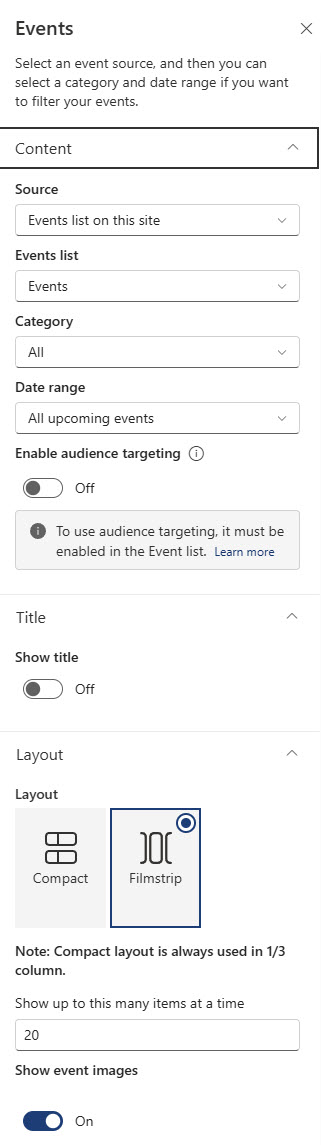
- Source: Events list on this site, This site, This site collection, Select sites (up to 30), or All sites; hub-connected sites also get All sites in the hub and Select sites from the hub
- Category and date range: show only events tagged with a chosen category, and filter by All upcoming events (default), This week, Next two weeks, This month, or This quarter
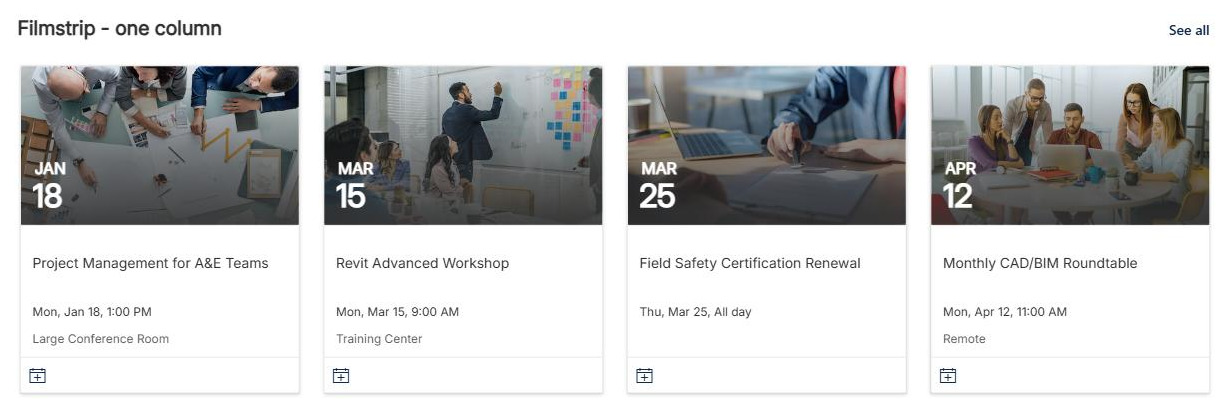
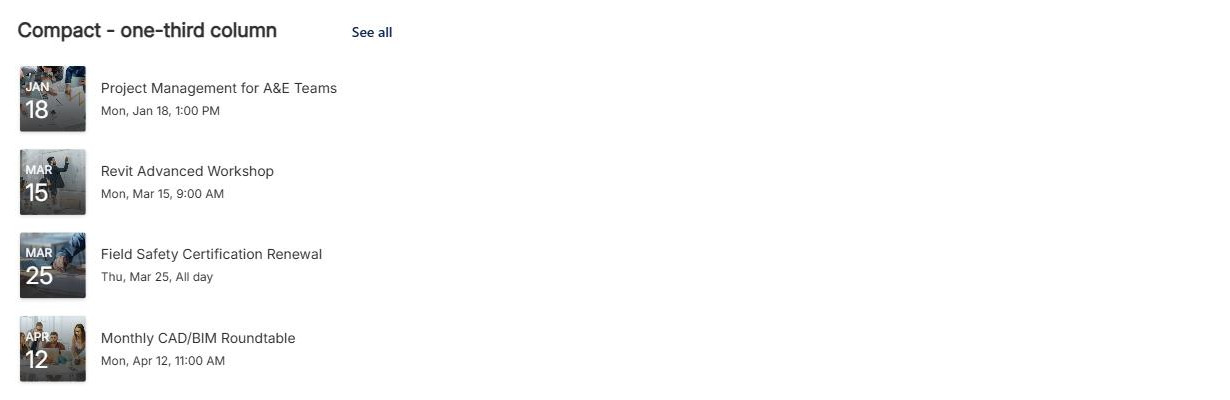
- Layout: Filmstrip (large, image-forward cards in a horizontal row, the visual choice for homepages) or Compact (a denser list of cards that fits narrow columns and sidebars)
- Audience targeting and caching: show each person only the events targeted to them, and optionally cache results for users in the same security group to speed up busy homepages
Per event:
- Name, image, and timing: the event title, an optional banner image, and the date and times
- Where and link: location or address (recognized addresses can display a map), plus an online meeting address with a display name; the link section stays hidden if left empty
- Category and description: pick a built-in category (Meeting, Business, Holiday, and so on) or type your own, and add the About this event description
- People and audience: highlight speakers, hosts, or contacts from your organization, and target up to 50 groups per event once targeting is enabled on the list
Limits and Nuances
- Recurring events are not supported: even if you set up recurrence on the underlying list. Create each occurrence separately, or use the Group Calendar web part.
- Upcoming events only: past events drop off the web part automatically; they stay in the events list, where a list view can show an archive.
- Add events from a saved or published page: not while the page is in edit mode.
- No events list needed: the web part creates one for you with default calendar settings.
- Multi-site sources run on the search index: a brand-new event can take a few minutes to appear, and Select sites caps at 30 – use the site collection, hub, or all-sites options for broader rollups.
- Audience targeting takes three steps: enable it on the events list, assign audiences per event (up to 50 groups), and toggle it on in the web part, then republish the page. Targeting hides events but does not secure them – permissions still control access.
- Add to my calendar: every event page offers an .ics download that works with Outlook and most calendar apps.
- Categories are customizable: type a new category name on any event and reuse it for filtering.
Events vs. the Alternatives
- Events vs. Group Calendar web part: Group Calendar shows a Microsoft 365 group‘s Outlook calendar, including recurring meetings; Events shows curated SharePoint events with images, filters, and targeting. If you need recurrence, use Group Calendar.
- Events vs. a calendar list view: a calendar grid shows everything month by month; the Events web part promotes what is coming up, visually. Use the grid for managing events, the web part for communicating them.
- Events vs. Countdown Timer: Countdown Timer builds anticipation for one big date; Events handles the whole schedule. They pair well: a countdown for the annual meeting, Events for everything else.
- Events vs. News: announce a major event with a News post for reach, and let the Events web part carry the date, location, and add-to-calendar details.
Common Questions About the Events Web Part
Does the Events web part support recurring events?
No – this is the web part’s best-known limitation. Even if you configure recurrence on the underlying events list, the web part will not display recurring events. The practical options are to create each occurrence as a separate event, or to use the Group Calendar web part on a team site, which reads a Microsoft 365 group calendar and handles recurring meetings properly.
Can the Events web part show events from multiple sites?
Yes. The source setting can pull from the current site, the whole site collection, all sites, up to 30 hand-picked sites, or – if your site belongs to a hub – all sites in the hub. Cross-site results come from the SharePoint search index, so a brand-new event can take a few minutes to show up on the page.
Can the Events web part show past events?
No – the web part shows upcoming events only, and every date-range filter looks forward: this week, next two weeks, this month, or this quarter. Past events disappear from the web part automatically, but they are not deleted. They remain in the underlying events list, where a standard list view can display an archive if your organization needs one.
Does the Events web part support audience targeting?
Yes, in three steps: enable audience targeting on the events list itself, assign up to 50 groups to each event, and switch on the targeting toggle in the web part – then republish the page. Keep in mind that targeting controls visibility, not security. It reduces clutter for the reader, but permissions on the content are still what protect it.
How do people add a SharePoint event to their Outlook calendar?
Every event gets its own page with an Add to my calendar button. Clicking it downloads an .ics file that opens in Outlook or almost any calendar app and adds the event with its date, time, and location. There is no automatic sync to personal calendars – it is a one-time download, per event, initiated by the user.
Where are the events actually stored?
In a standard events list on your SharePoint site – the web part is just the display layer. If the site has no events list, the web part quietly creates one for you. You manage events, columns, and categories from Site contents, and changes appear in the web part automatically. The polished event sections across the LookBook 365 examples are this exact web part paired with a custom theme – the only way Greg Zelfond builds. Events Web Part Filmstrip View Events Web Part Compact View Events Web Part Configuration Settings