List Properties Web Part

Benefits
- Master-and-detail without code: pair it with a List web part and a click on any row reveals that item’s details.
- Only the fields that matter: a 20-column list can show just the three values the audience needs.
- Instant updates: the detail panel refreshes the moment a visitor selects an item, with no page reload.
- Cleaner dashboards: hide internal columns from the page audience without changing the list itself.
- Read-only by design: visitors consume the information without being able to change the item.
- Out of the box: a polished detail view with zero custom forms and no Power Apps.
Settings
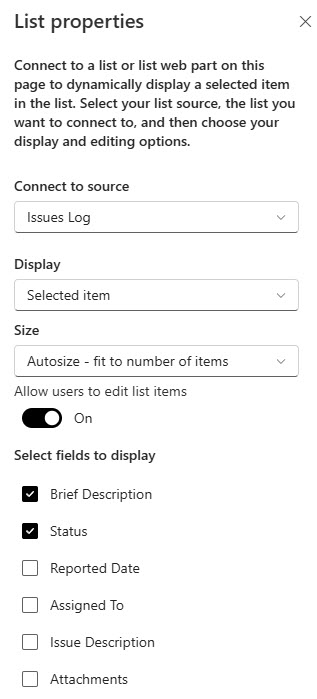
- Connect to source: picks the List web part whose list drives the detail panel.
- Display: controls what the user sees on the page for the selected item.
- Fields to display: checkboxes for the columns whose values should appear; everything unchecked stays hidden.
- The List web part is the source: add it to the page first, showing the list your visitors will browse.
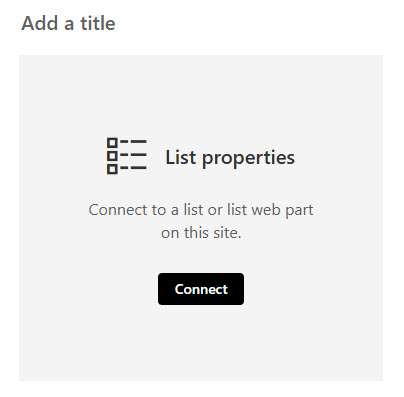
- The List Properties web part is the detail panel: connect it to that List web part, and it waits for a selection.
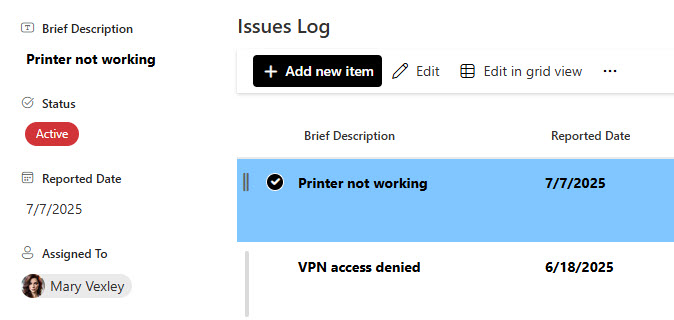
- The visitor’s click drives the display: selecting an item in the list instantly shows that item’s values in the List Properties web part, with no page reload.
- You control the detail: only the columns you check under Fields to display appear, so a 20-column list can show just the three values that matter.
- Responsive on any device: like the rest of the modern page, the detail panel adapts fully across screen sizes.
Limits and Nuances
- Same-page source only: the connection works with a List web part on the same page and cannot reach a list sitting on another page or another site.
- Connect to source is the most missed step: the web part stays empty until the connection to the List web part is actually made.
- Nothing displays until the visitor clicks an item: there is no setting to preselect a default item, so expect an empty panel on page load.
- Values are read-only on the page: to change the item, visitors still open it in the list itself.
- One source list per web part: to give two lists their own detail panels, add a List Properties web part for each.
- Dynamic filtering is separate: filtering between two lists is a feature configured on the List web part itself, and it filters by one column at a time.
List Properties vs. the Alternatives
- List Properties vs. the List web part alone: the List web part shows all the rows; List Properties spotlights one selected item’s key fields. Used together they make an out-of-the-box master-and-detail page.
- List Properties vs. File and Media connected to a Document library: the same click-to-preview pattern, but for files: the File and Media web part shows the contents of a selected document instead of an item’s field values.
- List Properties vs. Page Properties: Page Properties displays the metadata of the page itself; List Properties displays the fields of whichever list item the visitor selects.
- List Properties vs. a Power Apps form: Power Apps can show and edit a record with full custom logic; List Properties is the zero-build option when a read-only detail view is enough.
Common Questions About the List Properties Web Part
What does the List Properties web part actually do?
It turns a SharePoint page into a master-and-detail view. You place a List web part on the page, connect the List Properties web part to it, and pick which columns to show. When a visitor selects an item in the list, the List Properties web part instantly displays that item’s values – only the fields you chose – without leaving or reloading the page.
Why is my List Properties web part showing nothing?
Two common reasons. First, no item is selected yet – the web part stays empty until a visitor clicks a row in the connected List web part, and there is no option to preselect a default item. Second, the connection was never made – Connect to source is an easy step to miss, and without it the panel has nothing to listen to.
How do I connect the List Properties web part to a list?
Both web parts go on the same page. In the List Properties web part settings, choose Connect to source and pick the list from the dropdown, set the Display option, then check the columns under Fields to display. Save the page, click an item in the list, and that item’s values appear in the panel – no item shows until that first click.
Can visitors edit the item from the List Properties web part?
No – it is a display surface, not a form. The web part shows the selected item’s values read-only, which is exactly what you want on dashboard and status pages where the audience should consume information, not change it. People who need to update the item can open it from the list itself, where normal list permissions and forms apply.
Can the List Properties web part show items from another site or page?
No. The connection only works with a List web part placed on the very same page, showing a list from that site. If the data lives elsewhere, add that list to the current site first or build the page where the list lives. For cross-site rollups, look at the Highlighted Content web part or Power BI instead – this web part is deliberately local.
When would I use the List Properties web part on a real page?
Any time a list is too wide to read comfortably. A project tracker, an office directory, or an asset register can show a tidy list on the left and the selected record’s key details on the right – all out-of-the-box, no custom forms. Several tracker designs on LookBook 365 use this exact pattern, built the only way Greg Zelfond builds: standard web parts, thoughtfully arranged. List Properties Web Part displays a selected item List Properties Web Part Settings List Properties Web Part Settings