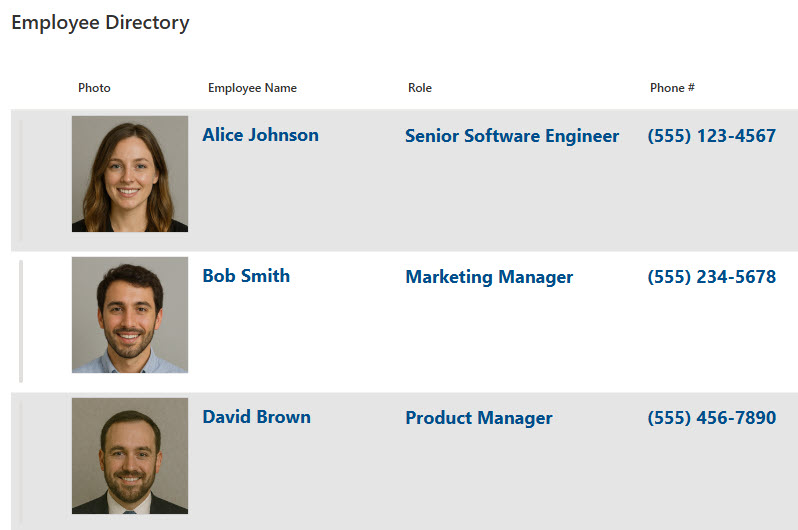
List Web Part

Benefits
- Data without the detour: trackers, contacts, and announcements appear right on the page, so people work with list items without opening the list itself.
- Interactive for viewers: anyone can sort, filter, and group items on the page, and those changes apply to their session only.
- Add items in place: users with permission can click + New and create or edit items without leaving the page.
- Curated through views: a filtered view on the list controls exactly which columns and items appear.
- Clean intranet look: hiding the command bar and the See all button turns a working list into a polished page element.
- Connects to other web parts: dynamic filtering and the List Properties web part turn one page into a master-detail experience.
Settings
- Title: type your own heading over the default list name.
- List: choose which list on the site to display – custom lists, announcements, contacts, and issue tracking lists all work.
- View: select any existing view from the underlying list to control its columns, filters, and grouping; create the view on the list first, then pick it here.
- Size: control how tall the web part is on the page.
- Hide command bar: removes + New and the other toolbar actions for a cleaner, read-only look.
- Hide the See all button: keeps viewers on the page instead of jumping to the full list.
- Dynamic filtering: connect the list to another list or library on the same page.
- Folders and formatting: show only the items inside one folder for a targeted slice, and conditional formatting, nested groups, and attention view set up on the list render right on the page.
Limits and Nuances
- The web part only shows lists from the site the page lives on: to surface a list from another site, use the Highlighted Content web part or link to it instead.
- There is no item-count setting: to limit what appears, create a filtered view on the list and select that view in the web part.
- Sorting, filtering, and grouping done by a viewer applies to their session only: the underlying list and its views are not changed.
- Dynamic filtering supports a single filter connection: you cannot chain multiple filters onto one List web part.
- Hiding the command bar also hides + New: keep the bar visible on pages where people are expected to add items.
- The List web part can feed the List Properties web part: select an item in the list and its details appear in the connected web part.
List Web Part vs. the Alternatives
- List vs. Document Library web part: List is for structured data in rows and columns; Document Library is for files. If people need to open and manage documents, use Document Library.
- List vs. Highlighted Content: List shows one list from the same site with full interaction; Highlighted Content rolls up content from many sites automatically but is read-only.
- List vs. List Properties: List displays the whole list; List Properties shows the fields of a single selected item. Connect the two for a master-detail page.
- List vs. Quick Links: if people only need to get to the list, a link is lighter than embedding the entire list on the page.
Common Questions About the List Web Part
What is the List web part in SharePoint?
The List web part displays a SharePoint list on a modern page so people can view and interact with structured data without opening the list itself. You choose the list, an optional view or folder, and a size, and viewers can sort, filter, and group items directly on the page. It is the standard out-of-the-box way to surface trackers, contacts, and announcements on a page.
Can the List web part show a list from another site?
No. The web part only displays lists that live on the same site as the page. If you need to surface content from other sites, use the Highlighted Content web part, which can roll up items across the site collection, a hub, or selected sites, or simply link to the other list with a Quick Links or Link web part.
How do I control which items and columns appear in the List web part?
Create a view on the underlying list first – choose the columns, filters, sorting, and grouping there – then select that view in the web part. There is no item-count setting in the web part itself, so a filtered view is also the way to limit how many items show on the page. Formatted columns and nested groups carry over automatically.
Can users add or edit items directly in the List web part?
Yes. Users with permission can click + New at the top of the web part to add items, and they can open and edit existing items without leaving the page. Permissions come from the underlying list, so read-only users simply see the data. If you hide the command bar for a cleaner look, the + New button disappears with it.
How do I make the List web part look clean on an intranet page?
Hide the command bar and the See all button in the web part settings, and select a view that shows only the columns people actually need. That turns a working list into a polished page element. The intranet designs on LookBook 365 use this exact technique with a custom theme – everything out-of-the-box, which is the only way Greg Zelfond builds.
What is dynamic filtering in the List web part?
Dynamic filtering connects the List web part to another list or library on the same page, so its contents automatically adjust based on what the viewer selects. For example, selecting a department in one list can filter a tasks list beside it. It supports one filter connection at a time, so design the page around a single key column. List Web Part embedded on a SharePoint Page List Web Part Settings