YouTube Web Part

Benefits
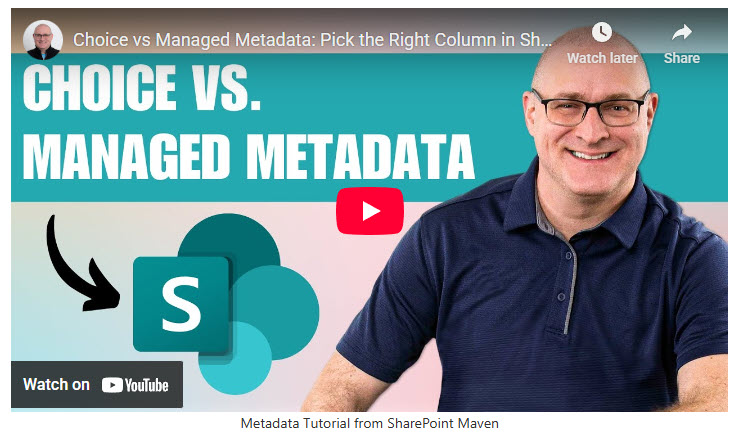
- Video in place: the player runs right on the intranet page, so visitors watch without leaving for youtube.com.
- Fastest path to video: paste the link or embed code and the player appears, with no upload or hosting to manage.
- Lands on the right moment: the start time setting drops viewers directly into the relevant segment of a long recording.
- Respects visitor privacy: privacy-enhanced mode stops YouTube from collecting anything about visitors who never press play.
- Clean, designed look: hiding the player controls lets the video sit quietly inside a polished page layout.
Settings
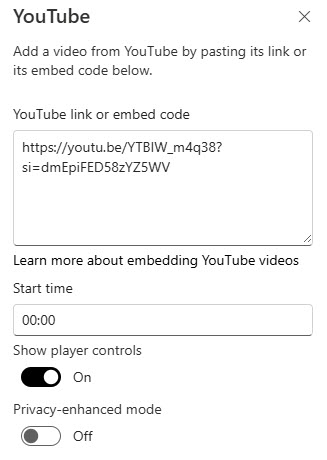
- Video source: paste the YouTube video link or the embed code from YouTube’s Share menu; either one renders the same player.
- Start time: begin playback at any point other than the beginning, useful for skipping a long intro or jumping to the relevant segment of a long recording.
- Show player controls: turn the playback controls on or off; hide them when you want the video to sit quietly inside a designed page.
- Privacy-enhanced mode: when on, YouTube does not store information about visitors to the page unless they actually play the video.
- Playback options: the player supports autoplay, captions, and the standard YouTube controls.
- A single YouTube video: one video per web part, added from the link or the embed code.
- A player sized by the layout: the video adapts responsively to the page section and column it sits in, which is also how you control its size.
Limits and Nuances
- One video per web part: to show several videos, add a separate YouTube web part for each one, or link out to the channel.
- The web part plays content hosted on YouTube: it does not host video itself. Internal-only videos belong in SharePoint or Stream, not on YouTube.
- The old Show suggested videos at the end option is gone: YouTube retired it, so the web part no longer offers that switch.
- If the YouTube web part is missing from the toolbox, your administrator may have hidden it: Microsoft lets admins disable it tenant-wide.
- Not available everywhere: the web part is not supported in U.S. Government GCC High and DoD environments or in Office 365 operated by 21Vianet.
YouTube vs. the Alternatives
- YouTube vs. Embed: the Embed web part accepts embed code from many sites, subject to the domains your admin allows. The YouTube web part is purpose-built: paste the link and you are done, with start time and privacy options built in.
- YouTube vs. File Viewer: File Viewer plays video files stored in SharePoint or OneDrive, where your permissions apply. Use it for internal content; use the YouTube web part for content that is meant to be public.
- YouTube vs. Stream: Stream videos live inside Microsoft 365 and respect your security model; YouTube content is on the public internet. Sensitive training goes to Stream, public-facing video goes to YouTube.
- YouTube vs. a plain hyperlink: a link sends people away to youtube.com; the web part plays the video in place, keeping visitors on your intranet page.
Common Questions About the YouTube Web Part
What do I paste into the YouTube web part – the link or the embed code?
Either one works. Copy the video URL from the browser address bar or grab the embed code from YouTube’s Share menu, then paste it into the web part. The web part recognizes both formats and renders the same player either way, so use whichever is quicker to grab.
Can I make the video start partway through?
Yes. The web part includes a Start time setting, so playback can begin at any point you choose instead of the beginning. This is one of the most useful and least known options in the web part – for a long all-hands recording or training session, you can land viewers directly on the segment that matters to them.
What does privacy-enhanced mode do?
When privacy-enhanced mode is on, YouTube does not store information about the people viewing your page unless they actually play the video. Simply loading the SharePoint page collects nothing. For internal intranet pages, it is sensible to leave this switched on – employees should not be tracked by an external service just for opening a company page.
Why can’t I find the YouTube web part in the toolbox?
Two common reasons. First, your administrator may have hidden it – Microsoft gives admins a way to disable the web part across the whole tenant. Second, it is not supported in U.S. Government GCC High and DoD environments or in Office 365 operated by 21Vianet.
Can the YouTube web part show a playlist or several videos?
The web part is built around a single video. If a page needs several, the practical pattern is one YouTube web part per video, arranged in page columns – or a single featured video plus a link to the full channel or playlist on YouTube. For a true video library experience, internal videos stored in SharePoint are the better foundation.
Should our training videos go on YouTube or in SharePoint?
It depends on who may see them. YouTube is for public content – recruiting videos, product demos, public webinars. Anything internal belongs in Microsoft 365, where permissions protect it. The designs on LookBook 365 use this exact out-of-the-box web part for public video content, with a custom theme – the only way Greg Zelfond builds. YouTube Web Part Example YouTube Web Part Settings