Embed Web Part

Benefits
- Live content on the page: videos, maps, forms, and dashboards work right on the page instead of sending people to another site.
- Copy-paste simple: adding content is as easy as pasting a link or embed code into a single box.
- Broad service support: YouTube, Vimeo, Bing Maps, Microsoft Forms, and most major services provide embeddable content.
- Dynamic possibilities: connect it to a List web part and the embedded content changes with the item a viewer selects.
- Secure by default: HTTPS-only embedding and an admin-controlled list of allowed domains keep the page safe.
- Responsive results: embedded content adapts to the page layout and displays well on most devices.
Settings
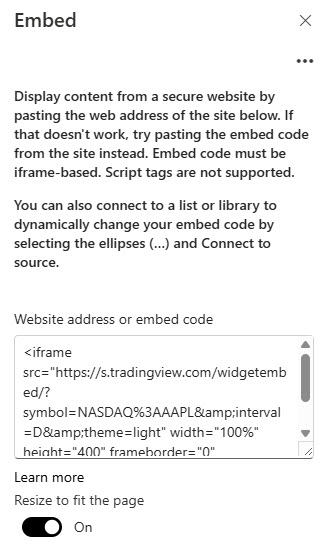
- Website address or embed code: a single box that accepts either a URL or an iframe snippet.
- No width or height controls: size the web part with the page’s section and column layout, or set the width and height attributes inside the iframe code itself.
- Player options come from the source: controls, start time, and captions are set in the embed code on the source site before you copy it.
- Website address: paste the share link from sites that support link-based embedding, such as YouTube or Bing Maps.
- Embed code: paste the iframe code from the site’s Embed or </> button; Vimeo, Microsoft Forms, and most major services provide one.
- Dynamic embed: connect the web part to a List web part and use variables in the link, so the embedded content changes with the item a viewer selects.
Limits and Nuances
- Embed code must be iframe-based: code that uses script tags is not supported.
- HTTPS only: content from addresses starting with http:// will not embed.
- The destination site must allow embedding: some websites block iframes even over HTTPS; if it fails, check with the source site.
- Allowed domains are admin-controlled: site collection admins manage the list through the HTML Field Security setting, and the error ‘Embedding content from this website isn’t allowed’ means the domain is not on it.
- SharePoint ships with a default list of allowed domains: admins can add to it, remove from it, allow every domain (Microsoft recommends against this), or block iframes entirely.
- Embedding does not grant access: viewers still need permission to the source content, so an embedded report or form may ask them to sign in.
- Link-based embedding only works for sites that offer that service: if a plain URL fails, grab the embed code instead.
Embed Web Part vs. the Alternatives
- Embed vs. File and Media: File and Media displays files stored in SharePoint or OneDrive; Embed displays content living on another website.
- Embed vs. YouTube web part: the dedicated YouTube web part is the quicker path for a single YouTube video; Embed handles every other embeddable service.
- Embed vs. Link: Link shows a preview card and sends viewers away; Embed shows the working content right on the page.
- Embed vs. Stream: the Stream web part is purpose-built for videos stored in Microsoft 365; reach for Embed when the video lives outside your tenant.
Common Questions About the Embed Web Part
What is the Embed web part used for?
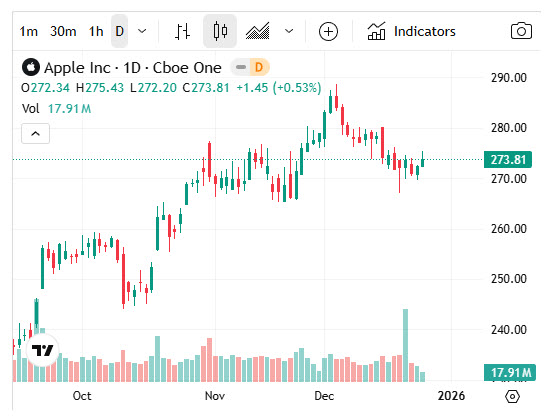
The Embed web part displays content from another website directly on a SharePoint page – videos, maps, forms, dashboards, and other interactive content. You either paste a web address from a site that supports link embedding or paste the iframe embed code the site provides. The content stays live and interactive, so viewers use it without leaving the page.
Why do I see ‘Embedding content from this website isn’t allowed’?
Site collection administrators control which external domains can be embedded, through the HTML Field Security setting. That message means the domain you pasted is not on the approved list. Ask your administrator to add the domain – SharePoint comes with a default list of allowed websites, and admins can extend it, trim it, or lock embedding down entirely.
Why does my embed code not work?
Three common causes. The code must be iframe-based – anything built on script tags is not supported. The source must use HTTPS – unsecured addresses will not embed. And the destination site must actually permit embedding – some websites block iframes no matter what. If a plain web address fails, try the site’s official embed code instead, or the other way around.
Can I embed forms, videos, and dashboards on a SharePoint page?
Yes – Microsoft Forms surveys, videos from services like YouTube and Vimeo, and maps are the classic examples. Anything that provides an iframe embed code over HTTPS from an allowed domain will work. Keep in mind that embedding does not grant access: viewers still need permission to the source content, so a secured dashboard may prompt them to sign in.
How do I control the size of the Embed web part?
The web part has no width or height settings – just the single address or embed code box. Size comes from the page layout: place the web part in the section and column arrangement that gives it the right footprint, or edit the width and height attributes directly inside the iframe code before pasting it in. The result is responsive on most devices.
Should I use the Embed web part or File and Media?
Use File and Media for files that live in SharePoint or OneDrive – documents, PowerPoint decks, and videos stored in Microsoft 365. Use Embed for content that lives on another website. The designs on LookBook 365 use the Embed web part this way – sparingly and deliberately, in keeping with how Greg Zelfond builds everything out-of-the-box. Embed Web Part Example Embed Web Part Settings