Video Web Part

Benefits
- Plays video where people already are: training, announcements, and demos run directly on the SharePoint page instead of sending users to another app.
- Four flexible sources: show a single video, a whole folder, every video on a site, or a Stream playlist from one web part.
- Theater and Grid layouts: a featured playlist experience or a browsable thumbnail library from the same web part.
- Permissions respected automatically: results are security trimmed, so each viewer only sees videos they can open.
- Captions carry over: captions and transcripts added to a video are available during on-page playback.
- No file moves required: videos stay in SharePoint and OneDrive, where they are already stored and governed.
Settings
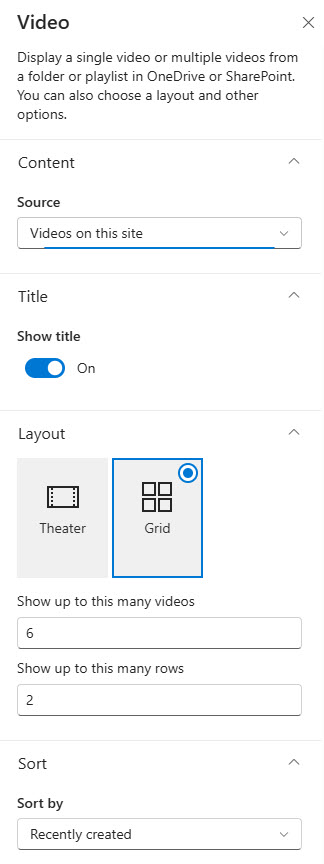
- Source: Videos on this site, Folder, Single video, or Playlist.
- Source location: Folder and Single video sources can pull from the current site, another site in the organization, or OneDrive.
- Layout: Theater or Grid, with controls for the maximum number of videos and the number of rows to display.
- Sort: Recently created, Recently edited, or Author.
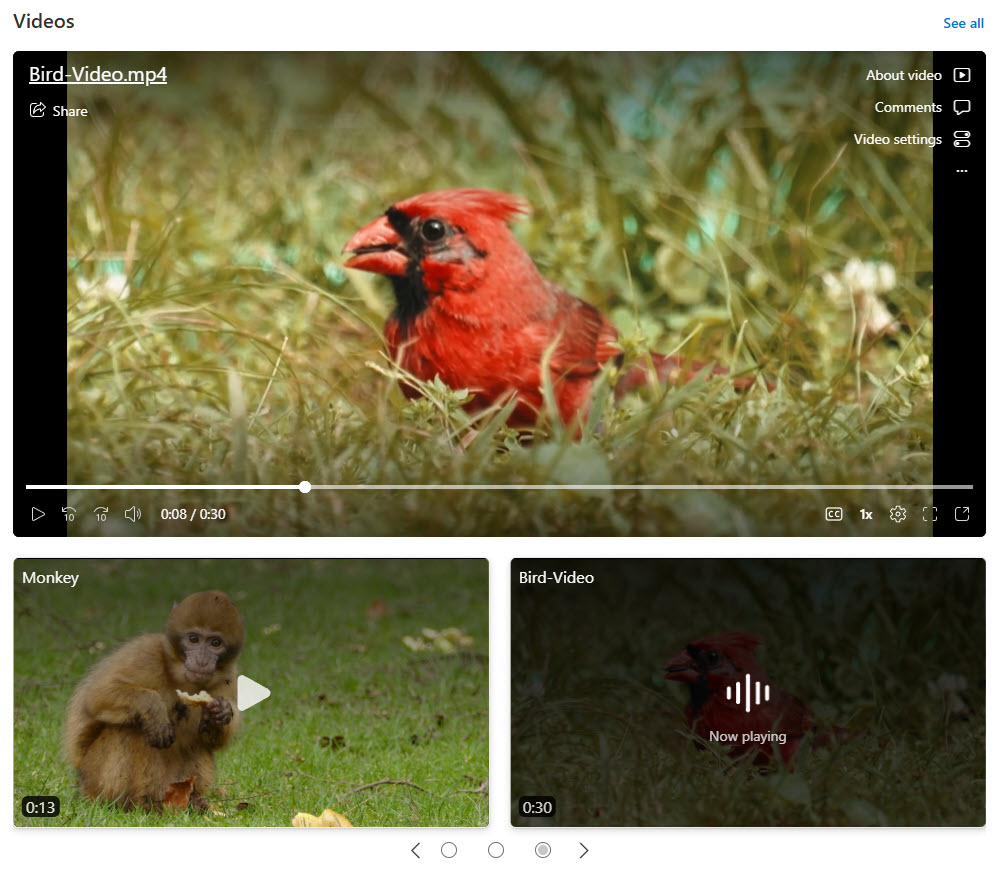
- Theater: best for a featured playlist experience; the current video plays large at the top with the remaining videos listed below it.
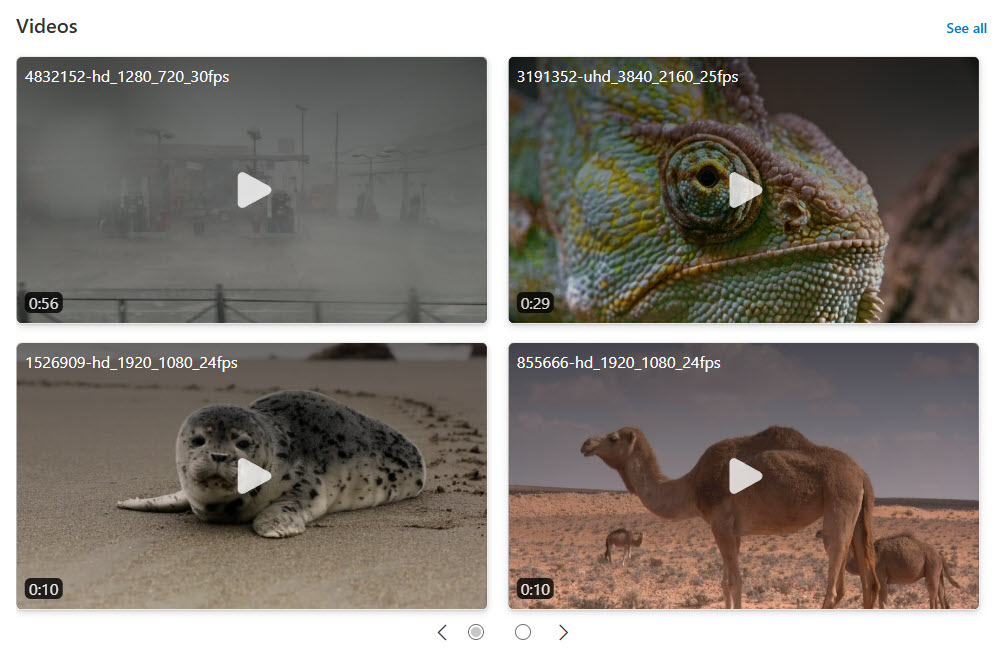
- Grid: best for a browsable video library; videos display as thumbnails in rows, and clicking one plays it in a pop-up window.
- Layouts only apply when the source returns multiple videos: the Single video source always shows one player.
- Responsive by design: both layouts work across modern SharePoint pages and adapt to different section widths and screens.
Limits and Nuances
- Older articles and screenshots call this the Stream web part: it is the same modern web part that plays videos stored in Microsoft 365.
- It only plays videos stored in Microsoft 365 (SharePoint or OneDrive): for YouTube or Vimeo, use the Embed web part instead.
- Results are security trimmed: users only see videos they have permission to open, so the same page can look different to different people.
- Pointing the source at another site is risky: if your audience lacks access to that site, the web part appears empty to them.
- Videos on this site relies on search: a freshly uploaded video can take a few minutes to appear in the web part.
- Audience targeting is not available on this web part: visibility is controlled by permissions on the video files themselves.
- The Playlist source displays an existing Stream playlist: create and manage the playlist in Stream first; the web part only displays it.
- Captions and transcripts added to a video carry into on-page playback: viewers can turn them on from the player controls.
Video vs. the Alternatives
- Video vs. File and Media: File and Media embeds one file of almost any type; the Video web part is purpose-built for video with multi-video sources, layouts, and sorting. For anything beyond a single quick video, use Video.
- Video vs. Embed: Embed displays external content such as YouTube or Vimeo via embed code; the Video web part only plays videos stored in Microsoft 365.
- Video vs. Highlighted content: Highlighted content rolls up videos dynamically across sites using filters; the Video web part offers a richer playback experience for a known folder, site, or playlist.
- Video vs. Hero: Hero promotes a handful of featured videos with large imagery; the Video web part is the right choice for displaying whole collections with sorting and layouts.
Common Questions About the Video Web Part
Where do videos need to be stored for the Video web part to play them?
Videos must live in Microsoft 365 – a SharePoint document library or OneDrive. The web part can pull a single video, every video in a folder, all videos on the current site, or a Stream playlist. Externally hosted videos, such as YouTube or Vimeo, are not supported here – use the Embed web part for those instead.
What is the difference between the Theater and Grid layouts?
Theater works like a featured playlist – the selected video plays large at the top of the web part with the remaining videos listed beneath it. Grid shows videos as thumbnails in rows, and clicking one plays it in a pop-up. Both layouts let you control how many videos and rows display, so Theater suits a featured experience and Grid suits a browsable library.
Is the Video web part the same as the Stream web part?
Yes. The modern web part that plays videos from SharePoint and OneDrive appears in many older articles and screenshots under the Stream name. Today, videos are stored as regular files in SharePoint and OneDrive, and this web part is the standard way to play them on a page.
Why do some users see different videos than I do?
The web part is security trimmed – it only shows each visitor the videos they have permission to open. If the source points to a folder or site your audience cannot access, the web part appears empty to them. Before publishing, confirm the underlying library is shared with everyone who will visit the page, not just the page authors.
Can I show a Stream playlist on a SharePoint page?
Yes. The Video web part includes a Playlist source option that displays an existing Stream playlist with on-page playback. Create and manage the playlist in the Stream app first – the web part displays the playlist but does not edit it. This is a clean way to curate a specific sequence of videos, such as an onboarding series, without moving files between folders.
What is the best way to use the Video web part on an intranet?
It shines on training hubs, onboarding pages, and leadership communication sites – anywhere people should watch without leaving the intranet. Keep each web part pointed at a dedicated folder so the collection stays curated. The intranet designs on LookBook 365 use this exact out-of-the-box web part with a custom theme – the only way Greg Zelfond builds SharePoint. Video Web Part Theater Layout Video Web Part Grid Layout Video Web Part Settings