Image Web Part

Benefits
- Visual polish anywhere on a page: a photo, diagram, banner graphic, or piece of branding placed exactly where it helps
- Multiple image sources: recent images, site libraries, OneDrive, uploads, Microsoft stock images, web search, and the approved company asset library
- Editing right on the page: crop to preset ratios, resize, caption, and overlay text without leaving SharePoint
- Clickable images: link the picture to a page or document so visuals double as navigation
- Accessibility built in: alternative text is generated automatically and saved with the image
- Quick to configure: one image, a few options, and a result that scales across screen sizes
Settings
Web part level:
- Change image: swap in a different image from any source
- Image sources: Recent images, Stock images from Microsoft, a Bing Web search of Creative Commons images (you check the license), Your organization’s approved asset library, OneDrive, any library on the Site, an Upload from your computer, or From a link to an image already in SharePoint or OneDrive
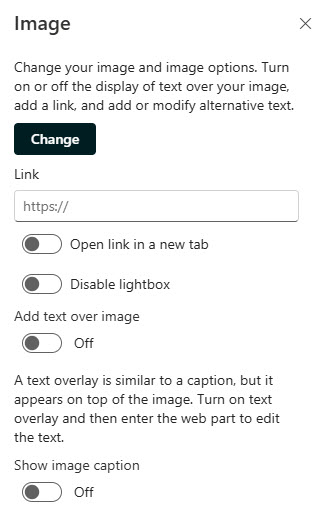
- Link: make the image clickable, sending people to a page or document
- Text over image and caption: overlay a short line of text on the picture, and type a caption directly underneath it
- Alternative text: auto-generated for screen readers; review and edit it
Image editing tools:
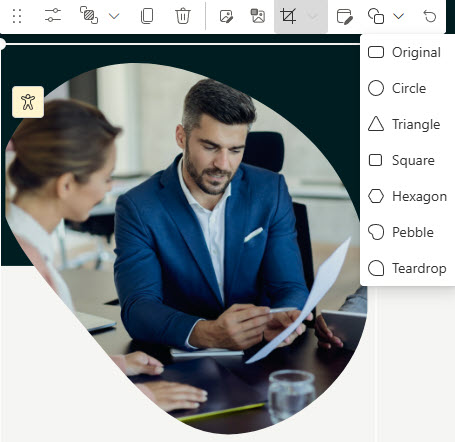
- Crop and resize: crop to a preset aspect ratio (16:9, 3:2, 4:3, or 1:1) with a rotate option to flip orientation, crop to a free ratio by dragging the edges, or resize by dragging the corner handles
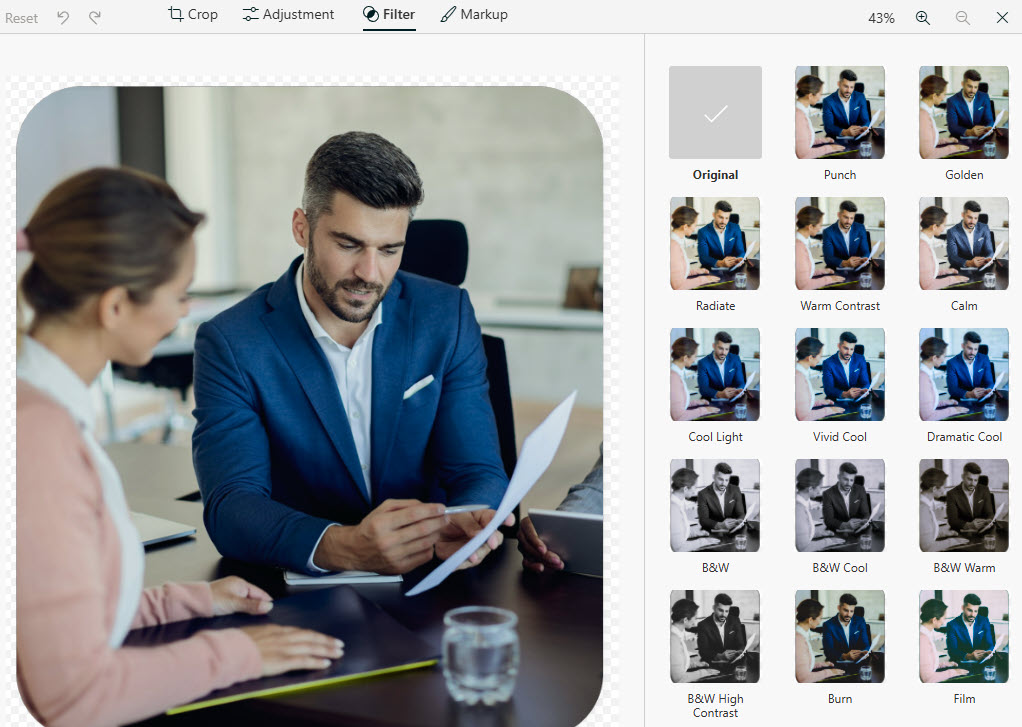
- Filters, shapes, and history: additional filter and shape options alongside crop and resize, with Undo to reverse the last action and Reset to return to the last saved state
Limits and Nuances
- One image per web part: for a set of pictures, use the Image Gallery web part instead
- Picking an image from a SharePoint library does not guarantee viewers can see it: accept the prompt to copy the image into the Site Assets library so every page reader gets the picture
- Alternative text is generated automatically: an alert appears when SharePoint is unsure about its description; always review alt text before publishing
- Replace an image by drag or paste: drag the new image over the existing one or paste it from the clipboard
- From a link only accepts images stored in your SharePoint or OneDrive: you cannot hotlink pictures from other websites
- No audience targeting on the Image web part: everyone who can view the page sees the same image
Image vs. the Alternatives
- Image vs. Image Gallery: one picture versus a collection; the Gallery adds Bricks, Grid, and Carousel layouts for multiple images.
- Image vs. Hero: Hero turns images into bold clickable banners with headlines and calls to action; Image is content, not navigation.
- Image vs. Text with a pasted picture: inline images sit inside paragraphs with fewer controls; the Image web part adds cropping, overlay text, captions, and links.
- Image vs. File and Media: File and Media previews documents and plays video; Image is purpose-built for pictures.
Common Questions About the Image Web Part
What is the Image web part in SharePoint?
It is the simplest way to put a single picture on a modern SharePoint page – a photo, a diagram, a banner graphic, or a piece of branding. You can crop it, resize it, caption it, overlay text on it, and link it to another page. The designs on LookBook 365 use it constantly for visual polish – always out-of-the-box, the only way Greg Zelfond builds.
Where can images in the Image web part come from?
Seven places: recent images you have used, Microsoft stock images, a Bing web search of Creative Commons images, your organization’s approved asset library, OneDrive, any library on the site, or an upload from your computer. You can also paste a link to an image already stored in SharePoint or OneDrive. For company-wide branding, the organization asset library is the cleanest option.
Can I crop and resize an image right on the page?
Yes. The image toolbar offers preset aspect ratio crops – 16:9, 3:2, 4:3, and 1:1 – plus a free crop for any shape, and you can rotate the crop box to switch between landscape and portrait. Resizing is done by dragging corner handles. Undo reverses the last action, while Reset returns the image to its state at the last save.
Can I make the image clickable?
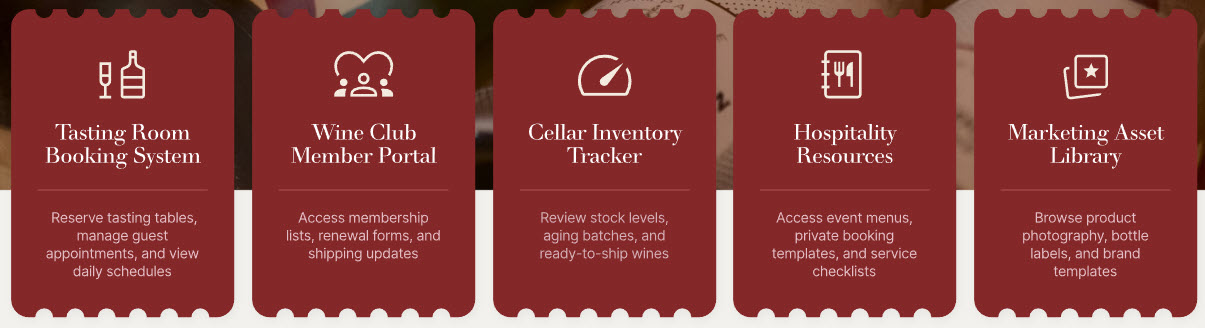
Yes. Add a link to the image, and clicking it takes people to that page or document. You can also overlay text on the image and type a caption underneath it. If you find yourself building a whole row of clickable images with titles, that is usually a sign the Quick Links or Hero web part is the better tool.
Why can some people not see the image on my page?
Almost always permissions. Picking an image from a SharePoint library does not automatically give page viewers the right to see that file – if the image lives in a restricted library, some readers get a broken image. SharePoint prompts page authors to copy the image into the Site Assets library for exactly this reason – accept the prompt and everyone who can see the page can see the image.
Does the Image web part support alt text for accessibility?
Yes, and it even writes a first draft for you. When you insert an image, alternative text for screen readers is generated automatically and saved with the image. When SharePoint is not confident about its description, an alert appears on the image inviting you to review it. Make checking and refining the alt text part of your publishing routine – automatic descriptions are a starting point, not a final answer. Image Web Part Example Multiple Image Web Parts Image Web Part Configuration Settings Image Web Part Advanced Settings Image Web Part Advanced Settings