Image Gallery Web Part

Benefits
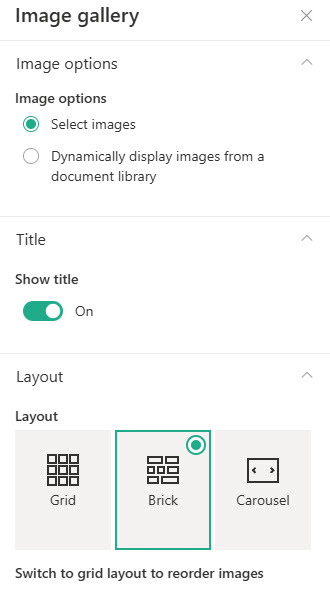
- Tells visual stories: event photos, office celebrations, team highlights, and product shots presented as a browsable collection
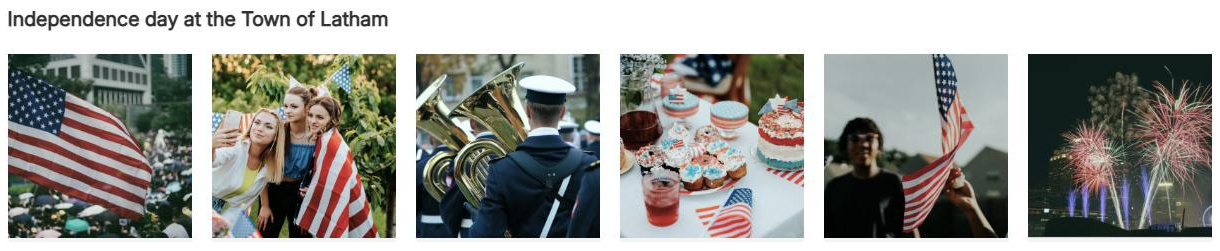
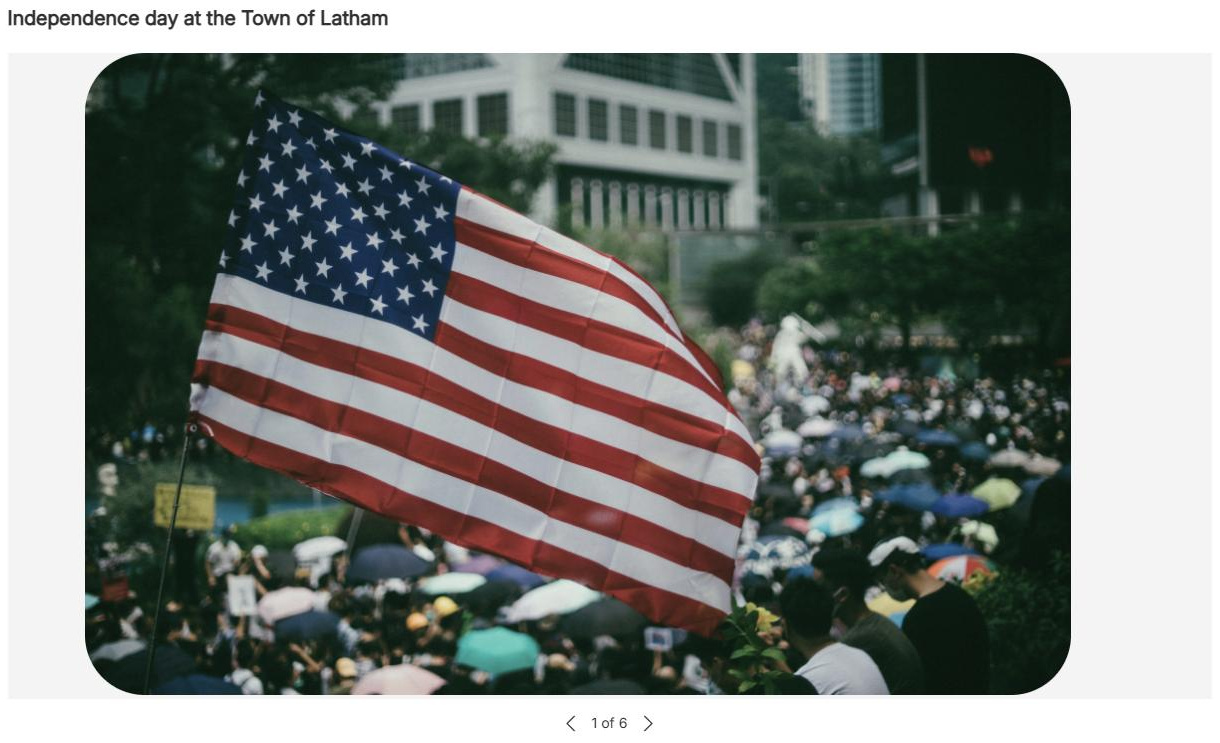
- Three distinct layouts: Grid for uniform tiles, Brick for mixed photo sizes, Carousel for one image at a time
- Effortless updates: drag pictures straight onto the web part, or pull them dynamically from a document library
- Self-maintaining albums: dynamic mode refreshes the gallery as the library changes, with no page editing required
- Accessible by design: every image carries its own title, description, and alternative text
- Fits many scenarios: events, marketing, engagement pages, and any place a wall of photos beats a wall of words
Settings
Web part level:
- Title: typed directly above the gallery on the page
- Layout: Grid, Brick, or Carousel
- Grid: uniform tiles with a choice of aspect ratio (1:1, 16:9, or 4:3); the only layout where you can drag and drop to reorder images (called Tiles in Microsoft’s documentation)
- Brick: images of various sizes automatically layered like a brick wall; great for mixed portrait and landscape photos
- Carousel: one image at a time with arrows on either side; optional automatic cycling and cycle speed require a Content Delivery Network enabled on the library and have been rolling out gradually
- Add images: drag pictures straight onto the web part, or pick from Recent, Stock images, Web search, Your organization, Site, an upload from your computer, or a link
- Dynamically display images from a document library: the gallery refreshes as the library changes
Per image:
- Title, Description, and Alternative text: set individually on each image
Limits and Nuances
- Gallery images are not clickable: each image gets a title, description, and alternative text, but no hyperlink; for clickable pictures use Quick Links, Hero, or the Image web part
- Reordering only works in the Grid layout: drag and drop the tiles; images in the Carousel layout cannot be reordered
- The Brick layout sizes images for you: you cannot control which photo renders large and which renders small
- Dynamic mode trades control for convenience: when pulling from a document library you cannot hand-pick or reorder individual images; curate manually when order matters
- Web search images come from Bing under Creative Commons: checking the license before publishing is your responsibility
- No audience targeting on the Image Gallery web part: everyone who can view the page sees the same pictures
Image Gallery vs. the Alternatives
- Image Gallery vs. Image: the Gallery handles collections with three layouts; Image is for one picture with cropping, overlay text, and a link.
- Image Gallery vs. Hero: Hero turns up to five images into clickable destinations with headlines; the Gallery presents many photos for browsing, not navigation.
- Image Gallery vs. Document Library: the Document Library web part shows files with names and metadata; the Gallery shows the pictures themselves.
- Image Gallery vs. File and Media: File and Media embeds a single file or video; the Gallery is purpose-built for sets of pictures.
Common Questions About the Image Gallery Web Part
What is the Image Gallery web part in SharePoint?
It is the out-of-the-box way to showcase a collection of pictures on a SharePoint page – event photos, office celebrations, team highlights, product shots. You add images by dragging them onto the web part or picking them from your site, your computer, stock images, or a web search, then choose one of three layouts. It is a favorite in the communications and engagement designs on LookBook 365.
What is the difference between the Grid, Brick, and Carousel layouts?
Grid shows uniform tiles in your choice of aspect ratio – 1:1, 16:9, or 4:3 – and is the only layout where you can drag images to reorder them. Brick automatically layers images of different sizes like a brick wall, which flatters mixed portrait and landscape photos. Carousel shows one image at a time with arrows on either side, so viewers click through the collection.
Can images in the Image Gallery link to other pages?
No. Each image can carry a title, a description, and alternative text, but not a hyperlink – the gallery is for viewing, not navigating. If you need clickable pictures, use the Quick Links web part (which pairs images with links), the Hero web part for big clickable banners, or individual Image web parts, each of which supports its own link.
Can the gallery pull images automatically from a document library?
Yes – the web part includes an option to dynamically display images from a document library, so new photos added to the library appear without editing the page. The trade-off is control: in dynamic mode you do not hand-pick or reorder individual images. Use dynamic mode for ever-growing albums, and manual selection when the order and curation of pictures matter.
How do I reorder images in the gallery?
Switch to the Grid layout and simply drag and drop the tiles into the order you want – Grid is the only layout that supports reordering. The Carousel layout cannot be reordered at all, and the Brick layout decides image placement and sizing automatically. If a specific sequence matters for your story, build the gallery in Grid first, then check how it reads.
Can the carousel rotate through images automatically?
Automatic cycling – including a speed control – exists for the Carousel layout, but it has been rolling out gradually and requires a Content Delivery Network to be enabled on the library holding the images. If you do not see the option, that is why. Without it, viewers move through the carousel themselves using the arrows on either side of the image. Image Gallery Grid Layout Image Gallery Brick Layout Image Gallery Settings