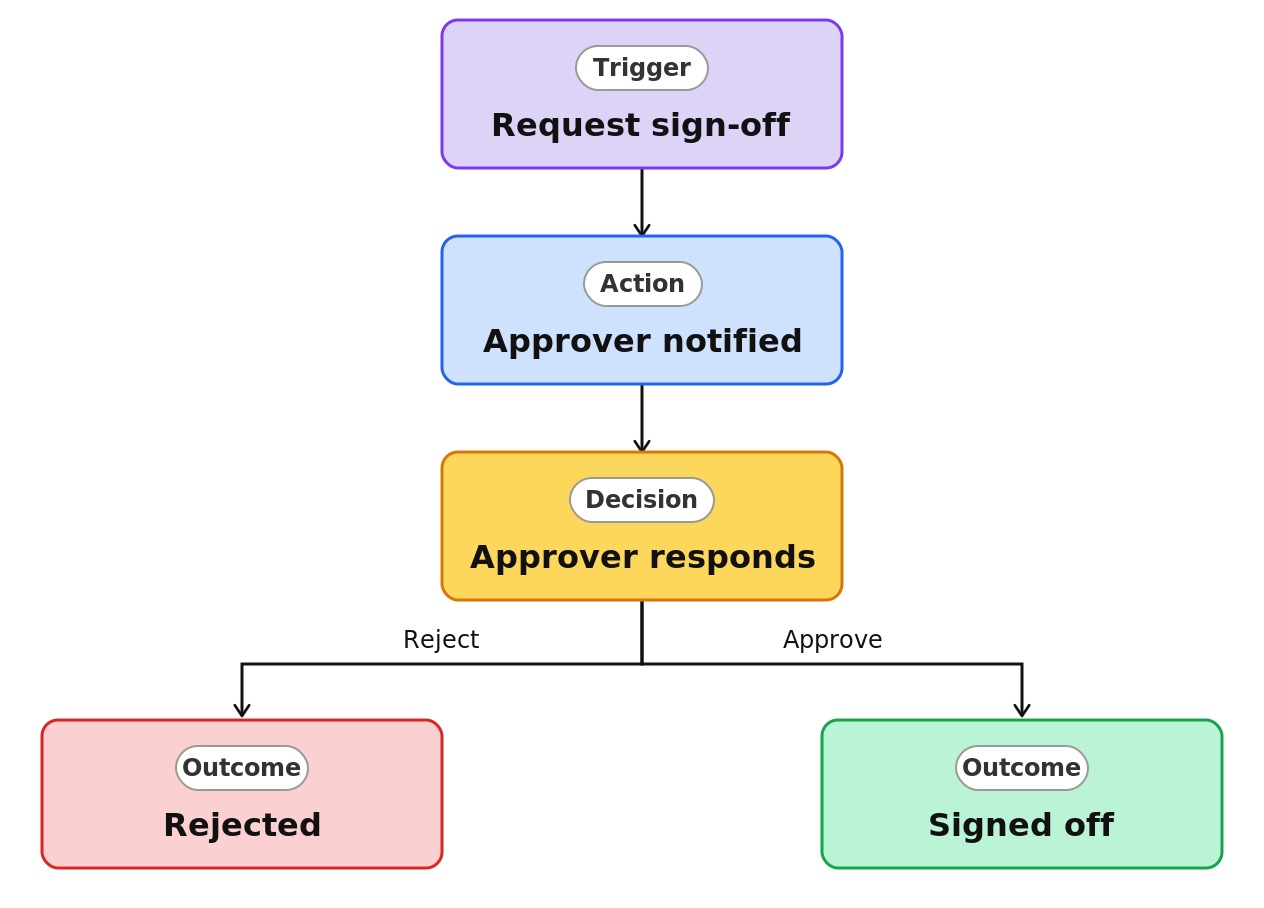
On-Demand Sign-Off (Approval)


Overview
- Sends a single document for a one-time approval
- Launched right from the document library toolbar
- Runs on a ready-made Power Automate approval, nothing to build
- Notifies the approver by email and in the Teams Approvals app
- Records the response so you know who signed off and when
- Best for quick, one-off sign-offs rather than an always-on process
Common Use Cases
- Getting a quick sign-off on a single proposal
- Asking a manager to approve one document
- One-time review of a contract before sending
- Sign-off on a report before it is shared
- A single approval that does not need a permanent workflow
- Ad hoc approvals outside a formal process
Common Questions About On-Demand Document Sign-Off
If LookBook 365 is code-free and out-of-the-box, why does it include this workflow example?
This runs on Power Automate, which is included with Microsoft 365, and the flow is set up from a ready-made template rather than written from scratch. It stays inside your tenant, needs no custom development, and I can tailor it to your process – automating a real task with tools you already own.
How is this different from the always-on Approvals workflow?
On-demand sign-off is a one-time request on a single document, while the always-on Approvals workflow turns on an ongoing approval process for a whole library or list. Use sign-off for ad hoc, the always-on Approvals workflow for always-on.
Do I need to build anything?
No. It uses a ready-made approval, launched from the toolbar. If you want conditions, multiple stages, or custom emails, that is a tailored flow I can build.
Who can request sign-off?
Anyone with access to the document who can start the request from the toolbar.
Where does the approver respond?
By email or in the Microsoft Teams Approvals app, the same familiar experience as other approvals.
Can you set this up and train my team?
Absolutely. I design the list or library, set up the automation, and show your team how to manage it. When your process grows beyond this, I can extend it into a full Power Automate flow that fits how you actually work.